What Is a Video Speed Controller and How Does It Work
Most browsers offer a basic speed setting, but a dedicated Video Speed Controller puts fine‑grained, real‑time control directly in your toolbar — without uploading, recording, or analysing a single frame. Every adjustment happens locally inside Chrome, keeping your viewing habits completely private.
- Why the built‑in Chrome speed menu feels too limited for serious learners and binge‑watchers
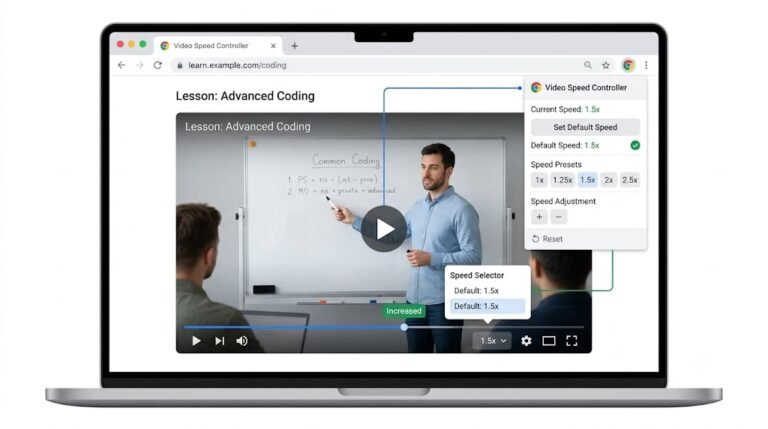
- How the Video Speed Controller extension gives you a slider, reset button, and live speed readout
- Exactly what happens inside the browser when you change playback speed — no uploads, no accounts, 100% local processing
- How per‑tab speed control and a lightweight Manifest V3 design keep your browser fast and your privacy intact
Why Would You Need a Video Speed Controller in Chrome?
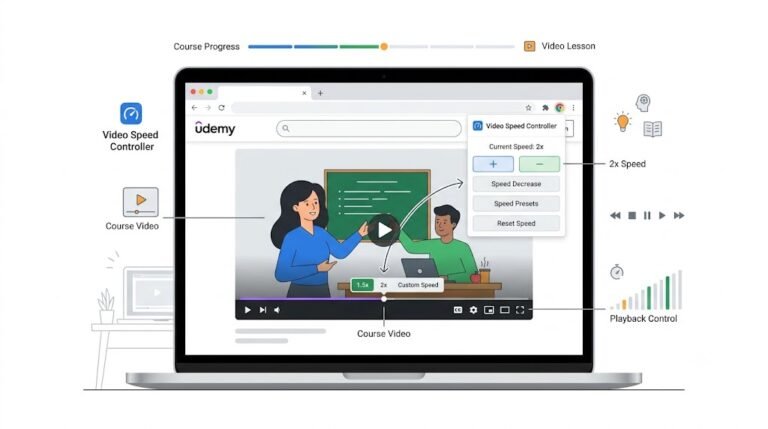
The default playback speed controls in modern browsers are buried inside a small menu that only offers a few fixed presets — 1.25×, 1.5×, 2×. For anyone who watches educational videos, reviews recorded lectures, or simply wants to skim through a tutorial, those presets feel like a straitjacket. Video Speed Controller removes that limitation by giving you a fluid slider that covers the entire usable speed range, from extremely slow to aggressively fast, and everything in between.
Think about a dense programming course where the instructor speaks a bit too quickly. You need 0.85×, not 0.75×. Or a conference talk where the speaker’s pace feels like molasses — you want 2.3×, not 2×. With a dedicated speed controller, you get that fine‑grained precision instantly, without breaking your concentration by diving into menus.
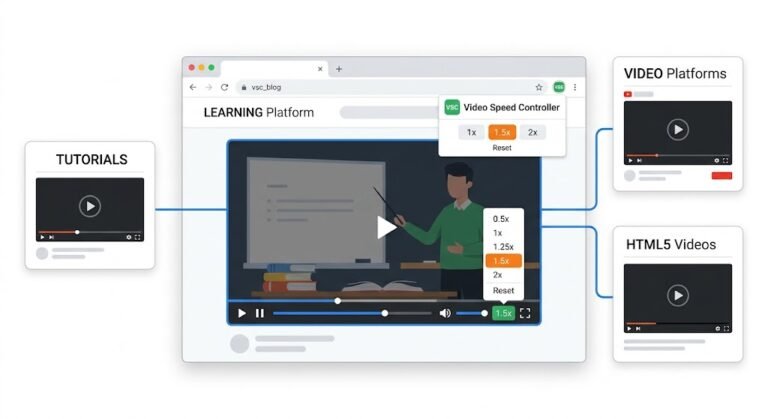
Because the extension works on standard HTML5 video elements, it’s compatible with YouTube, Vimeo, university learning platforms, webinars, and any site that uses the <video> tag. And unlike online speed‑changing services, it never touches the video file itself — your playback stays completely local.
How Does the Video Speed Controller Extension Change Playback Speed?
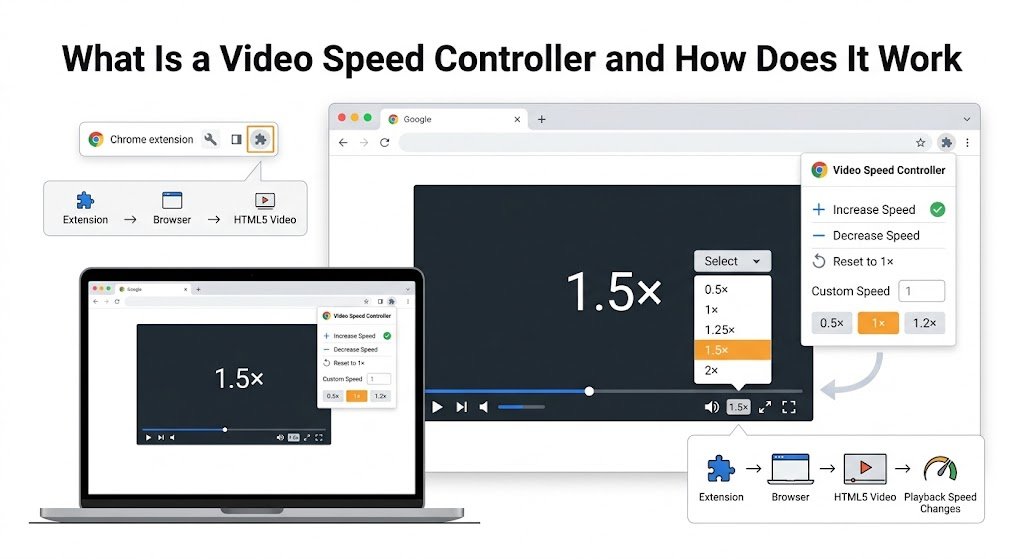
The extension works by interacting directly with the HTML5 media element’s playbackRate property inside the active Chrome tab. No video data is copied, re‑encoded, or uploaded — the only thing that changes is the real‑time playback speed parameter that Chrome’s own media engine already respects.
Here’s what happens step by step when you move the speed slider:
- Active tab detection: When you click the extension icon, the popup’s service worker checks the current tab and confirms that a playable HTML5 video exists. This uses Chrome’s
activeTabpermission, granted only at that moment. - Speed adjustment: The content script finds every
<video>element on the page and sets itsplaybackRateto the value you’ve chosen — for example, 1.7 for a moderate speed‑up. The change happens in real time, so the video continues playing smoothly while the speed shifts. - Feedback loop: The popup displays the current speed as a clear percentage or multiplier. If you ever need to return to normal, the reset button immediately sets
playbackRate = 1.0.
All this communication happens inside Chrome’s sandboxed extension environment, following Manifest V3 best practices. There’s no interference with other tabs, and the extension consumes negligible CPU — just enough to read the media element and apply the new rate.
For a deeper look at how browser video playback works under the hood, visit the Video Speed Controller home page.
What Controls Does the Video Speed Controller Popup Give You?
The popup is designed to be single‑purpose and distraction‑free. There are no nested menus, no settings pages to dig through, and no bloat. Everything you need is visible the moment you open it.
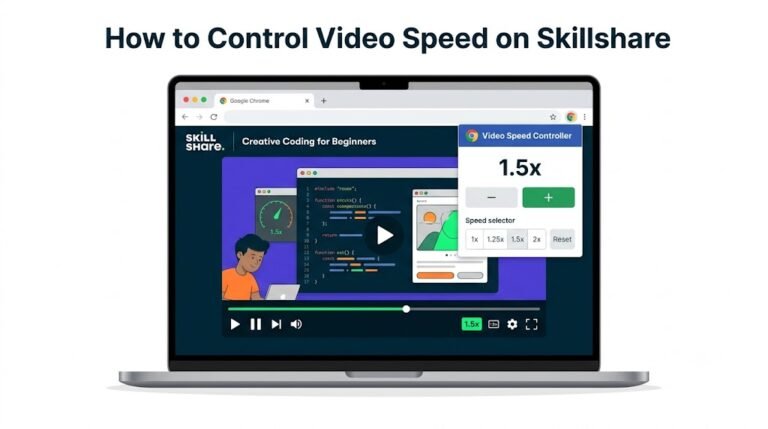
- Speed slider: A large, responsive slider that lets you drag the playback rate anywhere within a wide range. The current value updates live, so you can see exactly what 1.35× or 2.8× feels like. This replaces the frustrating preset jumps of the built‑in menu.
- Playback speed display: Next to the slider, the exact multiplier is shown in large, readable text. This eliminates guesswork and helps you build muscle memory for your preferred speeds.
- Reset button: A single click returns the tab’s video to 1.0× — the default browser speed. This is essential for avoiding a loud, fast‑paced shock when you switch from a slowed‑down lecture to a video call.
- Browser badge (optional): If enabled, a small badge can appear on the extension icon showing the current speed multiplier. It’s a quick at‑a‑glance reminder without opening the popup.
Because the popup only affects the active tab, you can have one video playing at 2× while another tab remains untouched. That per‑tab isolation is what makes the extension a true productivity tool for multitasking learners.
What Happens Inside Chrome When You Change Video Speed?
Understanding the internals helps you see why a local extension is far safer than any online speed‑changing website. The extension does not touch the video stream’s data; it simply instructs Chrome to decode and present frames at a different rate.
Key internal steps:
- Media element identification: The content script locates all
<video>nodes in the DOM. It does not scan the page text or other elements, only what’s needed to find active media. playbackRateassignment: Settingvideo.playbackRate = 1.5tells the browser’s media pipeline to alter the timing of frame presentation. The audio pitch stays natural because modern browsers perform time‑stretching automatically.- Zero data transfer: No video bytes are captured, buffered, or sent anywhere. The extension never accesses the network, and it does not use any external server — everything stays inside your device.
- Compliance with Manifest V3: The extension runs as a service worker and uses only declarative permissions. It doesn’t persistently run in the background, which keeps Chrome’s memory footprint low.
This local‑only architecture means you can speed through a corporate training video without worrying that your viewing speed is being logged, profiled, or leaked. Your playback choices are yours alone.
Practical Examples: When Does Video Speed Controller Make the Biggest Difference?
Real‑world use cases show how a fluid speed slider transforms the way you consume video content. Below are three common scenarios where the extension saves time and reduces frustration.
Example 1: The Online Student Taking a Recorded Course
- Situation: A university lecture posted on a Moodle platform runs at a slow pace. The student wants to review the material efficiently but the built‑in 1.5× jump feels too fast, while 1.25× still wastes time.
- User action: With the lecture tab open, the student clicks the Video Speed Controller icon and drags the slider to 1.4×. The playback instantly adapts, and the spoken words remain perfectly clear.
- Extension processing: The content script sets
playbackRate = 1.4on the video element. No buffering, no re‑encoding — the browser’s decoder simply adjusts the frame timing. - Result: The student finishes a 2‑hour lecture in under 90 minutes without missing any conceptual detail. When switching to a conference call tab, the reset button prevents a sudden speed‑up surprise.
Example 2: The Language Learner Dissecting Dialogue
- Situation: A learner is watching a native‑language YouTube interview and needs to catch every word. Normal speed is too fast for parsing unfamiliar accents, but 0.75× feels unnaturally slow.
- User action: They open the popup, fine‑tune the slider to 0.85×, and listen while following subtitles. The slider’s live feedback lets them experiment until the rhythm feels comfortable.
- Result: The extension retains the audio’s natural pitch (thanks to Chrome’s audio time‑stretching), so the learner hears authentic pronunciation while having enough processing time. Privacy is assured — no listening data is ever collected.
Example 3: The Developer Scanning a Technical Tutorial
- Situation: A programmer is watching a 40‑minute coding walkthrough. The explanations are helpful but the pace drags. They know the basics and just need to see the code portions.
- User action: In the Chrome tab with the tutorial, the developer sets the speed slider to 2.4×. During complex code snippets, they quickly reset to 1.0×, then slide back up.
- Result: The tutorial is skimmed in under 20 minutes. The extension’s lightweight design means zero lag even at high speed, and the laptop’s CPU stays cool because there’s no extra video processing — only a playback rate change.
Does Changing Playback Speed Affect Video Quality?
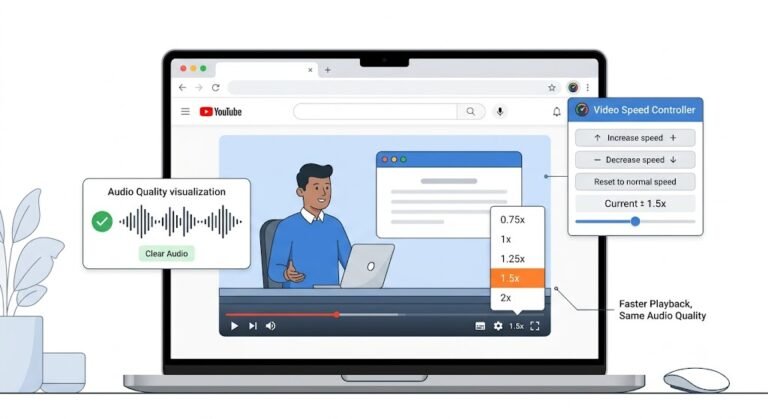
A common worry is that speeding up or slowing down a video will cause blur, stuttering, or audio distortion. With a pure playback rate adjustment — the method Video Speed Controller uses — the video frames and audio samples themselves remain unchanged. What changes is the rate at which they are presented.
What you’ll experience:
- At moderately higher speeds (1.3× – 2.0×), the motion looks smooth because modern browsers drop frames intelligently when necessary, preserving fluidity. The audio pitch stays natural, a feature built into Chrome’s Web Audio pipeline.
- Extreme speeds (above 3×) may cause some visual jitter on complex scenes, but that’s a limitation of human perception and your monitor’s refresh rate — not a flaw in the extension.
- Slowing down below 1.0× keeps frames intact; the browser simply displays them for a longer duration. Voices become deeper but remain perfectly intelligible.
Because the extension doesn’t transcode or filter the video, you never get the “ghosting” or colour banding that cheap video‑processing tools introduce. What you see is exactly what the platform delivers, just at a different speed.
Frequently Asked Questions
Will the extension work on every video website?
It works on any site that uses standard HTML5 <video> elements. That covers YouTube, Vimeo, Udemy, Coursera, most university LMS players, Google Drive previews, and many more. It cannot control videos served through Flash, Silverlight, or certain DRM‑encrypted streams that bypass the browser’s media stack.
Is my privacy safe when I change playback speed?
Absolutely. All speed changes happen locally inside your browser. The extension never sends video data, browsing history, or speed preferences to any server. It has no analytics, no tracking, and no advertising modules. You can verify this by checking the network tab while the extension is active — there are zero external requests.
Can I set a default speed so all videos start at, say, 1.3×?
Yes. If you save your preferred speed through the extension, it stores that value in Chrome’s local storage on your device. Every time a new video loads in a tab, the extension applies your saved default automatically — no cloud, no login. The reset button always brings you back to true 1.0× when needed.
Does the extension drain battery or slow down my computer?
No. The extension’s CPU footprint is extremely low because it only runs a tiny content script to set the playbackRate property. It doesn’t perform any video processing, and the service worker is event‑driven (Manifest V3), so it sleeps when you’re not actively using the popup.
Why does the extension need the “activeTab” permission?
The activeTab permission is required to access the current page’s video elements when you click the extension icon. It does not grant permanent access to your tabs, and it never reads browsing history. This permission is used solely to detect and control HTML5 video playback speed.
Can I use keyboard shortcuts to change speed?
The current version relies on the popup slider for precise control. While there are no custom keyboard shortcuts built in, the popup is always just one click away. For a full feature list and updates, check the Video Speed Controller blog.
Take Control of Your Playback Speed — Locally, Privately, and Instantly
A Video Speed Controller isn’t just a convenience; it’s a practical tool for anyone who regularly watches online videos for learning, research, or entertainment. By moving beyond Chrome’s limited preset menu, you gain the precision and speed that match your personal rhythm — without ever sacrificing privacy.
Key takeaways:
- Browser built‑in speed controls offer only a few presets; a dedicated extension gives you a continuous slider for exact adjustment.
- All processing happens on your device. No video is uploaded, recorded, or analysed.
- The popup’s slider, live speed readout, and reset button make playback adjustments fast and intuitive — even mid‑video.
- Per‑tab isolation and minimal permissions keep your browser fast and your data safe, in line with Manifest V3 standards.
Because the extension is lightweight, privacy‑first, and built on standard Chrome APIs, it fits seamlessly into any workflow. Open your next lecture, training video, or documentary, click the icon, and slide the speed up or down a few notches. Notice how the video instantly obeys, with no buffering and no fuss. When you’re done, hit Reset and carry on. For more insights into browser video control and privacy‑first productivity, explore the Video Speed Controller home page.