How to Watch Udemy Courses Faster with a Video Speed Controller
Udemy’s built‑in player offers a few speed presets — 0.5×, 0.75×, 1.25×, 1.5×, 1.75×, 2×. But what if you need 1.35× for a fast‑talking instructor or 2.3× to skim a review lecture? A dedicated Video Speed Controller puts a continuous slider right in your Chrome toolbar, letting you fine‑tune playback without digging through menus. Every adjustment stays 100% local — no video is ever uploaded or recorded.
- Why Udemy’s preset speeds often feel too rigid for efficient learning
- How the Video Speed Controller extension gives you a drag‑to‑adjust slider, instant reset, and live speed display
- Exactly what the extension does inside Chrome when you change speed — no account, no tracking, no cloud
- How per‑tab control and Manifest V3 design keep your browser fast while you learn
Why Would You Need a Video Speed Controller on Udemy?
Udemy courses come in many formats: some instructors speak quickly, others slowly; some videos are dense with code, others are casual explanations. The platform’s standard speed menu gives you fixed jumps that rarely match your ideal pace. If 1.25× feels too slow but 1.5× makes you miss details, you’re stuck. A Video Speed Controller solves this by replacing those presets with a fluid slider that spans a wide, continuous range.
Beyond the slider, the extension gives you real‑time visual feedback — a large speed multiplier that updates as you drag. That means you can immediately see that you’re listening at 1.7×, 2.2×, or 0.85×, building muscle memory for the speeds that suit different instructors and course types. And because it’s a Chrome extension, it works directly on Udemy’s HTML5 video player without altering the course content itself.
The privacy advantage is enormous. Unlike some third‑party sites that promise to speed up videos but actually route your stream through their servers, this extension works entirely inside your browser. Your Udemy login, your course progress, and your viewing speed remain completely private.
How Does the Video Speed Controller Change Playback Speed on Udemy?
The extension interacts with Udemy’s HTML5 video element through standard Chrome APIs. No video data is captured, copied, or re‑encoded — the only thing that changes is the playbackRate property that Chrome’s media engine already respects. Here’s the precise sequence:
- Active tab detection: When you click the extension icon while a Udemy course page is open, the service worker checks the current tab using the
activeTabpermission. It confirms that a playable HTML5 video exists on the page. - Speed adjustment: The content script locates the
<video>element inside Udemy’s player and sets itsplaybackRateto the value you’ve chosen — for example, 1.55. The change is instantaneous; the video continues playing smoothly at the new speed. - Feedback loop: The popup displays the current speed as a clear multiplier (e.g., “1.55×”). If you ever want to jump back to normal, the reset button immediately sets
playbackRate = 1.0.
All of this happens inside Chrome’s sandboxed extension environment, following Manifest V3 best practices. The extension never accesses your Udemy account, doesn’t read your course titles, and doesn’t make any network requests — it’s a pure client‑side tool for controlling playback speed. For a broader look at how the extension behaves across different platforms, visit the Video Speed Controller home page.
What Controls Does the Video Speed Controller Popup Give You?
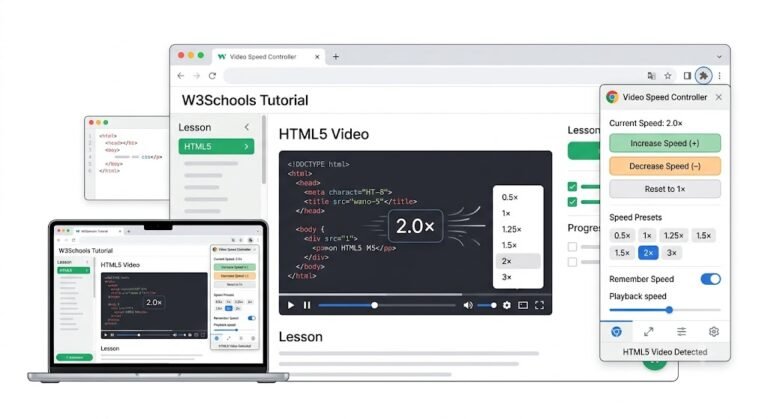
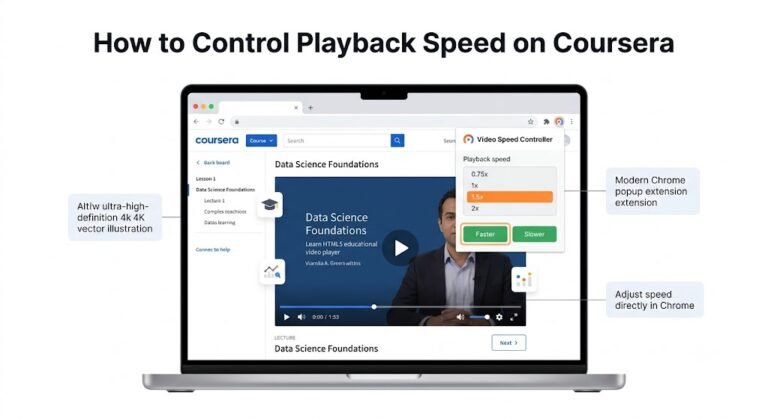
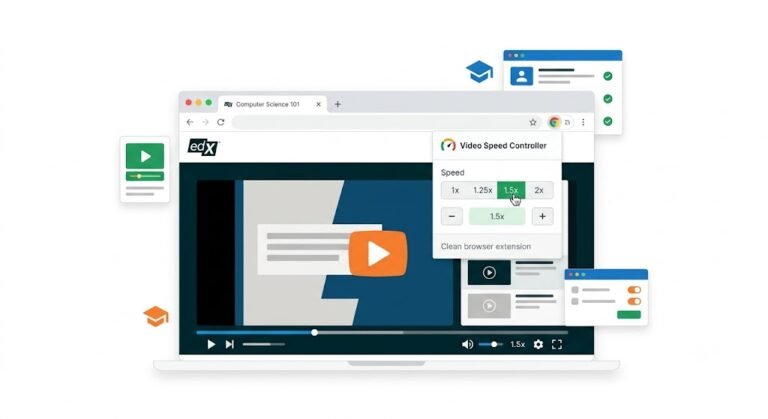
The popup is deliberately minimal and distraction‑free. It’s built so you can adjust speed in a split second and get back to learning. There are no settings pages, no nested menus, and no clutter.
- Speed slider: A large, responsive slider that you can drag to any value within the supported range. You aren’t locked to Udemy’s preset steps; you can land on 1.12×, 1.68×, 2.45×, or whatever feels right. The slider updates live, so you hear and feel the change immediately.
- Playback speed display: Right next to the slider, a bold numeric display shows the exact multiplier. This removes guesswork and helps you standardize the speed for specific types of courses — for example, 1.4× for lecture‑heavy topics, 2× for quick recaps.
- Reset button: A single click returns the active Udemy video to 1.0× (normal speed). This is essential when you’ve been listening at 2× and then jump into a live discussion or another tab where fast audio would be jarring.
- Browser badge (if enabled): An optional small badge can appear on the extension icon showing the current speed. It’s a subtle reminder, so you never accidentally leave a video at 0.5×.
Because the popup only affects the tab you’re in, you can keep one Udemy course playing at 1.8× while another tab (say, a YouTube tutorial) remains at normal speed. This per‑tab isolation makes the extension a practical multitasking tool.
What Happens Inside Chrome When You Change Speed on Udemy?
Understanding the internals helps you appreciate why a local extension is far safer than any web‑based speed tool. The extension does not touch the video stream’s data; it simply tells Chrome to present frames and audio at a different pace.
- Media element identification: The content script scans the Udemy page for
<video>nodes. It doesn’t read text, course names, or any other DOM content beyond what’s necessary to find the player. playbackRateassignment: Settingvideo.playbackRate = 1.65instructs Chrome’s media pipeline to change frame presentation timing. Audio pitch remains natural because the browser applies automatic time‑stretching.- Zero data transfer: No video bytes leave your device. The extension has no network access, no cloud storage, and no analytics. Everything stays inside your browser sandbox.
- Manifest V3 compliance: The extension runs as an event‑driven service worker, meaning it sleeps when not in use. It doesn’t run background processes that could drain memory or battery.
This architecture means you can binge‑watch a 10‑hour bootcamp at 2× without worrying that your viewing speed is being logged, profiled, or shared. Your pace is your business.
Practical Examples: When Does Video Speed Controller Make the Biggest Difference on Udemy?
Below are three everyday scenarios that illustrate how a continuous speed slider transforms your learning experience on Udemy.
Example 1: Accelerating a Long Programming Course
- Situation: A student is working through a 12‑hour Python bootcamp. The instructor speaks slowly and repeats concepts often. The built‑in 1.5× setting feels too fast for following code lines, but 1.25× wastes too much time.
- User action: While the course video plays, the student opens the Video Speed Controller popup and drags the slider to 1.35×. The instructor’s voice becomes faster but still perfectly clear; code snippets remain readable.
- Extension processing: The content script sets
playbackRate = 1.35on Udemy’s video element. No buffering, no re‑encoding — just an instantaneous tempo change. - Result: The student completes the bootcamp in roughly 9 hours, saving 3 hours of passive listening, while still absorbing the material. A quick click on the reset button brings the speed back to 1.0× for the final exam simulation.
Example 2: Slowing Down a Dense Technical Explanation
- Situation: A learner is watching a Udemy course on machine learning. A particular lecture introduces complex mathematics, and the instructor’s pace is overwhelming. 0.75× makes the audio sound unnaturally slow, while 0.9× isn’t enough of a reduction.
- User action: The learner opens the popup and sets the slider to 0.82×. The audio pitch stays natural, and the slower delivery gives enough time to absorb each equation.
- Result: The learner grasps the hard concepts without toggling subtitles or rewinding repeatedly. Privacy is assured — the extension never records which lectures were slowed down or for how long.
Example 3: Skimming Through a Review Before an Exam
- Situation: A professional has a certification exam tomorrow and needs to quickly revisit key sections of a Udemy course. They already know most of the material and only need to spot any forgotten details.
- User action: On the review lecture tab, they set the speed slider to 2.6×. For crucial diagrams, they tap reset to 1.0×, then slide back up after studying the visual.
- Result: A 3‑hour review block is condensed into just over an hour. The lightweight extension causes no lag or audio distortion, and the laptop’s CPU remains cool because no video processing is happening — only a
playbackRatechange.
Does Changing Playback Speed Affect Udemy Video Quality?
A common concern is that speeding up a Udemy lecture will make it blurry or cause audio glitches. Because the Video Speed Controller only alters the playback rate and not the video data, the actual visual and audio quality remains identical to the original stream. The browser’s decoder presents frames at the new speed; it doesn’t alter their content.
- At moderate speeds (1.3× – 2.0×): Motion stays smooth. Chrome intelligently drops frames if needed to maintain fluidity, but on Udemy’s mostly static slide‑based videos you won’t notice any difference.
- At very high speeds (above 3×): Some jitter may appear in fast‑moving scenes, but that’s a limitation of your screen’s refresh rate and human perception — not a fault of the extension.
- Slowing down (below 1.0×): Frames are held longer; voices become deeper but remain perfectly intelligible thanks to Chrome’s audio time‑stretching. There is no “robotic” sound typical of older pitch‑shifting methods.
Because the extension never re‑encodes or processes the video, you avoid the artefacts (ghosting, colour shifts) that can appear with video‑speed‑changing websites. What you see is exactly what Udemy delivers — just at the tempo you choose.
Frequently Asked Questions
Does the extension work with every Udemy course?
Yes, as long as the course uses Udemy’s standard HTML5 video player. Almost all modern Udemy courses do. It will not work if a course uses an unusual embedded player that isn’t based on the <video> tag, but those cases are extremely rare.
Will using a speed controller get my Udemy account flagged?
No. The extension makes no changes to Udemy’s website code, doesn’t automate progress, and doesn’t tamper with course tracking. It simply adjusts a playback parameter that your browser already supports. Udemy has no way to detect that you’re using a speed controller, and even if it did, there’s no policy against controlling video speed locally.
Is my privacy protected when I adjust speed on Udemy?
Absolutely. All speed changes happen inside your Chrome browser. The extension never communicates with any external server, never collects analytics, and never reads your Udemy login or course data. You can verify this by opening Chrome’s developer tools and watching the network tab — there are zero requests from the extension.
Can I set a default speed so every Udemy video starts at, say, 1.4×?
Yes. If you save your preferred speed through the extension’s interface, it stores that value in Chrome’s local storage on your device. Every time you open a new Udemy video in a tab, the extension applies that default automatically. The reset button always brings you back to true 1.0×.
Does the extension drain battery or slow down my computer during long Udemy sessions?
No. The extension’s CPU footprint is negligible because it only injects a tiny script to set the playbackRate property. It doesn’t perform any video processing, and the service worker (Manifest V3) is idle when you’re not actively using the popup. Your battery life won’t be noticeably affected.
Are there keyboard shortcuts for changing speed?
The current version focuses on the popup slider for precise, visual control. While custom keyboard shortcuts aren’t built in, the popup is always just one toolbar click away. For tips on using speed controllers across many platforms, check the Video Speed Controller blog.
Take Control of Your Udemy Learning Pace — Locally, Privately, and Instantly
A Video Speed Controller turns Udemy’s limited speed presets into a continuous, personalisable tool. Whether you’re cramming for an exam, deciphering complex code, or simply respecting your own time, the ability to dial in exactly the right speed — 1.32×, 0.78×, 2.15× — makes learning more efficient and enjoyable.
Key takeaways:
- Udemy’s built‑in speed menu offers only fixed steps; a dedicated extension gives you a smooth slider for pinpoint accuracy.
- All processing is local: no video data is ever uploaded, recorded, or shared with third parties.
- The popup’s slider, live speed readout, and reset button let you adjust speed mid‑lecture without breaking concentration.
- Per‑tab isolation and a Manifest V3 service worker keep your browser fast and your privacy rock‑solid.
Next time you open a Udemy course, don’t settle for the presets. Click the Video Speed Controller icon, slide to your sweet spot, and watch the lecture flow at your pace. When you’re ready for normal speed, one tap on Reset brings everything back. For more on privacy‑first video control, explore the Video Speed Controller home page.