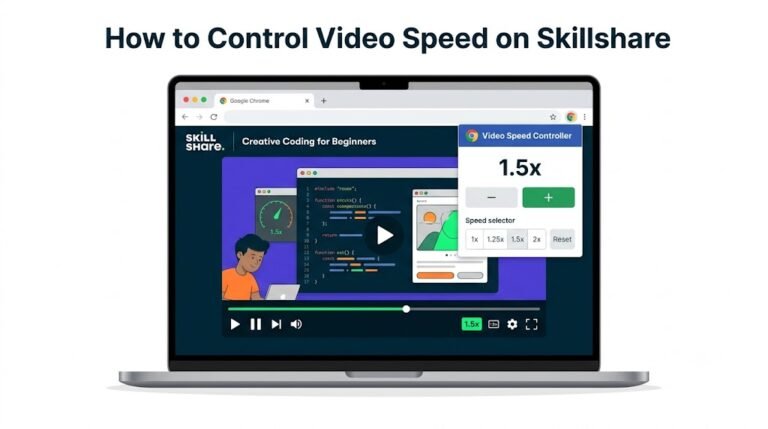
Speeding Up W3Schools Video Tutorials – Local Speed Control
W3Schools video lessons are packed with hands‑on coding knowledge, but the fixed playback speeds in Chrome can hold you back. A Video Speed Controller lets you fine‑tune the tempo of every HTML5 tutorial — from gentle 0.9× review to rapid 2.5× skimming — all processed locally inside your browser without uploading or analysing a single frame.
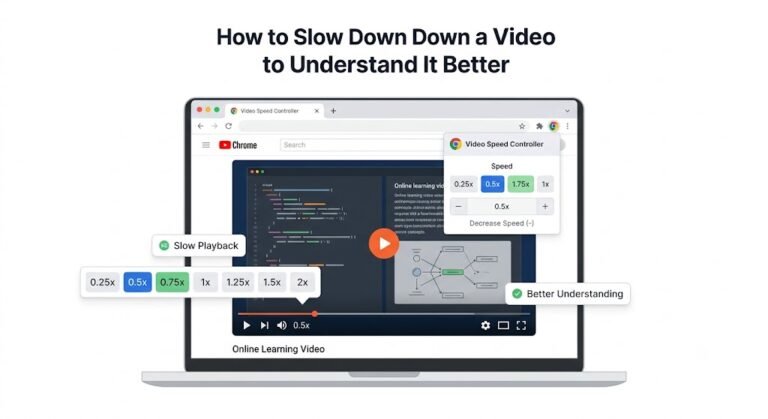
- Why the default Chrome speed menu (1.25×, 1.5×, 2×) feels too restrictive when you’re switching between coding examples and explanations
- How the Video Speed Controller extension adds a smooth slider, live speed readout, and instant reset button right in your toolbar
- Exactly what happens when you speed up a W3Schools tutorial — zero network requests, 100% local processing, and no effect on video quality
- How per‑tab control and a Manifest V3 service worker keep your browser fast and your learning sessions completely private
Why Would You Want to Speed Up W3Schools Video Tutorials?
W3Schools tutorials are designed for self‑paced learning, but the video delivery is a one‑size‑fits‑all pace. Beginners might need every sentence to sink in, while experienced developers often just want to glance at the code and move on. Chrome’s built‑in playback speed options — 1.25×, 1.5×, and 2× — fail to offer the precision and flexibility that different learning stages demand.
When you’re reviewing an SQL syntax video you already know, 1.5× still wastes time, while 2× makes the voice unintelligible. With a dedicated speed controller, you can dial in 1.7× for a comfortable pace that shaves minutes off every lesson. Equally, when a complex JavaScript concept needs replay, 0.95× keeps the audio natural while giving your brain a little extra processing time.
Because W3Schools uses standard <video> elements, the extension works instantly on any tutorial page — no configuration, no permissions beyond active tab access. For the complete list of compatible platforms, see the supported video websites page.
How Does the Video Speed Controller Help You Speed Through W3Schools Lessons?
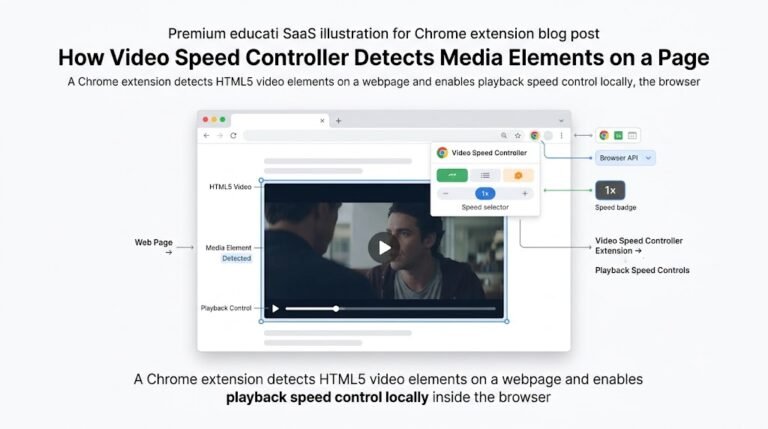
The extension connects directly to the browser’s media pipeline, altering the playbackRate property of every HTML5 video on the active tab. No video data is copied or re‑encoded — only the presentation speed changes, and that change stays locked inside your local Chrome session.
Here’s the step‑by‑step flow when you speed up a W3Schools tutorial:
- Tab detection: Clicking the extension icon activates the service worker, which scans the current tab for
<video>elements. It works seamlessly with W3Schools’s embedded player. - Real‑time speed update: The content script sets
video.playbackRate = 1.8(for example). The tutorial’s voice and frame rate shift instantly — no buffering, no loading spinner. - Live feedback: The popup displays the new speed (e.g., 1.80×) so you always know your setting. The reset button returns the video to the standard 1.0× with a single click.
The whole transaction uses Chrome’s Manifest V3 event‑driven architecture: the service worker idles when not in use, and the only permission requested is activeTab, which is granted only when you open the popup. No permanent background scripts, no tracking.
For a deeper dive into the extension’s core philosophy, visit the Video Speed Controller home page.
What Controls Does the Video Speed Controller Popup Offer for W3Schools Tutorials?
The popup is a single‑purpose panel; no settings menus, no hidden options. Everything you need for instant speed control fits in a compact, distraction‑free view.
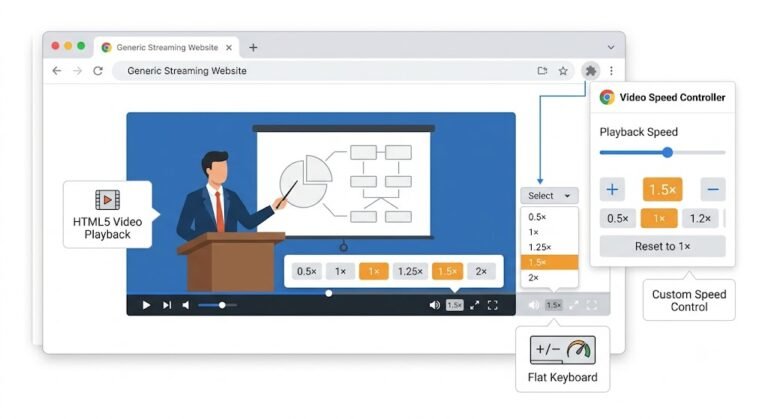
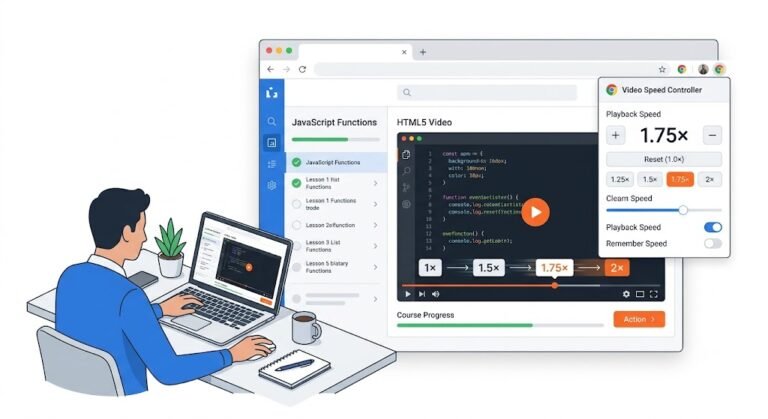
- Speed slider: Drag the large slider anywhere from very slow (< 0.5×) to very fast (> 3×). On a W3Schools Python lesson, you can slide to 1.35× and watch the instructor’s code appear at a rhythm that matches your own typing speed.
- Playback speed display: The current multiplier is shown in bold digits. This readout helps you build muscle memory — after a few sessions, you’ll know that 1.6× is your “comfortable review” setting without even looking.
- Reset button: One click instantly snaps the video back to 1.0×. Use it when a tutorial’s concept needs your full, real‑time attention again.
- Browser badge (optional): Enabling the badge shows the current speed on the extension icon, giving you an at‑a‑glance reminder while you flick between tabs.
Because the popup only influences the active tab, you can have a W3Schools CSS tutorial running at 2.2× while a YouTube music playlist plays undisturbed in the background.
What Happens Inside Chrome When You Increase the Speed of a W3Schools Tutorial?
Understanding the technical process demystifies why a local extension is far safer than any online speed‑changing tool. The extension never interacts with the video stream’s bytes — it only instructs Chrome’s own decoder to deliver frames and audio at a different cadence.
The key internal steps:
- DOM scan: The content script locates the
<video>element inside the W3Schools page. It does not read any other content, and it does not alter the page structure. playbackRateassignment: Settingvideo.playbackRate = 1.45tells Chrome’s media stack to present frames and audio samples 1.45 times faster. Audio pitch remains natural thanks to modern browser time‑stretching algorithms.- Zero data exit: No video bytes are captured, buffered, or sent over the network. You can verify this by opening Chrome DevTools’ Network panel while adjusting speed — there are zero external requests generated by the extension.
- Manifest V3 efficiency: The extension uses a service worker that activates on demand, consumes minimal memory, and sleeps immediately after the popup closes. This keeps your overall Chrome session light, even with dozens of tutorial tabs open.
This local‑only architecture ensures that your viewing speed on W3Schools — whether you’re skimming through a jQuery example or slowly dissecting a Bootstrap grid — remains completely private.
Practical Examples: When Does Video Speed Controller Transform W3Schools Tutorials?
Real‑world scenarios show how fine‑grained speed control turns passive watching into active, time‑efficient learning.
Example 1: The JavaScript Beginner Absorbing Core Concepts
- Situation: A student is following the W3Schools JavaScript tutorial. The native English speaker moves quickly through examples, and the student misses some variable declarations. Chrome’s 0.75× speed makes the voice sound unnatural, while 1.0× feels rushed.
- User action: The student opens the Video Speed Controller popup, slides to 0.85×, and replays the segment. The pace feels comfortable, and the natural pitch retention keeps the instructor’s voice clear.
- Extension processing:
playbackRate = 0.85is applied instantly. No buffering; the browser simply displays each frame slightly longer. - Result: The student comprehends closures and callbacks in one pass, without toggling the default menu repeatedly. After the tricky concept, a quick click on the Reset button restores normal speed for the next module.
Example 2: The Front‑End Developer Reviewing CSS Grid
- Situation: A developer already knows CSS Grid well but wants to quickly check the W3Schools video for the latest
gapproperty demonstration. The 40‑minute tutorial feels too slow, but 2× makes the code examples blur past. - User action: She sets the slider to 1.85× — fast enough to skip the introductory chatter, yet slow enough to catch the code. When the instructor types a long
grid‑template‑areasexample, she taps Reset to 1.0× for 30 seconds, then slides back to 1.85×. - Result: The entire “CSS Grid Layout” video is reviewed in under 22 minutes. The extension’s lightweight footprint means no stutter or CPU spike, even on a mid‑range laptop.
Example 3: The Self‑Taught Coder Binge‑Learning SQL
- Situation: An aspiring data analyst is working through the W3Schools SQL tutorial series. The videos combine theory and query writing; the theoretical parts can be sped up, but the query demonstrations need real‑time typing observation.
- User action: She starts each video at 2.5× during the explanation of normalisation, then moves the slider down to 1.2× when the instructor opens the query editor. The speed display helps her remember the last used setting for each section.
- Result: A three‑video playlist is completed in the time usually spent on two. Because the extension processes everything locally, her learning routine leaves no digital footprint — no server knows how fast she watches.
Does Changing Playback Speed Affect the Quality of W3Schools Tutorials?
A common fear is that speeding up a coding tutorial will make the instructor sound like a chipmunk or cause the code to flicker. With a pure playbackRate adjustment — the only method the Video Speed Controller uses — the video and audio quality remain essentially unchanged. What alters is the delivery pace, not the data.
What you’ll notice while watching W3Schools videos:
- Speeds between 1.2× and 1.9× keep the instructor’s voice perfectly natural. Chrome’s audio stretching maintains pitch, so there’s no “fast‑forward” sound.
- At 2.0× and above, some words may blend slightly, but the typed code on screen remains readable. You can always flick to 1.0× for critical segments.
- Slowing down to 0.8× or 0.9× deepens the voice slightly but keeps every syllable distinct — ideal for non‑native English speakers parsing technical jargon.
Because the extension does not re‑encode the video, there are no compression artefacts, colour shifts, or sync issues. You see exactly what W3Schools delivers, just at a tempo that suits your learning style.
Frequently Asked Questions About Speeding Up W3Schools Tutorials
Will the Video Speed Controller work on all W3Schools video pages?
Yes. W3Schools uses standard HTML5 <video> players on its tutorial pages, and the extension automatically detects them. As long as the video element is present and not hidden behind a custom wrapper, the slider will control the speed. Check the compatible platforms list for other sites.
Does speeding up W3Schools videos affect my browser’s performance?
No. The extension adds an extremely small overhead — just a tiny content script that sets the playbackRate property. It doesn’t process video data, so CPU and battery usage remain almost identical to normal playback. Manifest V3 ensures the service worker sleeps when not in use.
Can I set a default speed so every W3Schools tutorial starts at 1.5×?
Yes. You can save a preferred speed using the extension, and it will apply automatically to any new tab that contains an HTML5 video. The value is stored in Chrome’s local storage on your device — no cloud, no login. Use the reset button whenever you need to return to 1.0×.
Is my W3Schools viewing history tracked when I change playback speed?
Absolutely not. The extension has no analytics, no tracking, and no external communication. It never transmits your playback speed, the URLs you visit, or any other data. Everything happens locally inside your browser.
What if the speed slider doesn’t appear on a particular W3Schools page?
Ensure the video is an HTML5 element and that the page is actively playing it. Refresh the page and click the extension icon again. If a site uses DRM‑protected video that bypasses Chrome’s media stack, the extension cannot control it, but W3Schools’s tutorials are open and should work without issue.
Can I use keyboard shortcuts to adjust speed while watching a W3Schools tutorial?
The current version relies on the popup slider for precise, real‑time adjustment. The popup is always one click away, and the slider provides a more accurate control than preset hotkeys. For more information on upcoming features, browse the Video Speed Controller blog.
Take Control of Your W3Schools Learning Pace — Privately and Instantly
W3Schools video tutorials are a treasure trove for web developers, but their fixed pacing can slow you down or rush you through critical concepts. With a Video Speed Controller, you decide exactly how fast each lesson unfolds — from 0.5× for deep listening to 3× for lightning skimming — without ever leaving Chrome’s toolbar.
Key takeaways for speeding up W3Schools tutorials:
- Chrome’s default speed options are too broad; a dedicated slider gives you the fine precision that learning demands.
- All speed changes are applied locally — no video data is uploaded, recorded, or shared with any third party.
- The popup’s slider, speed readout, and reset button keep you focused on the content, not on navigating menus.
- Per‑tab isolation and Manifest V3 architecture mean zero lag, low memory usage, and complete privacy across all your W3Schools sessions.
Next time you open a W3Schools tutorial, click the extension icon, slide the speed to where your learning feels effortless, and watch as the lesson adapts to you — not the other way around. For more tips on controlling playback speed across the web, visit the Video Speed Controller home page.