Complete List of Video Speed Controller Keyboard Shortcuts
Clicking the toolbar icon every time you want a speed tweak breaks your flow. Keyboard shortcuts let you increase, decrease, or reset playback speed instantly — without lifting your hands from the keyboard. All shortcuts run locally inside Chrome, never touching any external server.
- Which three playback actions you can control with the keyboard
- How to assign your own key combinations inside Chrome’s extension shortcuts manager
- Exactly what happens when you press a shortcut — real‑time speed change, no popup required
- Why local‑only processing means your viewing speed stays completely private
What Keyboard Shortcuts Does Video Speed Controller Offer?
The extension exposes three essential commands that you can trigger directly from the keyboard. No built‑in default key combination is forced on you — every shortcut is yours to define. The actions are:
- Increase speed: Nudge the playback rate up by a small increment (e.g. from 1.0× to 1.1×).
- Decrease speed: Nudge the playback rate down, perfect for slowing down a rapid speaker.
- Reset speed: Instantly return the active video to 1.0× normal speed.
Because these commands are built into the extension’s Manifest, they appear in Chrome’s official Keyboard shortcuts page (accessible at chrome://extensions/shortcuts). That means no third‑party software, no risky registry edits — just standard Chrome behaviour.
Once a shortcut is configured, pressing it triggers the same local playbackRate adjustment you’d get by moving the popup slider. The video responds instantly, even while it’s playing, and the audio pitch stays natural.
How to Customize Video Speed Controller Keyboard Shortcuts
Chrome lets you set any keyboard combination you like, as long as it doesn’t conflict with another extension or the browser’s own shortcuts. Here’s the exact process, step by step:
- Open the Extensions shortcuts page: Type
chrome://extensions/shortcutsin the address bar and press Enter. This page lists every extension that has registered keyboard commands. - Find Video Speed Controller: Scroll down to the Video Speed Controller card. You’ll see the three available actions: Increase speed, Decrease speed, Reset speed.
- Click the pencil icon next to an action. A small input field appears. Press the key combination you want to use (for example, Ctrl + Shift + Up). Chrome will show a warning if the combination is already taken.
- Save automatically: Once you release the keys, the shortcut is stored immediately. No save button needed. The extension’s service worker receives the command and is ready to act on any active video tab.
After setup, you can control playback speed from anywhere in Chrome — as long as the current tab contains an HTML5 video. There’s no need to open the extension popup ever again, unless you want fine‑grained slider control.
If you ever need inspiration for shortcut combinations, many users pair Alt+Shift+. and Alt+Shift+, for speed up/down, mirroring popular media player conventions.
What Happens Inside Chrome When You Press a Shortcut?
The moment you press your assigned key combination, a chain of events unfolds in the background — all in a fraction of a second. Understanding this flow shows why shortcuts are safe and efficient.
- Command capture: Chrome’s browser process detects the keyboard event and matches it to the extension’s registered command. No web page sees the event — it stays inside Chrome’s privileged layer.
- Service worker activation: The extension’s service worker (Manifest V3) receives a
chrome.commands.onCommandcallback with the action name (e.g. “increase-speed”). - Active tab check: The worker queries the current active tab and sends a message to the content script only if the tab can host video elements.
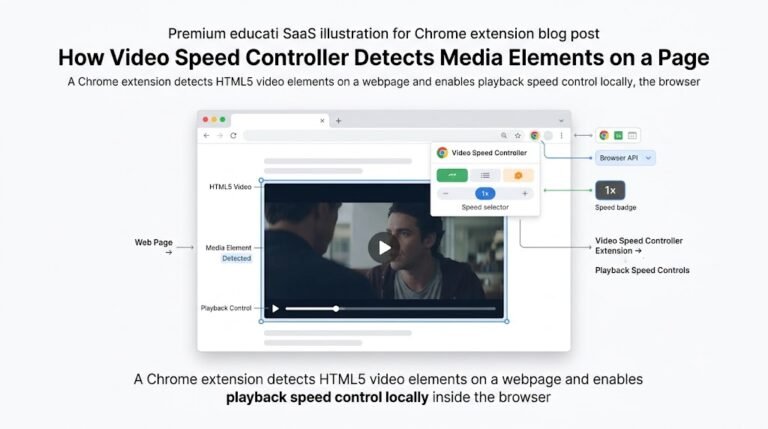
- Playback rate update: The content script locates all
<video>elements, reads the currentplaybackRate, and adds or subtracts a tiny step (typically 0.1). For reset, it writesplaybackRate = 1.0directly.
Everything stays local to your device. No video data, browsing URLs, or playback speeds leave Chrome. The extension’s network access is completely blocked, making it as private as a keyboard shortcut can be.
To learn more about how the extension detects videos and applies speed without touching the stream, read the Video Speed Controller home page.
Why Do Keyboard Shortcuts Make Video Watching So Much Faster?
Switching between keyboard and mouse costs mental energy. When you’re following a tutorial, lecture, or training video, that interruption can break your concentration. Keyboard shortcuts keep your hands on the keyboard and your eyes on the content.
Consider these everyday wins:
- Instant tempo matching: A speaker suddenly accelerates — one tap slows them down without fumbling for a slider.
- Precision on long videos: During a 2‑hour conference recording, you can quickly dip to 0.9× for a dense section, then jump back to 1.3× for the rest.
- Privacy‑preserving multitasking: You can adjust speed while taking notes in another window; no one around you sees a popup or menu.
Because the increment is small (usually 0.1×), you never overshoot. A few taps bring you exactly where you need to be. And the reset shortcut is a safety net — one press and you’re back to normal speed, no matter how many tweaks you made.
Practical Examples: Video Speed Controller Shortcuts in Real Life
Example 1: The Student Powering Through Recorded Lectures
- Situation: A student watches a 90‑minute university lecture on a Moodle site. The professor speaks slowly, but the built‑in Chrome speed presets are either too fast (1.5×) or too slow (1.25×).
- User action: They assigned Ctrl+Shift+Up for increase and Ctrl+Shift+Down for decrease. While the lecture plays, they tap increase twice to reach 1.2×, then later another tap to 1.3×. When the lecturer discusses a complex diagram, a quick tap down brings them to 1.2×. No popup ever opens — the video just responds.
- Result: They finish the lecture in 70 minutes, fully engaged, with zero interruptions to click a toolbar icon.
Example 2: The Language Learner Fine‑Tuning Audio Comprehension
- Situation: A language learner is watching a YouTube interview in a foreign language. Normal speed is too quick to catch every word, but slowing to 0.75× makes the speech sound unnatural.
- User action: With Alt+Shift+, assigned to decrease, they tap the shortcut once to drop from 1.0× to 0.9×. The audio pitch remains intact thanks to Chrome’s time‑stretching, and the learner now catches subtle pronunciations without losing rhythm.
- Result: They build listening skills faster, adjusting speed on the fly during tricky sentences, and they never have to pause or rewind.
Example 3: The Developer Skimming a Technical Walkthrough
- Situation: A developer is working through a 40‑minute coding tutorial. They already know the basics but need to see the code snippets.
- User action: They set Ctrl+. for speed up and Ctrl+, for speed down. Starting at 2.0×, they watch the intro at high speed. When a code segment appears, they press the reset shortcut (configured as Ctrl+Shift+R) to drop to normal, study the code, then speed up again.
- Result: They skim the video in 20 minutes, only slowing down for the parts that matter. The extension uses negligible CPU, so the laptop stays cool.
Frequently Asked Questions About Video Speed Controller Keyboard Shortcuts
Do I have to set up shortcuts, or are there defaults?
By default, no global key combinations are active. This prevents accidental speed changes and respects your existing shortcuts. You must visit chrome://extensions/shortcuts to assign your own. The setup takes less than a minute.
Will shortcuts work when Chrome is in the background?
No. Chrome’s extension commands only fire when the browser window is active and the current tab contains a video. This is a security measure that prevents extensions from hijacking system‑wide keystrokes.
Can I use the same shortcut on multiple computers?
Chrome syncs extension settings, but keyboard shortcuts are stored locally and are not synced across devices. You’ll need to configure them on each computer you use. This also means no cloud storage of your shortcuts, preserving privacy.
What happens if I set a shortcut that conflicts with another extension?
Chrome will warn you with a small yellow triangle. You can keep the conflict, but only one extension will respond (typically the one loaded first). It’s best to choose a unique combination.
Can I increase speed by more than 0.1× per shortcut press?
The step size is fixed at 0.1× to give you fine control. If you need larger jumps, you can press the shortcut multiple times quickly, or open the popup and use the slider for precise adjustment. For a deep dive into slider control, see how the popup works.
Take Your Video Speed Controller Experience Further with Keyboard Shortcuts
Keyboard shortcuts transform the extension from a handy popup into a seamless layer of video control. They let you react to a video’s tempo without breaking your workflow, and they cost zero privacy because every command runs entirely on your machine.
- Three actions — increase, decrease, reset — cover every real‑world speed scenario.
- Assigning shortcuts inside
chrome://extensions/shortcutsis fast, safe, and completely under your control. - The underlying mechanism respects Chrome’s Manifest V3 security model: no network, no tracking, no hidden operations.
- Combined with the popup slider, shortcuts give you both rapid tapping and fine‑grained precision.
Once you’ve mastered your own shortcuts, you’ll wonder how you ever watched video tutorials the old‑fashioned way. For even more ways to fine‑tune your viewing, visit the Video Speed Controller home page or explore the full blog for advanced tips.