Speeding Up Khan Academy Lessons Without Losing Focus
Khan Academy’s built‑in speed picker only offers a handful of presets – 1.25×, 1.5×, 2×. A dedicated Video Speed Controller gives you a fluid slider that lets you find your perfect pace, from 0.07× to 16×, while keeping every adjustment strictly local inside Chrome. No uploads, no logins, no tracking.
- Why the default speed dropdown on Khan Academy feels too rigid when you need 1.35× or 2.3×
- How the Video Speed Controller extension adds a precise slider, live speed readout, and one‑click reset
- Exactly what happens inside the browser when you change playback speed – 100% local processing, zero video data captured
- Per‑tab speed isolation and a Manifest V3 architecture that respects your privacy and your laptop’s battery
Why Would You Need a Video Speed Controller for Khan Academy Lessons?
Khan Academy videos, whether hosted directly or through embedded YouTube players, expose a simple speed menu – usually 0.75×, 1×, 1.25×, 1.5×, and 2×. That’s enough for casual watching, but when you’re drilling a tough math concept or reviewing a long history lecture, those fixed jumps are limiting. You might find 1.25× still too slow, yet 1.5× makes the instructor sound like a chipmunk. Video Speed Controller fills that gap with a continuous slider that covers every increment in between.
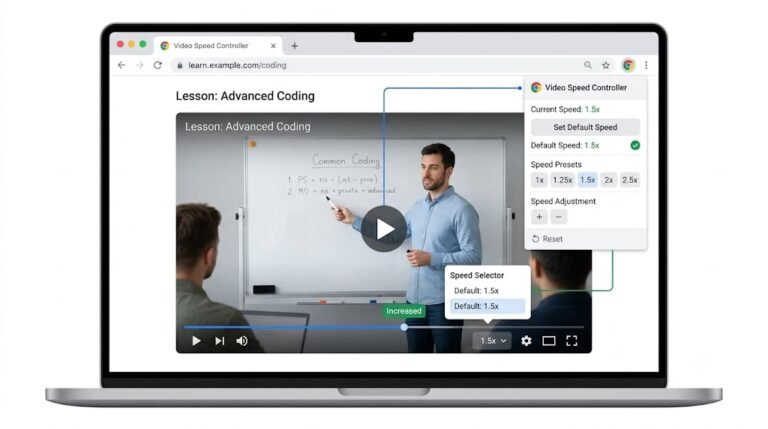
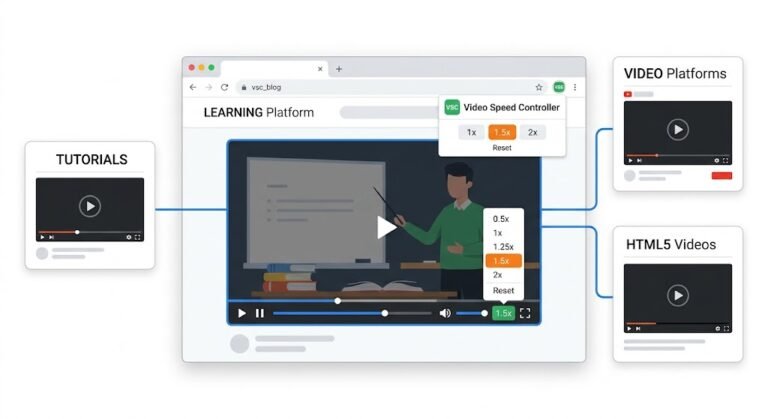
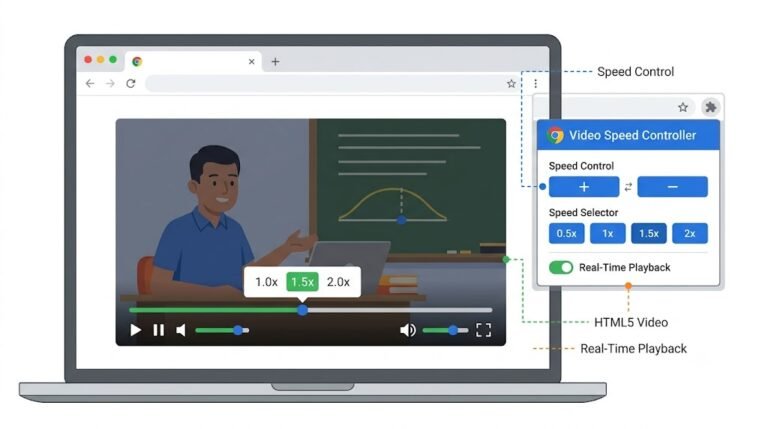
The extension works on any HTML5 video element – exactly what Khan Academy’s player uses on modern browsers. Instead of fumbling with the player’s tiny menu, you open the extension popup, drag the slider to 1.4× or 2.1×, and the video instantly adapts. Because the speed change is applied to the <video> element’s playbackRate property, there’s no buffering, no re‑encoding, and no quality loss.
For a broader look at how the extension works across platforms, see the list of supported websites.
How Does Video Speed Controller Change Speed on Khan Academy?
Behind the scenes, the extension is doing something remarkably simple and safe. It locates the HTML5 video element on the active tab and sets its playbackRate attribute – nothing more. The process is entirely local and never touches the network.
Step‑by‑step when you open a Khan Academy lesson and use the speed slider:
- Tab detection: Clicking the extension icon triggers a content script that checks the current tab for any
<video>nodes. It uses Chrome’sactiveTabpermission, granted only while you interact with the popup – no persistent background snooping. - Playback rate assignment: As you drag the slider, the script sets
video.playbackRateto the chosen value. For example, 1.65× for a breezy pace that keeps the instructor’s intonation clear. The browser’s media engine then adjusts the timing of frame presentation and audio stretching automatically. - Live feedback: The popup displays the current speed as a multiplier. If you ever need to return to normal, the reset button instantly sets the rate back to 1.0× – handy when you switch from a sped‑up calculus review to a video call.
All this runs inside Chrome’s sandboxed extension environment, following Manifest V3 standards. No data leaves your device, and the extension’s CPU footprint is negligible.
If you frequently use YouTube‑hosted Khan Academy content, you may also want to explore how to speed up YouTube videos with the same fine‑grained control.
What Controls Does the Video Speed Controller Popup Give You While Studying?
The popup’s design follows the extension’s core philosophy – simplicity and focus. Everything you need is immediately visible without digging through menus.
- Speed slider: A large, responsive slider that covers a wide range (well beyond 0.07× to 16×). Dragging it smoothly changes the Khan Academy video’s pace, so you can settle on 1.2× for a leisurely revision or 2.8× for skimming a known topic.
- Playback speed display: Next to the slider, a readout shows the exact current multiplier. This removes guesswork and helps you build muscle memory for your ideal study speed.
- Reset button: One click restores the tab’s video to 1.0×. This is crucial after a fast‑paced session – no jarring surprises when you open a different lesson or a non‑educational clip.
- Browser badge (optional): A tiny badge on the extension icon can show the active speed. It’s a quick visual reminder without opening the popup.
Because the extension works per‑tab, you can have one Khan Academy math video at 1.7× while another tab with a coding tutorial sits at 1.0×. This per‑tab isolation is what makes focused multitasking possible during study sessions.
Practical Examples: Speeding Through Khan Academy Without Sacrificing Understanding
Real‑world use cases show why a fluid speed slider is a game‑changer for self‑paced learners.
Example 1: The High‑School Student Revising for Exams
- Situation: A student is reviewing a Khan Academy algebra playlist. The instructor’s explanations are clear but a bit slow for revision. The built‑in 1.5× feels rushed; 1.25× is still slightly slow.
- User action: With the algebra video open, the student clicks the extension icon and drags the slider to 1.35×. The pacing feels natural – fast enough to save time, but slow enough to absorb the reasoning.
- Extension processing: The content script sets
playbackRate = 1.35on the embedded YouTube player. No buffering occurs; Chrome simply presents frames 35% faster. - Result: The student shaves 15 minutes off an hour‑long review session while retaining full comprehension. A quick hit of Reset brings the speed back to normal when moving to a practice problem set.
Example 2: The Lifelong Learner Dipping Into Multiple Subjects
- Situation: An adult learner watches a Khan Academy art history lecture. The content is fascinating but the delivery is measured. They want to absorb the big picture quickly, then slow down for detailed analyses of paintings.
- User action: For the general narrative, they set the slider to 2.0×. When the instructor begins analyzing a specific artwork, they pull it back to 1.2× using the slider – no need to pause or rewind.
- Result: The learner fluidly switches between skimming and deep focus. Because the extension operates purely on the
playbackRateproperty, the video’s resolution and audio clarity remain intact even at 2.0×. The browser’s audio time‑stretching preserves pitch, so the narrator never sounds distorted.
Example 3: The ESL Student Strengthening Language Skills
- Situation: A non‑native English speaker is using Khan Academy’s grammar and writing lessons. At normal speed, some phrases are hard to catch. The 0.75× option on the site feels unnaturally slow, breaking the flow of the sentence.
- User action: They open the Video Speed Controller popup and adjust the slider to 0.85×. The speech slows just enough to distinguish each word, yet retains a natural cadence.
- Result: Comprehension improves dramatically. The student doesn’t have to constantly pause and replay; instead, they follow along in real time. Privacy is guaranteed – no listening patterns are recorded or transmitted.
Does Faster Playback Hurt Comprehension on Khan Academy?
It’s a common worry that speeding up an educational video will cause you to miss important points. Research on audio comprehension suggests that humans can comfortably understand speech at 1.5× to 2.0× with minimal loss, as long as the audio pitch stays natural. Video Speed Controller relies on Chrome’s own audio time‑stretching algorithms, which preserve pitch while increasing tempo – so the instructor’s voice never sounds like a cartoon character.
What you’ll notice in practice:
- At 1.3× – 1.8×: Speech remains perfectly intelligible. The slight acceleration can even boost focus because your brain has less idle time between words.
- Above 2.5×: You may start missing nuances, especially for unfamiliar vocabulary. That’s when the slider’s precision shines – you can back off to 2.2× or simply Reset to 1.0× for tricky sections.
- Video quality: The frames are untouched. Modern browsers handle frame drops gracefully at high speeds, so motion stays smooth. There’s no “ghosting” or pixelation introduced.
Because the extension only changes the playback rate, the video stream itself is never degraded. You’re seeing exactly the same data Khan Academy sends, just displayed faster or slower.
Frequently Asked Questions About Speeding Up Khan Academy Lessons
Will the extension work on the Khan Academy mobile app?
No. The extension is designed for Google Chrome on desktop (Windows, Mac, Linux, ChromeOS). It cannot control playback inside the Android or iOS app because those apps don’t support Chrome extensions.
Does faster speed keep the captions in sync?
Yes. Captions and subtitles are part of the video timeline, so when you change playbackRate, they speed up or slow down accordingly. The text remains perfectly aligned with the spoken words.
Is my Khan Academy progress or watch history affected?
No. The extension never communicates with Khan Academy’s servers. Your video progress, completed lessons, and energy points are all tracked by the Khan Academy platform independently of playback speed. You remain fully logged in and earn points as usual.
Can I set a default speed for all Khan Academy lessons?
If you choose to save your preferred speed, the extension stores it in Chrome’s local storage. Every time a new Khan Academy video loads in a tab, the extension can automatically apply that default. It’s completely local – no cloud sync, no account required.
Why does the extension need the “activeTab” permission?
The activeTab permission is required to detect the HTML5 video element on the page you’re currently viewing and to adjust its playback rate. It’s only active when you click the extension icon; it doesn’t grant permanent access to your tabs or browsing data.
Does the extension work with all Khan Academy videos, including those embedded from YouTube?
Yes. Whether the lesson is hosted directly on Khan Academy’s servers or embedded via YouTube, the underlying player is an HTML5 <video> element. The extension detects it and applies the speed change instantly. For more platform‑specific tips, check the Video Speed Controller blog.
Take Control of Your Learning Pace – Privately and Instantly
Speeding up Khan Academy lessons isn’t about rushing; it’s about matching the playback speed to your cognitive rhythm. With the Video Speed Controller extension, you move beyond rigid presets and gain a precise, distraction‑free way to watch more in less time – all without sacrificing comprehension or privacy.
Key takeaways:
- Khan Academy’s built‑in speed options are limited; a dedicated slider lets you dial in the exact pace you need.
- The extension adjusts
playbackRatelocally – no video data is captured, uploaded, or analysed. - A clean popup with a slider, live readout, and reset button keeps speed changes fast and intuitive.
- Per‑tab isolation and a lightweight Manifest V3 design protect your battery, your data, and your focus.
Because the extension works on any HTML5 video, you can use the same tool across Coursera, edX, Udemy, and YouTube. Next time you open a Khan Academy lesson, click the icon, drag the slider a few notches, and notice how the video obeys instantly. When you’re done, hit Reset and carry on. For more ways to make video learning more efficient, visit the Video Speed Controller home page.