How to Speed Up YouTube Videos Without Losing Audio Quality
YouTube’s built‑in speed presets are a good start, but for truly fine‑grained control — 1.37×, 2.15×, 0.83× — you need a tool that never touches the video file itself. The Video Speed Controller extension adjusts the playback rate directly inside Chrome, keeping every frame and audio sample completely local. No uploads, no re‑encoding, no quality loss.
- Why YouTube’s preset speed buttons often feel too rigid for careful learners and efficient watchers
- How the Video Speed Controller slider unlocks the full 0.1× granularity while preserving natural pitch
- Exactly what happens when you dial 1.8× — zero video processing, only a real‑time
playbackRatechange - How per‑tab speed isolation and Manifest V3 architecture keep your privacy and Chrome’s performance intact
Why YouTube’s Built‑In Speed Controls Can Limit Your Listening Experience
YouTube’s player does a decent job with its preset speeds — 1.25×, 1.5×, 1.75×, 2× — and even adds a “custom” field in some browsers. But that custom field is often a tiny input box hidden inside the settings gear, far from immediate reach. You cannot slide smoothly from 1.3× to 1.7× while the video is playing, and you certainly can’t see the current exact speed at a glance. For anyone who watches lectures, tutorials, or language content, that lack of real‑time, granular adjustment breaks the flow.
Moreover, YouTube’s own control still relies on the browser’s playbackRate property, which means the audio quality can remain intact when done correctly. But without a purpose‑built extension, you are stuck jumping between presets that may be either too fast or too slow for your actual comprehension rhythm. A dedicated Video Speed Controller removes that friction, giving you a slider that moves in tiny increments while displaying the exact multiplier — all without any audio pitch distortion.
For a deeper look at how the extension gives you full‑range control, visit the Video Speed Controller extension page.
How to Speed Up YouTube Videos Without Losing Audio Quality
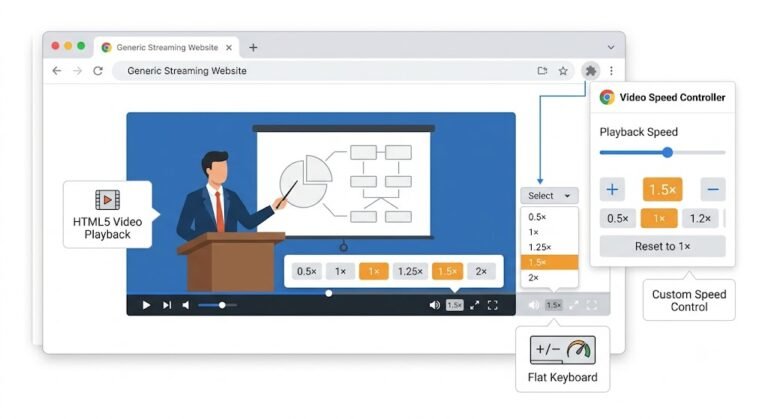
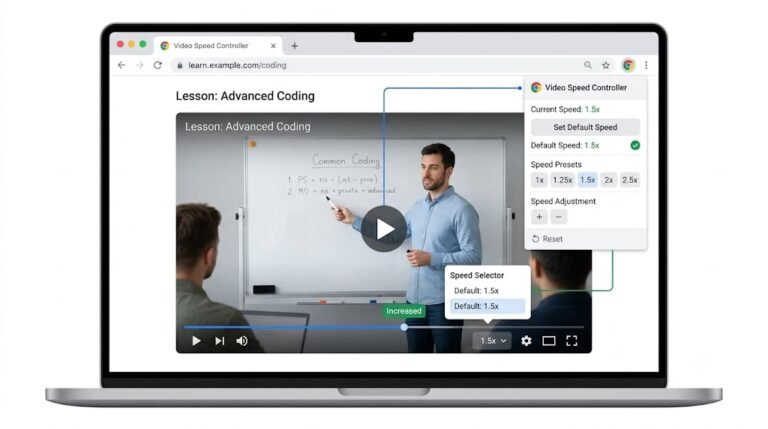
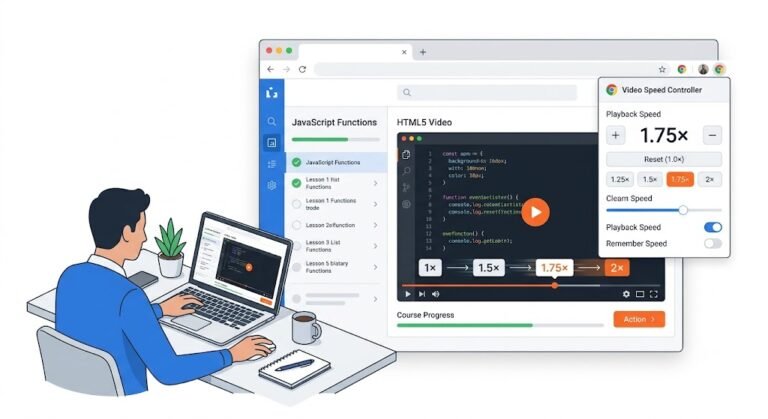
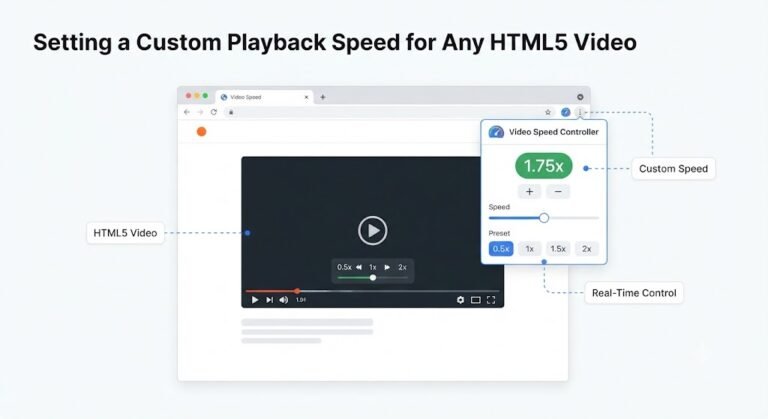
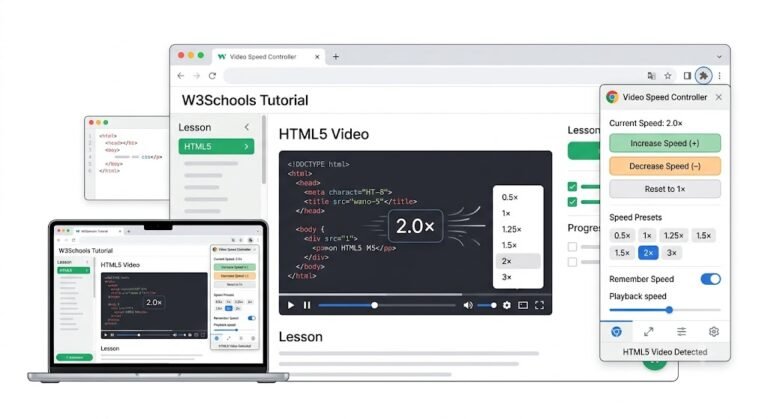
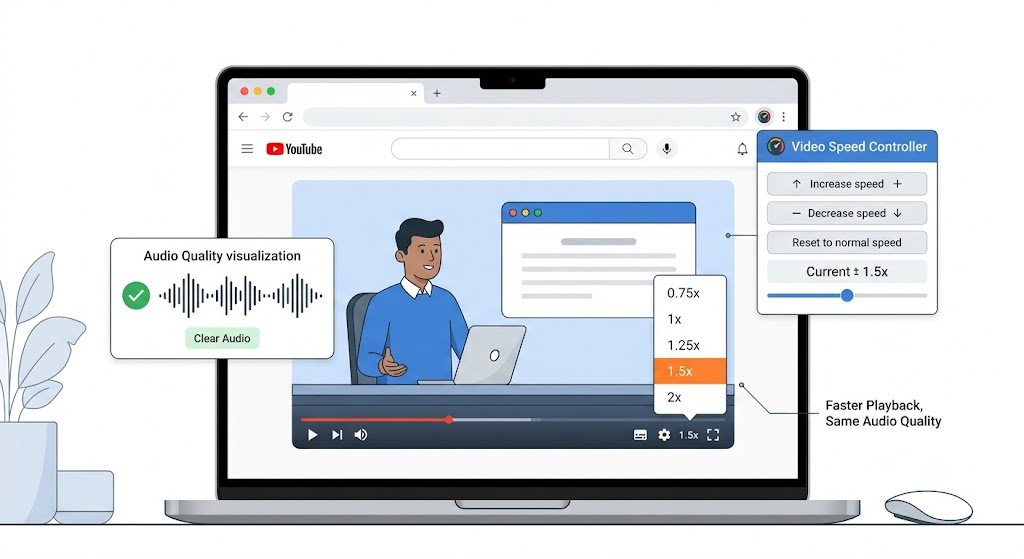
The moment you install the extension and open a YouTube tab, you gain a completely new way to dial in your perfect speed. Instead of navigating the player’s menu, you simply click the extension icon in Chrome’s toolbar. A clean popup appears with a large slider, a precise speed readout, and a reset button. Dragging the slider instantly changes the video’s playback rate — the audio remains pitch‑correct and crystal clear because modern browsers, including Chrome, perform sophisticated time‑stretching that preserves the natural tone of voices and music.
Here’s why this method guarantees no audio quality loss:
- Playback rate, not re‑encoding: The extension sets the HTML5 video element’s
playbackRateproperty. No video or audio data is decoded, re‑encoded, or resampled. The browser’s media pipeline simply changes the presentation speed of the existing stream. - Pitch preservation: Chrome’s Web Audio stack uses a time‑domain algorithm to stretch or compress audio while maintaining the original pitch. So at 2×, the speaker sounds faster but not like a chipmunk. At 0.8×, voices are slower but not unnaturally deep.
- Zero external processing: Everything happens on your device. There are no cloud services, no AI analysis, and no background video processing that could degrade quality. The original YouTube stream remains untouched.
The result: you can listen to a dense tutorial at 2.3× and still understand every word, or slow a fast‑paced native interview to 0.85× without muddying the pronunciation. All this while your privacy stays intact — because the extension never talks to any server. For the full philosophy behind this local‑only approach, see the Video Speed Controller home page.
What Controls Does the Video Speed Controller Popup Give You for YouTube?
The popup is intentionally minimal — no hidden menus, no account setups, no bloat. Everything you need sits in one small window that you can open and close in under a second.
- Continuous speed slider: Drag the slider anywhere within a wide range (e.g., from 0.1× to 16×, though practical speeds cluster between 0.5× and 4×). The position updates fluidly, letting you feel the difference between 1.45× and 1.55× in real time.
- Live speed readout: A large number shows your current multiplier, removing all guesswork. No more wondering “what speed is this?” while watching.
- Reset button: One click drops the tab back to 1.0×. This is essential after you’ve been flying through a playlist and want to watch a normal‑paced live stream.
- Browser badge (optional): If you enable it, a small badge appears on the extension icon displaying the active tab’s speed. A quick glance tells you that your YouTube lecture is currently at 1.8× without opening the popup.
Because the extension respects the per‑tab isolation model, you can have one YouTube tab playing at 2.5× while a Google Meet call in another tab remains untouched. That kind of multitasking is impossible with global browser flags.
What Happens Inside Chrome When You Increase the Speed on a YouTube Video?
Understanding the internal mechanism dispels the myth that speeding up a video degrades audio. Here’s the step‑by‑step process that occurs every time you adjust the slider.
- Active tab detection: Clicking the extension icon triggers Chrome’s service worker to identify the current tab and confirm that it contains at least one
<video>element. The extension uses theactiveTabpermission — granted only upon click — to access this information. - Media element injection: A lightweight content script locates the video element(s) on the page. On YouTube, this is usually a single primary video player.
- Playback rate assignment: The script sets
video.playbackRate = 1.85(or whatever value you chose). Chrome’s media engine immediately adjusts the timing of frame display and audio sample playback. The audio pitch stays natural because the engine applies time‑stretching without altering the frequency content. - Zero data manipulation: No video bytes are copied, buffered, or sent anywhere. The extension has no network access, no external servers, and no analytics — everything stays on your machine.
- Manifest V3 compliance: The background logic runs as an event‑driven service worker, which sleeps when not in use, preserving memory and battery.
This architecture means that even if you speed through a confidential corporate training video, your playback habits are never logged or leaked. The privacy‑first design is the same reason you can confidently use the extension to change video playback speed on any website that hosts HTML5 videos.
Practical Examples: When Speeding Up YouTube Videos Without Audio Quality Loss Makes the Biggest Difference
Real‑world usage shows why a fluid speed slider outperforms YouTube’s native options. Below are three common scenarios.
Example 1: The Online Student Watching a Recorded University Lecture
- Situation: A 90‑minute physics lecture posted on YouTube feels a bit slow. The student wants to save time but 1.5× is too fast to absorb complex equations, while 1.25× still wastes precious minutes.
- User action: With the lecture tab active, the student clicks the extension icon and drags the slider to 1.35×. The audio remains perfectly clear — the professor’s voice is faster but natural, not squeaky.
- Extension processing: The content script sets
playbackRate = 1.35. No buffering, no re‑encoding — the change is instantaneous. Chrome’s audio time‑stretcher preserves the pitch, so the lecture sounds like the professor simply talking faster. - Result: The lecture finishes in about 67 minutes. The student retains full comprehension and uses the reset button before switching to a virtual meeting, preventing accidental fast‑forward surprises.
Example 2: The Language Learner Decoding a Native YouTube Interview
- Situation: An intermediate Spanish learner is watching an unsubtitled interview. Natural speech at 1× is too rapid to parse, but YouTube’s 0.75× makes the dialogue sound unnaturally slow and robotic.
- User action: Opening the Video Speed Controller popup, the learner fine‑tunes the slider to 0.88×. The spoken flow becomes digestible while retaining the rhythm and intonation of natural conversation.
- Result: The extension’s pitch‑preserving time‑stretching keeps the authentic accent and emphasis intact. Because all processing is local, no listening data is shared — a major plus for anyone using YouTube for private language drills.
Example 3: The Developer Scanning a Technical Tutorial on YouTube
- Situation: A programmer is watching a 40‑minute “React Hooks Deep Dive” video. The explanations are thorough but the pace lags. They only need to see the code segments and skip the slow introductions.
- User action: In the YouTube tab, the developer sets the slider to 2.4×. When a crucial code snippet appears, they hit the reset button (instant 1×), then slide back up to 2.4× to continue scanning.
- Result: The video is consumed in under 20 minutes without missing any code logic. The extension’s lightweight design ensures zero lag even at high speed, and the laptop’s CPU stays cool because there is no extra video processing — only a playback rate change.
Does Speeding Up a YouTube Video Affect Audio Quality?
This is the core question, and the answer depends on how the speed change is performed. If you were to re‑encode a video file at a different rate using desktop software, you might indeed introduce artifacts, sample rate mismatches, or distorted voices. But the Video Speed Controller extension does not re‑encode anything. It simply tells Chrome to play the existing YouTube stream at a different speed.
What you can expect:
- Pitch stability: Chrome’s audio pipeline applies a time‑stretching algorithm that preserves the original pitch regardless of speed. At 2.5×, a speaker’s voice remains at the same tonal frequency; only the pace changes. This is why you can understand rapid speech without the “chipmunk effect.”
- No extra compression: Because the audio data itself is never decoded and re‑compressed, the quality of the original YouTube audio stream (typically AAC or Opus) is maintained exactly as the video creator intended.
- Extreme speeds: At very high multipliers (above 3×), the browser may drop occasional audio slices to keep up, causing a slight robotic texture. However, such speeds are rarely used for comprehension; most viewers stay between 1.2× and 2.5× where the audio remains pristine.
- Video frame smoothness: The video may appear less fluid at extreme speeds because of frame dropping, but this is a perception issue, not a quality degradation of the video stream itself. The original frames are still there; they are simply shown for a shorter duration.
In short: for the practical speed range that learners and efficient viewers use, there is no loss of audio quality. The technology behind this is built into every modern browser, not invented by the extension. The extension merely makes that capability easy, precise, and private.
Frequently Asked Questions
Will this method work on all YouTube videos, including music?
Yes. Any video hosted on YouTube that uses standard HTML5 playback can be accelerated or slowed down with the extension. Music videos will keep their original pitch, so a song at 1.5× won’t sound like a remix — it will just play faster.
Is the audio quality really preserved, or do I need special headphones to notice?
The audio stream is never re‑encoded. Chrome’s built‑in time‑stretching is a mature technology used by millions of users daily. You don’t need any special hardware; the audio remains clear on any speakers or headphones, just as the original stream sounds.
Can I set a default speed so all YouTube videos start at, say, 1.3×?
Yes. The extension can save your preferred speed to Chrome’s local storage. Every new YouTube tab will then automatically apply that default. The reset button always brings you back to 1.0× when needed. No accounts, no cloud sync — just a locally stored number.
Does using the extension collect any data about what I watch?
Never. The Video Speed Controller operates entirely offline. It has no analytics, no tracking scripts, and no external network requests. You can verify this by opening Chrome’s DevTools Network tab while using the extension — you’ll see zero activity from it.
Why does the extension need the “activeTab” permission?
The activeTab permission is the minimum required to read the video elements on the current page only when you click the extension icon. It does not grant background access to your browsing history or open tabs. This permission is used solely to detect and control HTML5 video playback speed.
Can I combine this with YouTube’s captions?
Absolutely. Captions are separate text tracks and are not affected by playback speed changes. They will display in sync with the video, though at higher speeds they may appear and disappear faster. Many learners find a moderate speed increase (1.3× – 1.5×) works perfectly with captions.
Take Control of Your YouTube Viewing — Faster, Clearer, and Completely Private
Speeding up YouTube videos without losing audio quality is not a technical trick reserved for advanced users. It’s a built‑in capability of modern browsers, made effortlessly accessible by a dedicated Chrome extension that respects your privacy. By using the Video Speed Controller, you move beyond the frustrating preset limitations and gain a fluid, real‑time slider that keeps every word crisp and every frame intact.
Key takeaways:
- YouTube’s own speed presets are adequate but lack the fine‑grained control that a slider provides, leading to wasted time or comprehension gaps.
- Audio quality remains unchanged because the extension only alters the
playbackRateproperty; Chrome’s audio engine preserves pitch naturally. - Every adjustment happens on your device — no video is uploaded, no listening habits are logged, and no external servers are ever contacted.
- The popup’s reset button and per‑tab isolation make it safe to mix fast‑paced study sessions with normal‑speed video calls, all within the same browser window.
- Practical use cases — from exam revision to language immersion — demonstrate that a privacy‑first speed controller is more than a gimmick; it’s a daily workflow tool.
Next time you open a YouTube lecture or tutorial, click the extension icon, slide to 1.6× or 0.9×, and listen. Notice how the voices remain natural, the explanations stay coherent, and your comprehension doesn’t suffer. When you’re finished, hit Reset and move on — no trace, no account, just a smoother way to watch. For more tips on browser video control and why local processing matters, visit the Video Speed Controller blog.