How to Speed Up Videos on Vimeo
Vimeo’s built‑in player gives you a few fixed speed presets, but for real control you need a tool that lets you fine‑tune playback exactly how you want — without ever leaving your browser. Video Speed Controller adds a smooth slider, instant reset, and 100% local processing. Nothing is recorded, uploaded, or synced.
- Why Vimeo’s default 1.25×, 1.5× and 2× jumps feel too rigid for serious learners
- How the Video Speed Controller extension unlocks any speed between slow‑motion and ultra‑fast
- Exactly what happens inside Chrome when you change speed — no account, no cloud, pure local adjustment
- How per‑tab isolation and a tiny memory footprint keep your browsing fast and private
Why Speed Up Videos on Vimeo?
Vimeo hosts everything from film‑school lectures and creative tutorials to in‑depth product demos. Often the content is brilliant but the pacing doesn’t match your learning rhythm. The native player offers only a small set of fixed speeds — 1.25×, 1.5×, 1.75×, 2×. That might be okay for casual viewing, but if you’re trying to absorb detailed information quickly, it’s not enough.
Imagine a 90‑minute cinematography masterclass where the instructor speaks deliberately. At 1.5× you might still feel like you’re crawling, but at 2× critical visual demonstrations blur past. You need something in between — say, 1.7× or 1.85×. That’s where a dedicated speed controller becomes essential. It gives you the precision to match the playback speed to your mental processing speed, not the other way around.
Because the Video Speed Controller works on standard HTML5 <video> elements, it supports every Vimeo embed, as well as embedded Vimeo players on third‑party sites. Whether you’re on vimeo.com, a blog, or a course platform, you get the same fluid control.
How to Increase Playback Speed on Vimeo Using Video Speed Controller
The process is simple, but understanding what happens under the hood helps you trust the tool. Here’s a step‑by‑step walkthrough of speeding up a Vimeo video with the extension.
- Navigate to any Vimeo video – open the page with the video you want to watch faster. The extension automatically detects the HTML5 media element in the active tab.
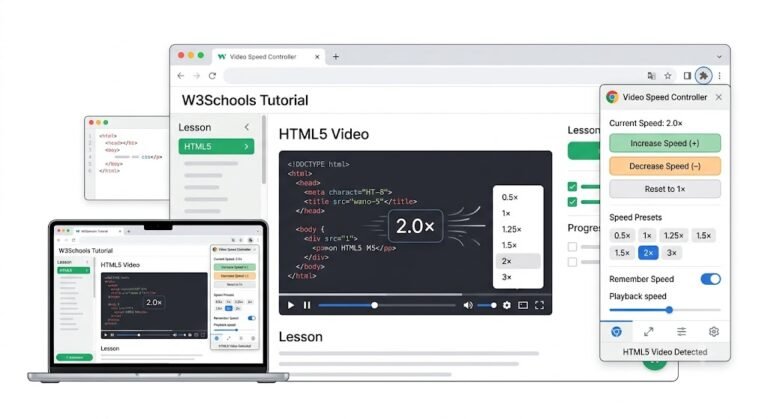
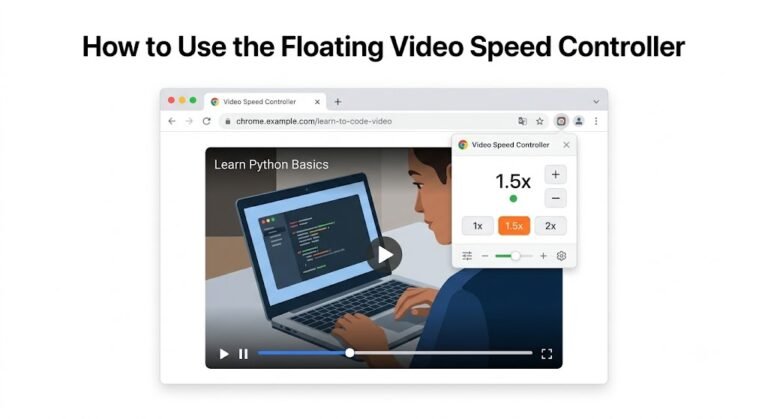
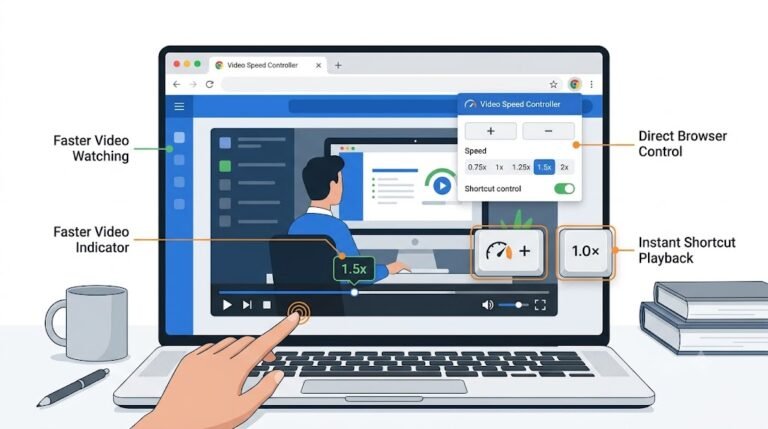
- Click the extension icon – the popup appears with a large speed slider, current speed readout, and a reset button. No menus to dig through, no extra settings to configure.
- Drag the slider to your desired speed – for instance, slide to 1.65×. Instantly, the Vimeo video’s
playbackRateproperty changes. The video accelerates in real time, with no buffering or reloading. - Hit Reset when you’re done – one click returns playback to the standard 1.0×. This is especially handy if you switch to another tab and don’t want a speed‑up surprise.
Behind the scenes, the extension uses Chrome’s activeTab permission to momentarily access the video element, sets the playbackRate value, and displays the feedback in the popup. No video data is copied, no network requests are made. Everything happens inside your browser’s sandbox, fully compliant with Manifest V3.
For a complete overview of supported platforms, visit which websites work with Video Speed Controller.
What Controls Does Video Speed Controller Give You for Vimeo?
The popup is intentionally minimal — every control is visible the moment you click the toolbar icon. For Vimeo videos, these are the tools you’ll use every day:
- Speed slider – A responsive, wide slider that lets you choose any playback rate from very slow (useful for language practice) to extremely fast (skimming long talks). The value updates live, so you hear the change as you drag.
- Playback speed display – Next to the slider, the exact multiplier is shown in large digits. No more guessing whether you’re at 1.9× or 2.0×.
- Reset button – Instantly returns the Vimeo video to 1.0×. Critical when you’ve been watching a slow‑motion analysis and need to jump back to normal pace.
- Browser badge (optional) – If enabled, a tiny badge on the icon shows the current speed. It’s a subtle reminder when you have multiple tabs open.
All adjustments are per‑tab. You can watch a Vimeo tutorial at 2.1× while a YouTube video in another tab stays at 1.0×. That isolation makes the extension a true productivity booster for anyone juggling multiple video sources.
Does Speeding Up Affect Vimeo Video Quality?
A common fear is that accelerating playback will introduce stutter, blur, or audio chipmunk effects. With Video Speed Controller, that’s not the case. The extension doesn’t re‑encode, filter, or drop frames — it only tells Chrome to present the existing frames at a faster tempo.
- Visual smoothness: Chrome’s media engine intelligently handles frame timing. At speeds up to about 2.5×, motion remains visually fluid on most modern displays. You might notice slight judder on very complex scenes above 3×, but that’s a perception limit, not a playback glitch.
- Audio pitch preservation: Chrome uses time‑stretching algorithms to keep voices sounding natural. Whether you’re at 1.4× or 0.9×, the speaker’s pitch stays authentic — perfect for language learners who need every word.
- No extra compression: Because the video data itself remains untouched, you see exactly what Vimeo serves, at the resolution your connection allows.
So yes, you can comfortably watch a Vimeo documentary at 1.85× and still appreciate the cinematography — no ghosting, no artifacts, just faster delivery.
Practical Examples: Speeding Up Vimeo Videos
Here are three realistic scenarios where a fine‑grained speed controller transforms the Vimeo experience.
Example 1: The Film Student Rewatching a Lecture
- Situation: A three‑hour guest lecture on Vimeo covers film theory at a deliberate pace. The student has already attended live and just needs a quick refresher.
- User action: With the Vimeo tab active, they open the Video Speed Controller popup and drag the slider to 1.8×. The professor’s voice remains clear, and the sample film clips play smoothly.
- Result: The lecture finishes in under two hours. The student absorbs the key points and uses the reset button to instantly return to normal speed when a colleague sends a link to a different video.
Example 2: The Creative Professional Skimming a Tutorial
- Situation: A motion designer is watching an After Effects tutorial on Vimeo. The instructor’s explanations are thorough, but the designer already knows the basics and only needs the advanced sections.
- User action: They set the speed to 2.2× for the introductory parts. When the instructor reveals a complex expression, they quickly reset to 1.0×, study the code, then slide back to 2.2× to continue.
- Result: A 45‑minute tutorial is compressed to 25 minutes of focused learning. The designer never misses a critical step, and the extension’s lightweight footprint keeps the workstation running cool.
Example 3: The Language Learner Tuning In
- Situation: A learner is watching a Vimeo documentary in their target language. The natural speed feels overwhelming, but 0.75× makes the speech sound unnaturally drawn out.
- User action: They open the popup and slowly drag the slider to 0.88×. The live feedback lets them find the sweet spot where words are distinct but the rhythm stays authentic.
- Result: Listening comprehension improves without sacrificing the documentary’s emotional tone. The process is completely private — no viewing data is sent anywhere.
Frequently Asked Questions
Will the extension work on every Vimeo video?
It works on any Vimeo video served through standard HTML5 players, which includes the vast majority of content on vimeo.com, embedded players, and private showcases. The rare exceptions are very old Flash fallbacks or DRM‑wrapped streams that bypass the browser’s <video> element. For a full list of compatible platforms, see supported websites.
Is my Vimeo activity private when I change the speed?
Absolutely. All speed adjustments happen locally inside Chrome. The extension never reads, records, or transmits your browsing history, video titles, or playback speed. It has no analytics, no cloud sync, and no external servers. You can verify this by opening Chrome’s DevTools Network panel while using the popup — you’ll see zero outgoing requests from the extension.
Can I set a default speed so every Vimeo video starts at 1.5×?
Yes. When you save a preferred speed, the extension stores that value in Chrome’s local storage on your device. From then on, any new Vimeo video you open will automatically adopt that speed. The reset button always brings you back to true 1.0× when you need it. For more details, read about setting a default playback speed.
Does the extension consume extra battery or CPU?
No. Because it only modifies the playbackRate property, the extension uses an extremely small amount of CPU — typically less than 0.1% on a modern laptop. Its Manifest V3 service worker sleeps when the popup isn’t open, so there’s no persistent drain.
Why does the extension need the “activeTab” permission?
The activeTab permission is required to access the current page’s video element when you click the extension icon. It grants temporary, user‑initiated access only — it does not allow reading other tabs, browsing history, or any background access. This is the most privacy‑respecting permission model available in Chrome.
Can I control speed with keyboard shortcuts?
The current version is optimized for the popup slider, which gives you visual, instantaneous control. While dedicated keyboard shortcuts aren’t built in, the popup is just one click away. For news and updates, visit the Video Speed Controller blog.
Take Control of Your Vimeo Playback, Privately and Instantly
Vimeo is packed with high‑quality content, but watching everything at one fixed speed wastes time and hampers learning. The Video Speed Controller extension fills the gap by giving you a smooth, continuous speed slider that works on every HTML5‑powered Vimeo video — with zero privacy trade‑offs.
Key points to remember:
- Vimeo’s native speed presets are too rigid for efficient learning; a dedicated controller delivers the precision you need.
- All speed changes happen locally in Chrome. No video data leaves your device, and there are no accounts or trackers.
- The popup’s slider, live readout, and reset button make it effortless to speed up, slow down, or instantly return to normal.
- Per‑tab isolation keeps your other videos unaffected, and the tiny memory footprint won’t slow your browsing.
Whether you’re a student rewatching a lecture, a creative professional skimming tutorials, or a language learner tuning your ear, the extension adapts to your pace. Open your next Vimeo video, click the icon, and slide the speed to exactly where it feels right. When you’re done, hit Reset and carry on. To learn more about the privacy‑first design, visit the Video Speed Controller home page.