How to Speed Up Pluralsight Video Courses
Pluralsight’s own player offers a few fixed speed steps, but when you need precise, real‑time control – like 1.35× to breeze through a familiar concept or 0.85× to catch every detail of a complex demo – a dedicated Video Speed Controller transforms your learning. Every adjustment stays 100% local inside Chrome, with zero uploads, no accounts, and no tracking.
- Why Pluralsight’s default 1×/1.25×/1.5×/2× presets often feel too rigid for efficient study
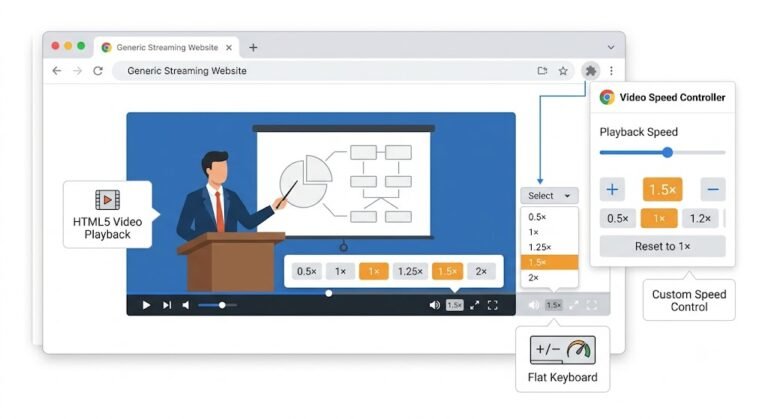
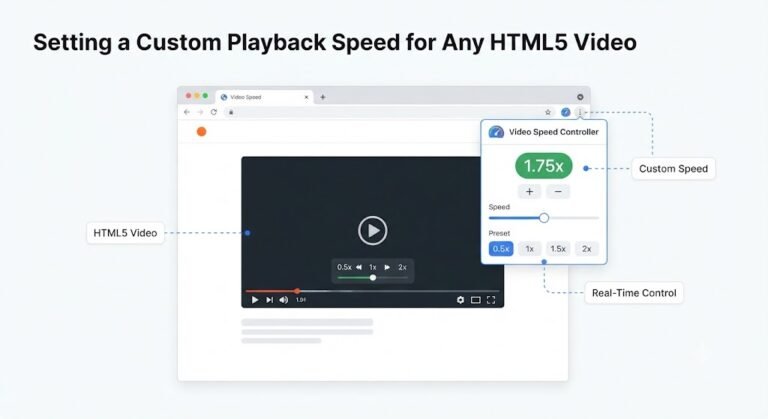
- How the Video Speed Controller extension gives you a fluid slider and a live speed readout for any HTML5 video
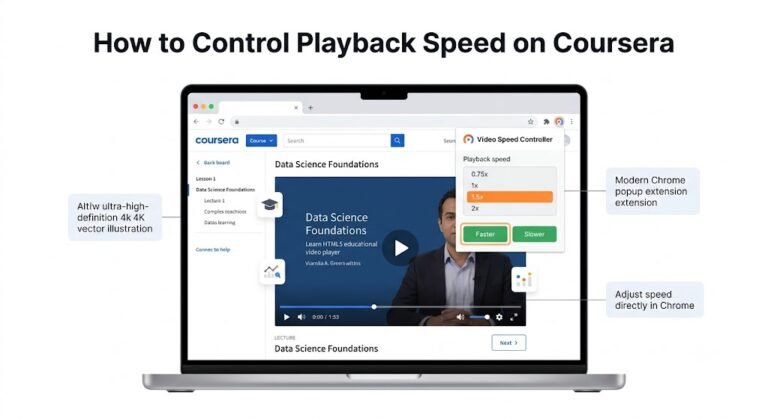
- Step‑by‑step: open a Pluralsight course, click the extension, drag the slider, and instantly hear the instructor at exactly the right tempo
- Why per‑tab speed control and a tiny Manifest V3 footprint keep your browser snappy and your study sessions private
Why Would You Need a Video Speed Controller for Pluralsight Courses?
Pluralsight’s video player provides a convenient speed menu – 1×, 1.25×, 1.5×, 2× – and for many learners that’s enough. However, the moment you run into a dense coding walkthrough where the instructor speaks slightly too fast, or a theory module that feels drawn out, those presets become a productivity bottleneck.
Video Speed Controller solves this by giving you a continuous slider that lets you choose any value from 0.07× to 16×. Instead of jumping from 1.5× to 2×, you can settle at 1.7× or 1.85× – whatever matches the speaker’s pace and your comprehension. The adjustment is instant; no buffering, no reloading, just a smooth change in the HTML5 video’s playback rate.
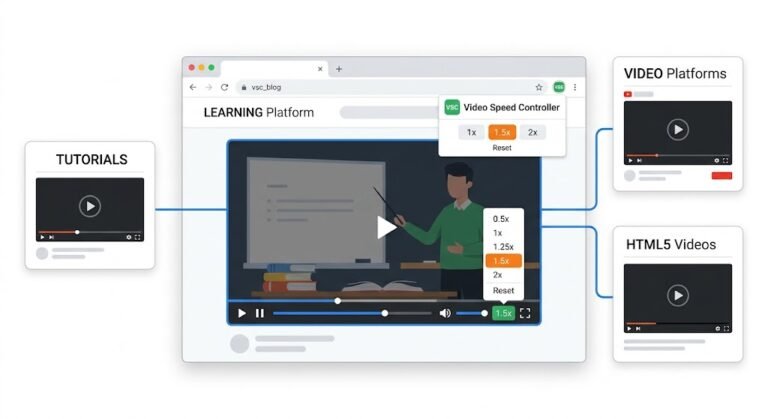
Because Pluralsight serves courses through standard <video> elements, the extension detects them automatically. There’s no need to configure anything per course. As you move between modules, the speed you set sticks to that tab, while other tabs stay unaffected.
Discover more about how the extension works across different learning platforms on the supported websites guide.
How Does Video Speed Controller Interact with Pluralsight’s Video Player?
When you open a Pluralsight course and click the extension icon, a content script scans the active tab for HTML5 <video> nodes. Since Pluralsight uses a modern web player, the video element is readily accessible. The extension then applies your chosen playbackRate value directly to that element, just like you would with a line of JavaScript in the console – but without the hassle.
Here’s the exact sequence:
- Activation: Click the Video Speed Controller icon on your Chrome toolbar while the Pluralsight tab is active. The service worker (Manifest V3) uses the
activeTabpermission to access that page. - Detection: The content script locates all
<video>elements. On Pluralsight, there’s typically one main player and possibly a small preview. The extension targets all, so the main lecture video changes speed immediately. - Speed assignment: Move the slider to 1.6×. The script sets
video.playbackRate = 1.6. Chrome’s media engine re‑presents frames and audio at the new rate without altering the original data. The instructor’s voice remains clear because modern browsers use time‑stretching to preserve pitch. - Live feedback: The popup displays “1.60×”. The video continues playing smoothly, and you can tweak the slider mid‑lecture as needed.
All this happens inside your browser’s sandbox. No video frames are copied, no audio is recorded, and the extension never communicates with Pluralsight’s servers about your speed choice.
What Controls Does the Video Speed Controller Popup Give You on Pluralsight?
The popup is intentionally minimalist – everything you need to control speed without breaking your study flow.
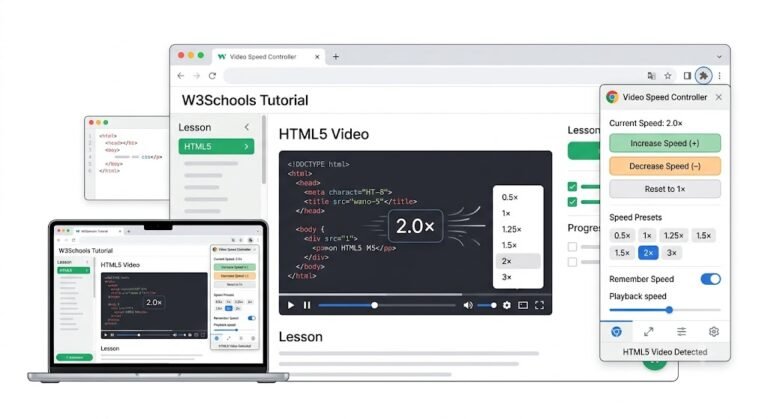
- Speed slider: Drag it from 0.07× (for extreme slow‑motion review) up to 16× (for skimming through well‑known topics). The slider’s resolution is fine enough to hit values like 1.45× or 2.3× that Pluralsight’s built‑in menu can’t offer.
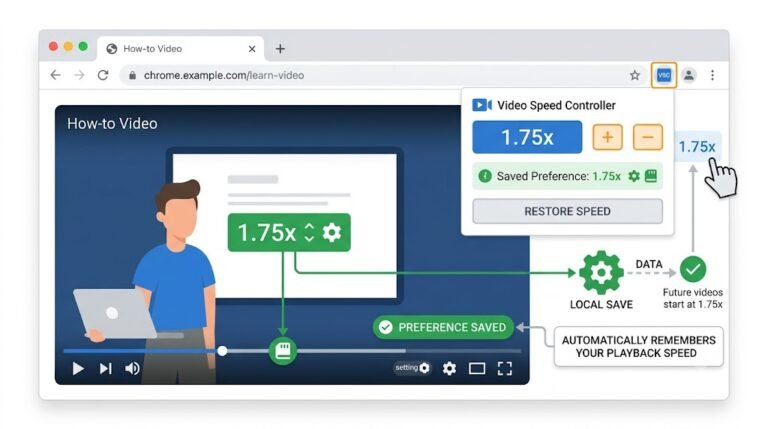
- Playback speed display: The current multiplier is shown in large text, so you never guess your speed. This helps you build a personal “sweet spot” for different instructors or subject types.
- Reset button: A single click sets the speed back to 1.0×. After a fast‑forward sprint through a lengthy introduction, the reset button brings the instructor’s voice back to natural speed instantly.
- Per‑tab memory: The extension remembers the speed for the active Pluralsight tab. If you open another course in a new tab, you can have that one playing at 1.3× while the current tab stays at 2× – no interference.
Because the popup only accesses the current tab, you can keep a library video playing in the background at 1× while you speed through a tutorial at 1.8× in another window. The separation keeps multitasking simple.
What Happens Inside Chrome When You Change Playback Speed on a Pluralsight Video?
Understanding the internals reassures you that the extension is completely safe and private. It does not download, re‑encode, or intercept the video stream – it simply asks Chrome to play the stream at a different cadence.
Key internal steps:
- DOM traversal: The content script walks the page’s document object model to find
<video>tags. No other content is inspected. - Playback rate property: Setting
video.playbackRate = 1.85instructs the browser’s media pipeline to adjust the presentation timestamp of each decoded frame. The video decoder itself runs at the same pace; only the display timing shifts. - Audio time‑stretching: Chrome’s audio stack uses the Web Audio API to stretch or compress the audio waveform without altering pitch. So voices stay natural even at 2.5×.
- No network activity: The extension makes zero external requests. You can confirm this by opening Chrome DevTools → Network tab while adjusting speed – nothing appears. All execution is local and self‑contained.
- Manifest V3 compliance: The extension uses a service worker that wakes only when you click the icon, then sleeps immediately after. It never runs background processes or consumes memory when idle.
This architecture means your Pluralsight watch history, progress, and speed preferences never leave your machine. For a deeper look at the privacy model, visit the Video Speed Controller home page.
Practical Examples: Speeding Up Pluralsight Courses in Real Study Sessions
Below are three realistic scenarios where a granular speed controller cuts down study time while preserving comprehension – all on Pluralsight.
Example 1: The Junior Developer Learning a New Framework
- Situation: A developer is watching a 3‑hour “React Fundamentals” course. The introductory slides and overview feel slow, but the live coding segments require full attention.
- User action: They open the Pluralsight tab, click Video Speed Controller, and slide to 2.2× during the conceptual parts. When the instructor starts typing code, they tap Reset to jump back to 1.0× for precision.
- Extension processing: The content script instantly swaps
playbackRatebetween 2.2 and 1.0 each time. No buffering, no course reload. - Result: The 3‑hour course is completed in just over 2 hours. The developer retains the code walkthrough details because they never missed a keystroke at normal speed.
Example 2: The Experienced Engineer Skipping Familiar Material
- Situation: A senior engineer is brushing up on cloud architecture via a Pluralsight path. Many modules recap basics they already know, but the advanced sections are new.
- User action: With the extension popup open, they drag the slider to 3.0× for the revision parts. The instructor’s voice remains perfectly understandable thanks to Chrome’s pitch‑preserving time‑stretch. When an unfamiliar diagram appears, they slide back to 1.3×.
- Result: The entire learning path is consumed in half the scheduled time. The engineer never risks missing critical information because the slider allows instant, fine‑grained downshifts.
Example 3: The Non‑Native English Speaker Following a Technical Tutorial
- Situation: A learner whose first language isn’t English watches a Pluralsight course on Python data analysis. The instructor speaks quickly with an accent that demands extra processing time.
- User action: They set the slider to 0.8×. The slightly slower speed gives their brain enough time to parse technical terms without the unnatural “slow‑motion” effect of 0.5×. The popup’s live readout confirms the exact rate.
- Result: Comprehension improves dramatically. The learner follows along with the code exercises and takes notes without pausing. No data is collected about this preference – the speed setting stays private.
Does Changing Playback Speed Affect Course Progress or Video Quality on Pluralsight?
A common concern is whether speeding up a video will break the course’s completion tracking or degrade the viewing experience. With Video Speed Controller, neither happens.
Course progress: Pluralsight tracks module completion by detecting that the video played through its timeline. Since the extension only alters the rate at which frames are presented – not the timeline itself – the player still sees the video “playing” from start to finish. Your progress is marked accurately, even at 4× speed.
Video and audio quality: The extension does not transcode the stream. The video resolution, colour, and clarity remain exactly as delivered by Pluralsight. At higher speeds, your eyes perceive faster motion, but there is no added blur or compression artifacts. Audio remains pitch‑correct because Chrome’s built‑in time‑stretching handles the rate change.
The only practical limit is your own comprehension. Extreme speeds (above 4×) may feel too rushed for dense material, but the playback itself stays smooth. For an in‑depth look at how playback speed affects different video types, check the Video Speed Controller blog.
Frequently Asked Questions About Speeding Up Pluralsight Courses
Will Video Speed Controller work on every Pluralsight course?
Yes. As long as the course uses Pluralsight’s standard web player (which relies on HTML5 video), the extension will detect and control the video. Even courses with interactive coding exercises in‑browser are unaffected – only the video player’s speed changes.
Does the extension interfere with Pluralsight’s offline viewing or mobile apps?
No. The Chrome extension works only inside the desktop Chrome browser. It does not modify the Pluralsight website itself, nor does it affect the mobile apps or downloaded offline content. Your speed adjustment is purely a local, browser‑side setting.
Is my Pluralsight login or watch history exposed?
Absolutely not. The extension has no access to your Pluralsight credentials, course data, or browsing history. It doesn’t read cookies or local storage of the Pluralsight site. All it does is locate <video> elements on the active tab and modify their playbackRate. There is no tracking, no analytics, and no communication with external servers.
Can I set a default speed so all my Pluralsight courses start at 1.5× automatically?
Yes. You can save your preferred speed inside the extension’s popup. That value is stored in Chrome’s local storage on your device, and any new tab with a detectable video will adopt it automatically. The reset button always restores 1.0× when you need it.
Why do I need this extension if Pluralsight already has a speed menu?
Pluralsight’s menu gives you four choices: 1×, 1.25×, 1.5×, and 2×. For many learners, the jump from 1.5× to 2× is too large – one feels sluggish, the other frantic. Video Speed Controller fills the gap with any value in between, plus speeds below 1× and above 2× for even finer control. It also gives you a one‑click reset and a live readout that helps you learn which speeds work best for different instructors.
Does the extension drain my laptop’s battery during long Pluralsight sessions?
No. The extension’s CPU footprint is negligible. It only runs a minimal content script when you open the popup and sets a single property on the video element. There is no ongoing background processing, no video rendering, and the service worker sleeps between interactions. Your battery life will be determined by Chrome’s video decoding and screen brightness, not by the speed controller.
Take Control of Your Pluralsight Learning Speed – Locally and Privately
A Video Speed Controller turns Pluralsight into a truly personalised learning platform. Instead of being locked into a few speed presets, you can tune every course to match your comprehension, the instructor’s delivery, and your available study time.
Key takeaways:
- Pluralsight’s built‑in speed options are useful but limited – a dedicated extension gives you infinite gradations.
- All speed adjustments happen locally inside your browser; no video data is ever uploaded or recorded.
- The extension’s slider, live readout, and reset button let you shift between speeds mid‑lecture without distraction.
- Per‑tab control and a lightweight Manifest V3 design keep your browser fast, private, and efficient.
Next time you open a Pluralsight course, try the Video Speed Controller. Slide the speed up a few notches for the introductory material, down for the code‑along, and back to normal when the instructor asks a thought‑provoking question. You’ll cover more ground in less time without sacrificing understanding. For more tips on speeding up videos across the web, explore the YouTube speed guide or the Udemy speed guide.