How to Slow Down a Video to Understand It Better
When a speaker rushes through complex ideas or a tutorial moves too fast, the built‑in Chrome speed menu offers only clumsy presets. Video Speed Controller gives you a smooth, real‑time slider to slow down a video precisely — 0.85×, 0.9×, or any fraction that makes the content click. Every adjustment runs locally inside your browser, with no uploads, no accounts, and zero tracking.
- Why native browser presets fail language learners, students, and anyone needing fine speed reduction
- How the Video Speed Controller popup puts a live slider, speed readout, and instant reset right in your toolbar
- Exactly what happens when you slow down a video — the extension sets the
playbackRateproperty, no video data is touched - How per‑tab speed control, a lightweight Manifest V3 design, and 100% local processing keep your viewing private and your browser fast
Why Would You Need to Slow Down a Video in Chrome?
Chrome’s default speed options — 0.75×, 1.0×, 1.25× — force you into a handful of presets. For many tasks, that’s not enough. When you need to slow down a video just a little, say to 0.9× or 0.83×, those presets feel like hammers when you need a scalpel.
Consider a dense online course where the lecturer speaks with a heavy accent. Dropping to 0.75× makes the speech unnaturally lethargic, while 1.0× leaves you missing key terms. With a fluid speed slider, you can dial in 0.85× and let your brain process each phrase. The same goes for language learning, where you want to catch every syllable without distorting the natural rhythm.
Even for entertainment, a documentary with rapid narration benefits from a gentle slowdown. The precision of a dedicated extension means you never have to choose between “too fast” and “too slow” — you land right where comprehension peaks.
How Does the Video Speed Controller Help You Slow Down Any HTML5 Video?
The extension interacts directly with the playbackRate property of every <video> element on the active tab. It never downloads, records, or re‑encodes the media. When you decide to slow down a video, the only thing that changes is the instruction that tells Chrome’s media engine how fast to present frames.
- Active tab detection: After you click the extension icon, the service worker uses Chrome’s
activeTabpermission to check for a playable HTML5 video. No browsing data is read or stored. - Speed adjustment: The content script targets every video element and sets
playbackRate = 0.7(or whichever value you choose). The change applies in real time, so the video instantly slows down without buffering. - Feedback loop: The popup displays the exact multiplier — 0.7×, 0.85×, etc. — so you always know your current speed. The reset button instantly returns the video to 1.0× when you’re done.
All of this happens inside Chrome’s sandboxed extension environment, following Manifest V3 standards. The extension doesn’t constantly run in the background, so it keeps memory usage minimal. For a complete overview of how the tool handles any speed change, visit the Video Speed Controller home page.
What Controls Let You Slow Down a Video Precisely?
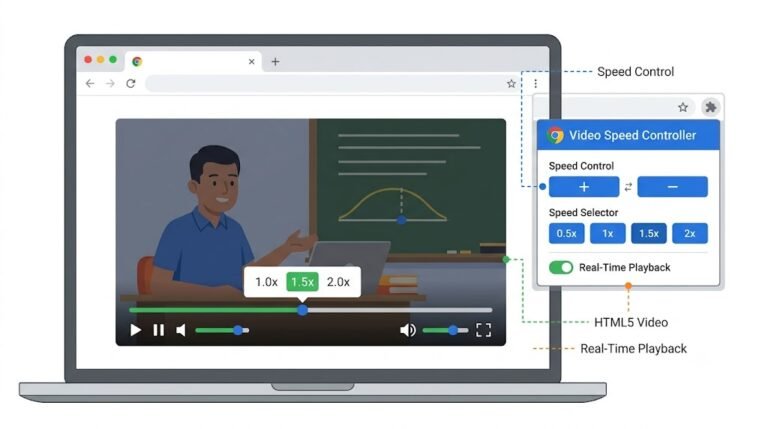
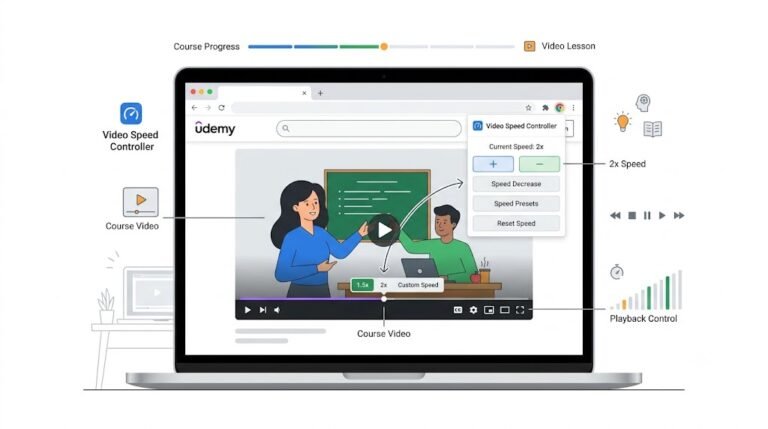
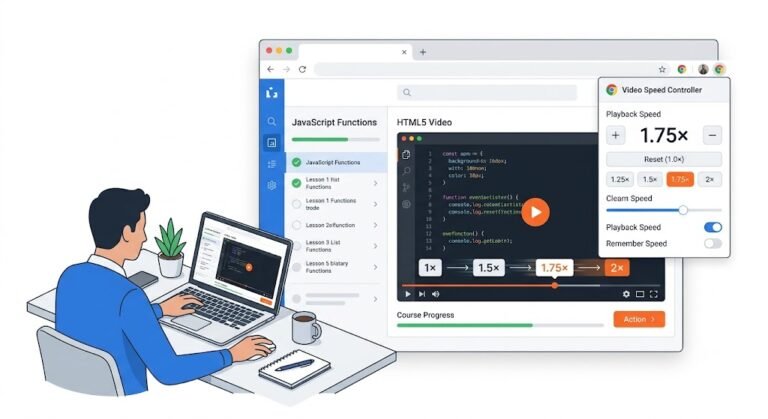
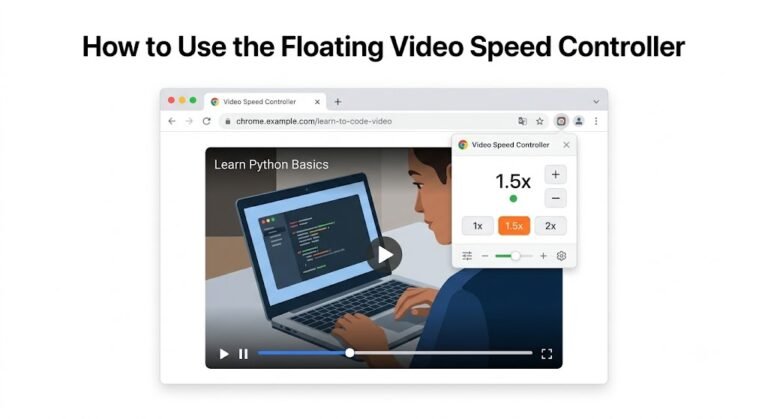
The popup is built for one‑purpose speed control. There are no nested menus, no settings to hunt for, and no distractions. Everything you need to adjust playback speed sits right in front of you.
- Speed slider: A large, responsive slider that covers the full usable range — from extremely slow to fast. Dragging it to 0.8×, 0.5×, or any fraction gives you instant fine‑tuned slowing. You are no longer locked to 0.75× and 1.0×.
- Playback speed display: Right next to the slider, the current multiplier is shown in clear text. This removes guesswork and helps you build muscle memory for the speeds that suit different types of content.
- Reset button: One click sets the tab’s video back to 1.0×. It’s essential for switching from a heavily slowed‑down lecture back to normal conversation or a call.
- Browser badge (optional): If enabled, a small badge on the extension icon shows the active speed multiplier. It’s a quick visual check that you’re still at 0.9×, for example, without opening the popup.
Because the popup only influences the active tab, you can slow down a video on one tab while another tab plays at normal speed. That per‑tab isolation makes the extension a true productivity tool for multitasking learners.
What Happens Inside Chrome When You Slow Down a Video?
Understanding the internals reassures you that a local extension is far safer than any web‑based speed changer. The extension does not touch the video data; it only tells Chrome’s decoder to present frames and audio at a slower tempo.
Key internal steps when you slow down playback:
- Video element targeting: The content script identifies all
<video>nodes in the DOM. It does not scan text, images, or any other page elements. playbackRateassignment: Settingvideo.playbackRate = 0.83instructs the browser’s media pipeline to time‑stretch the presentation. Audio pitch remains natural because Chrome uses a modern Web Audio time‑stretching algorithm.- Zero data transfer: No video frames, audio samples, or metadata are captured or sent outside your device. The extension never accesses the network — everything stays inside Chrome’s local sandbox.
- Manifest V3 compliance: The extension uses an event‑driven service worker and declarative permissions, which means it sleeps when you’re not actively using the popup. There’s no persistent background page draining resources.
This architecture guarantees that your decision to slow down a video remains completely private. The platform hosting the video cannot detect the speed change, and your viewing habits are never profiled.
Practical Examples: When Slowing Down a Video Makes All the Difference
Real‑world scenarios show how a precise speed slider turns frustration into clarity. Here are three common situations where the extension helps you slow down a video exactly as needed.
Example 1: The Online Student Tackling a Fast‑Paced Lecture
- Situation: A recorded university lecture on a learning management system moves through complex formulas too quickly. Chrome’s 0.75× is too sluggish, and 1.0× leaves the student scrambling to take notes.
- User action: With the lecture tab open, the student clicks the Video Speed Controller icon and drags the slider to 0.85×. The playback instantly adapts, and the spoken words become comfortably paced.
- Extension processing: The content script sets
playbackRate = 0.85on the video element. No buffering or re‑encoding occurs — Chrome’s decoder simply holds each frame slightly longer. - Result: The student follows every derivation without feeling bored, and finishes the session with complete notes. When moving to a synchronous discussion, the reset button restores normal speed.
Example 2: The Language Learner Dissecting a Dialogue
- Situation: A learner watches a native‑language YouTube interview and needs to catch idiomatic expressions. Normal speed is too brisk to parse unfamiliar accents, but 0.75× makes the conversation sound unnatural.
- User action: They open the popup, fine‑tune the slider to 0.9×, and listen while following subtitles. The live feedback lets them experiment until the rhythm feels natural.
- Result: Chrome’s audio time‑stretching keeps the pitch authentic, so the learner hears genuine pronunciation at a manageable pace. The entire session remains private — no listening data is collected.
Example 3: The Researcher Reviewing a Technical Webinar
- Situation: A recorded conference presentation contains dense diagrams and rapid explanations. The researcher needs to study specific segments in detail without downloading the video.
- User action: In the Chrome tab with the webinar, they set the speed slider to 0.7× for the complex sections and hit reset when the Q&A begins. The badge reminds them of the active speed.
- Result: The researcher pauses, rewinds, and replays at exactly the right speed, absorbing the material thoroughly. The extension’s lightweight design ensures zero lag even on a modest laptop, because no extra video processing happens — only a playback rate adjustment.
Does Slowing Down a Video Affect Audio Quality?
A common concern is that reducing speed will make voices sound muddy, robotic, or painfully deep. With the method Video Speed Controller uses — changing only the playbackRate — the audio samples remain untouched. Chrome’s Web Audio engine applies a time‑stretching algorithm that preserves the natural pitch while slowing the tempo.
What you’ll hear:
- At moderate slow speeds (0.75× – 0.9×), speech remains crisp and understandable. You’ll notice a slightly longer pause between words, but the voice itself stays natural.
- At very slow speeds (0.5× and below), some high‑frequency details may sound slightly soft, but the dialogue is still perfectly intelligible. This is a limitation of time‑stretching, not a flaw in the extension.
- Music or background audio may sound elongated, but spoken content is the primary focus for most slowdown scenarios.
Because the extension doesn’t re‑encode or filter the audio, you never get the “wobbly” distortion that cheap tools introduce. You hear exactly what the platform delivers, just at a slower tempo.
Frequently Asked Questions About Slowing Down a Video
Will the extension let me slow down a video on every website?
It works on any site that uses standard HTML5 <video> elements — YouTube, Vimeo, Udemy, Coursera, university LMS platforms, Google Drive previews, and many more. It cannot control videos served through Flash, Silverlight, or certain DRM‑encrypted streams that bypass Chrome’s native media stack.
Is my privacy safe when I slow down a video?
Absolutely. All speed changes happen locally inside your browser. The extension never sends video data, browsing history, or speed preferences to any server. It has no analytics, no tracking, and no advertising modules. You can verify this by opening Chrome’s developer tools network tab while the extension is active — there are zero external requests.
Can I set a default slow speed so every video starts at, say, 0.9×?
Yes. If you save your preferred speed through the extension, that value is stored in Chrome’s local storage on your device. Every time a new video loads in a tab, the extension applies your default automatically — no cloud, no login. The reset button always brings you back to true 1.0× when you want normal speed.
Does slowing down a video drain battery or slow my computer?
No. The extension’s CPU footprint is negligible because it only runs a tiny content script to set the playbackRate property. It doesn’t perform video processing, and the service worker is event‑driven (Manifest V3), so it sleeps when you’re not using the popup. Slowing down a video does not force the browser to decode extra frames; it simply holds each frame longer.
Why does the extension need the “activeTab” permission?
The activeTab permission is required to access the current page’s video elements when you click the extension icon. It does not grant permanent access to your tabs, and it never reads your browsing history. This permission is used solely to detect and control HTML5 video playback speed — nothing more.
Can I use keyboard shortcuts to slow down a video?
The current version focuses on the popup slider for precise control, providing the finest speed granularity. While there are no custom keyboard shortcuts built in, the popup is always just one click away. For the full feature list and any updates, check the Video Speed Controller blog.
Slow Down Videos on Your Terms — Locally, Privately, and Instantly
The ability to slow down a video with real precision is a game‑changer for learners, researchers, and anyone who relies on online video. By moving beyond Chrome’s preset menu, you give yourself complete control over comprehension without ever sacrificing privacy.
Key takeaways:
- Chrome’s built‑in speed options are too rigid; a dedicated extension offers a fluid slider that lets you choose any speed, such as 0.83×, 0.7×, or lower.
- All processing happens on your device — no video is uploaded, recorded, or analysed. Your speed choices remain yours alone.
- The popup’s slider, live readout, and reset button make slowing down quick and intuitive, even mid‑video.
- Per‑tab isolation and minimal permissions keep your browser fast and your data safe, in line with Manifest V3 standards.
Because the extension is lightweight, privacy‑first, and built on standard Chrome APIs, it slips into any workflow without friction. Open your next lecture, training video, or documentary, click the extension icon, and drag the slider left. Notice how the video instantly obeys, with no buffering and no fuss. When you’re done, hit Reset and carry on. For more insights on customising your playback experience, explore the guide to changing video playback speed on any website.