Keyboard Shortcuts for Video Speed Control – Faster Watching Without Key Combos
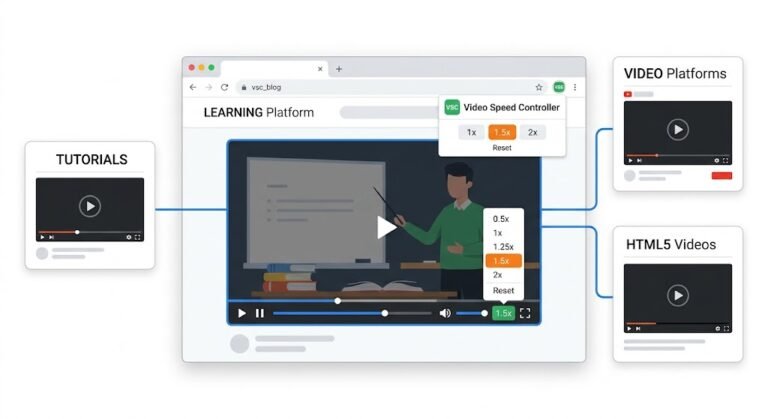
Many people search for keyboard shortcuts for video speed control hoping to speed up lectures or slow down tutorials. But built‑in Chrome hotkeys offer only a few presets and require memorization. The Video Speed Controller extension replaces that frustration with a single, intuitive slider — giving you instant, fine‑grained playback adjustment right in your toolbar, all processed locally inside your browser.
- Why keyboard shortcuts feel too limited — they lock you into preset speeds like 1.5× or 2×
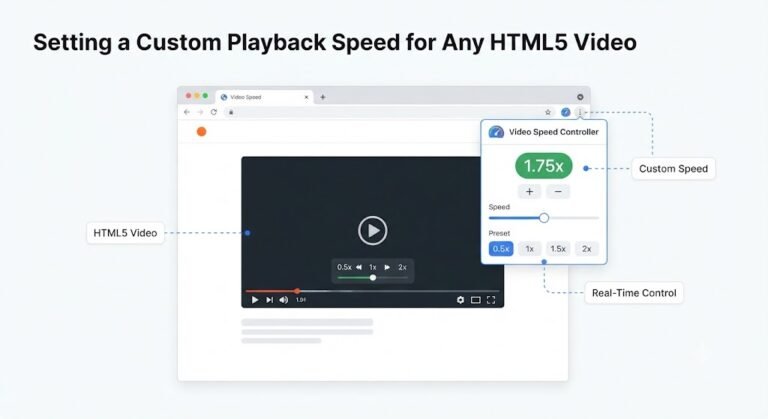
- How the Video Speed Controller popup gives you a continuous slider, live speed readout, and a reset button
- Every speed change happens in real time on standard HTML5 videos — no uploading, no account, 100% local
- The slider is faster than any key combination and works on YouTube, Udemy, Coursera, and virtually every video site
Why Do Users Search for Keyboard Shortcuts for Video Speed Control?
When you’re in the middle of a dense online course or trying to skim a long tutorial, clicking through menus feels painfully slow. It’s natural to wish for keyboard shortcuts for video speed control — a quick Shift+> to speed up, Shift+< to slow down. But the reality is that most browsers either don’t offer such shortcuts, or they limit you to a few fixed jumps that rarely match your ideal pace.
The Video Speed Controller extension understands that desire, but takes a different path: it puts a precision slider right under your cursor. Instead of memorizing multiple key combos and hoping the speed feels right, you drag a single control to exactly 1.37×, 0.92×, or 2.4× — and the video adjusts immediately. There’s no need to remember anything, and your eyes never leave the content.
This slider‑first approach is built around real‑world video consumption, not abstract keyboard shortcuts. You can learn more about how the extension handles any HTML5 video on the change video playback speed on any website guide.
The Hidden Limits of Built‑in Chrome Speed Controls
Chrome’s native speed menu, hidden behind a right‑click or a three‑dot menu, offers only 0.25×, 0.5×, 0.75×, 1×, 1.25×, 1.5×, 1.75×, and 2×. While that seems versatile, in practice those presets often force you to choose between “too slow” and “too fast.” A busy developer scanning a coding walkthrough might need 2.3× to follow the code, not 2×. A language learner parsing rapid speech needs 0.85×, not 0.75×.
Keyboard shortcuts for speed control — if they existed natively — would only toggle between those same presets. You’d still be stuck. The Video Speed Controller popup replaces those rigid steps with a fluid, responsive slider that covers every tiny increment you could want. That single change eliminates the guessing game and keeps your brain focused on the material, not on the tool.
Because the slider directly manipulates the HTML5 playbackRate property, it’s incredibly lightweight. No keyboard shortcut can match the speed of dragging a slider to 1.68× and seeing the result instantly. For a complete overview of how the extension interacts with Chrome, read the Video Speed Controller extension deep dive.
How the Video Speed Controller Slider Replaces Keyboard Shortcuts with Instant Precision
The popup’s controls are designed to be faster than any keyboard shortcut because they require zero memorization and offer infinite adjustability. Here’s what you get when you click the extension icon on an active video tab:
- Speed slider: A large, draggable control that changes the playback rate anywhere within a practical range. The moment you release the slider, the video’s speed updates. No confirmations, no menus — just real‑time change.
- Live speed readout: The exact multiplier (e.g., 1.25×, 0.88×) appears next to the slider in large, readable text. You’ll never wonder “Is this 1.5× or 1.75×?”
- Reset button: One click returns the current video to 1.0× — the true default. This is critical for avoiding a sudden fast‑forward shock when you switch from a slowed‑down lecture to a live conference call.
- Per‑tab isolation: The popup controls only the active tab. You can speed up a documentary on one tab while a tutorial on another remains at normal speed. No shortcut system can match this contextual awareness.
If you’re curious about how the extension detects HTML5 video elements and applies the playback rate, the HTML5 video playback speed guide explains every step in technical detail.
What Happens Inside Chrome When You Drag the Slider?
Behind the scenes, the slider is just a friendly face for a precise, local operation. When you move it to, say, 1.7×, here’s the exact sequence that unfolds inside your browser:
- Active tab detection: The service worker checks the current tab and identifies any
<video>elements. This uses theactiveTabpermission, granted only at the moment you click the extension icon. playbackRateassignment: The content script setsvideo.playbackRate = 1.7on every detected video. Chrome’s built‑in media engine then adjusts the frame presentation and audio time‑stretching immediately, without buffering or reloading.- Zero network activity: No video data is read, copied, or uploaded. The extension never makes any external requests. Your playback speed preference is stored locally in Chrome’s storage only if you choose to save a default.
- Manifest V3 compliance: The extension runs as a lightweight service worker that sleeps when not in use, keeping your browser memory and CPU cool — exactly what you’d expect from a modern, privacy‑first tool.
This local‑only architecture means your speed adjustments are completely private. No analytics, no tracking, and certainly no keyboard shortcut logging. You can read more about the privacy model on the Video Speed Controller extension privacy page.
Practical Examples: When the Slider Beats Any Keyboard Shortcut
Here are three real‑world scenarios where the slider’s instant precision saves you time and mental energy, far beyond what fixed keyboard shortcuts could achieve.
Example 1: The Online Learner in a Rush
- Situation: A student is reviewing a 2‑hour university lecture on a Moodle site. They find 1.5× too slow but 2× makes the professor sound like a chipmunk.
- Action: With the lecture tab active, they click the Video Speed Controller icon and drag the slider to 1.7×. The playback smoothly accelerates, and the audio remains crystal‑clear.
- Result: The lecture finishes in about 70 minutes, saving 50 minutes, without missing any important points. No keyboard combo needed, and when a friend sends a video call link, a single click on Reset brings everything back to normal.
Example 2: The Language Learner Needing Slow Motion
- Situation: A French learner watches an interview on YouTube. Native speakers talk fast, and 0.75× feels painfully slow while normal speed is overwhelming.
- Action: They open the popup and set the slider to 0.88×. This tiny reduction keeps the conversation flowing naturally while giving the brain just enough extra processing time.
- Result: Comprehension improves dramatically. The extension’s pitch‑preserving time‑stretch ensures voices sound authentic, not distorted. And because all processing is local, no listening data leaves the device.
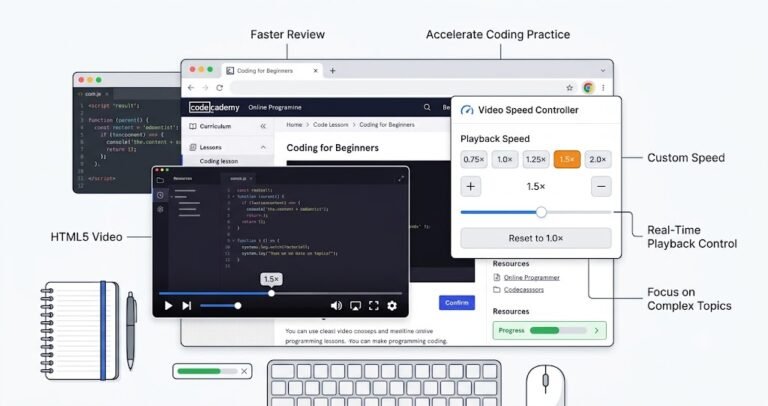
Example 3: The Developer Skimming a Tech Talk
- Situation: A programmer is watching a 45‑minute conference recording. The speaker’s pace is slow, and only the code demos matter. 2× is barely fast enough; 2.5× would be perfect.
- Action: On the conference platform’s HTML5 player, the developer drags the slider to 2.5×. During a complex code snippet, they click Reset to 1.0× for 30 seconds, then slide back up.
- Result: The talk is consumed in under 20 minutes. The lightweight extension causes zero playback lag or battery drain — no video re‑encoding, just a pure playback rate shift.
Does Changing Speed with the Slider Affect Video Quality or Audio?
A common worry is that speeding up a video will cause blur, stuttering, or chipmunk voices. Because the Video Speed Controller only sets the playbackRate property, the original video frames and audio samples are never altered. What changes is the rate of presentation.
- At speeds between 0.5× and 3×, Chrome’s built‑in frame dropping and audio time‑stretching keep motion smooth and voices natural. You won’t hear the “helium effect” or encounter visual tearing.
- Extreme speeds (above 3×) may introduce some jitter on high‑motion scenes, but that’s a limitation of your screen’s refresh rate and human perception — not a flaw in the extension.
- Slowing down below 0.5× retains full frame integrity; the browser just displays each frame longer. Voices deepen slightly but remain perfectly understandable.
The result is a viewing experience that’s as sharp as the original, just faster or slower. If you want to understand how HTML5 video speed interacts with browser performance, the HTML5 video playback speed deep dive has all the technical details.
Frequently Asked Questions About Slider‑Based Speed Control
Does the extension have any keyboard shortcuts for speed control?
No, and that’s by design. Video Speed Controller replaces the need for keyboard shortcuts with a popup slider that’s faster, more precise, and requires zero memorization. You can also set a default playback speed so every video starts at your preferred rate automatically — something no keyboard shortcut can do. Learn how on the custom playback speed guide.
Will the slider work on sites like YouTube, Netflix, and Udemy?
It works on any website that uses standard HTML5 <video> elements — which includes YouTube, Vimeo, Udemy, Coursera, university LMS platforms, and thousands more. It does not control videos played through Flash, Silverlight, or certain DRM‑encrypted streams that bypass Chrome’s media stack. The any website compatibility guide explains more.
Is my privacy safe when I change playback speed this way?
Absolutely. Every speed change happens locally inside your Chrome browser. The extension does not collect, upload, or analyse any video data, browsing history, or speed preferences. There are no analytics, no tracking scripts, and no external servers. It’s 100% local processing, verified by checking the network tab — zero external requests.
Can I set a default speed so I never have to touch the slider?
Yes. If you save a preferred speed (for example, 1.3×) through the extension’s options, that value is stored in Chrome’s local storage on your device. Every time a new HTML5 video loads, the extension applies that default automatically. The reset button in the popup always returns you to true 1.0× when needed. The default playback speed setup guide walks you through it.
Will this drain my laptop battery or slow down Chrome?
No. The extension’s CPU footprint is tiny because it only runs a brief content script to set the playbackRate property. There is no video processing, no background loops. Built on Manifest V3, the service worker sleeps as soon as the popup closes, so battery impact is essentially the same as watching a normal video. You can verify this by monitoring Chrome’s task manager while the slider is in use.
What if I really want keyboard shortcuts for speed control?
While this extension focuses on the slider as the fastest possible control method, many users find that after a short adjustment period they prefer the slider’s precision over memorizing key combos. The lack of keyboard shortcuts also means fewer conflicts with website‑specific hotkeys. If you’re still curious about how the slider compares to other approaches, the Chrome video speed control overview offers helpful context.
Speed Control Without Shortcuts — Faster, Smarter, and Completely Private
Searching for keyboard shortcuts for video speed control is a natural first step when you want to watch videos more efficiently. But once you experience a single, precise slider that gives you exact speeds from 0.1× to over 4× without any memorization, you’ll see why a dedicated extension offers a far superior workflow. The Video Speed Controller removes the guesswork and keeps your viewing habits private — every adjustment happens right inside Chrome, on your device, with zero external involvement.
Key takeaways:
- Keyboard shortcuts, even if they existed, would lock you into limited presets. The slider gives you continuous, exact control.
- All speed changes are applied instantly through Chrome’s native
playbackRateproperty — no buffering, no quality loss. - Privacy is built into the architecture: no accounts, no cloud, no tracking, no uploading. Just local, Manifest V3‑compliant processing.
- Per‑tab isolation and a one‑click reset make it the ideal tool for students, developers, language learners, and anyone who watches online video daily.
Open your next lecture, tutorial, or documentary, click the extension icon, and drag the slider to your perfect speed. Notice how the video responds instantly, keeping you in the flow. When you’re done, hit Reset and move on — no keyboard shortcuts required. To explore all the technical details and practical workflows, visit the Video Speed Controller home page.