How to Watch freeCodeCamp Videos More Efficiently
freeCodeCamp’s video‑based curriculum is a goldmine of knowledge, but the default speed presets often feel too rigid for hands‑on learners. A dedicated Video Speed Controller lets you fine‑tune playback on the fly — from painstakingly slow 0.5× for tough concepts up to 2.5× for quick reviews — all without uploading a single byte of data.
- Why the built‑in YouTube speed options (1.25×, 1.5×, 2×) can’t match the pace of dense coding tutorials on freeCodeCamp
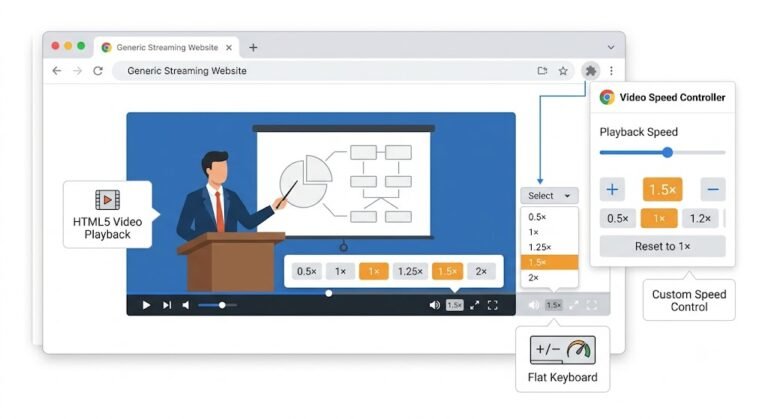
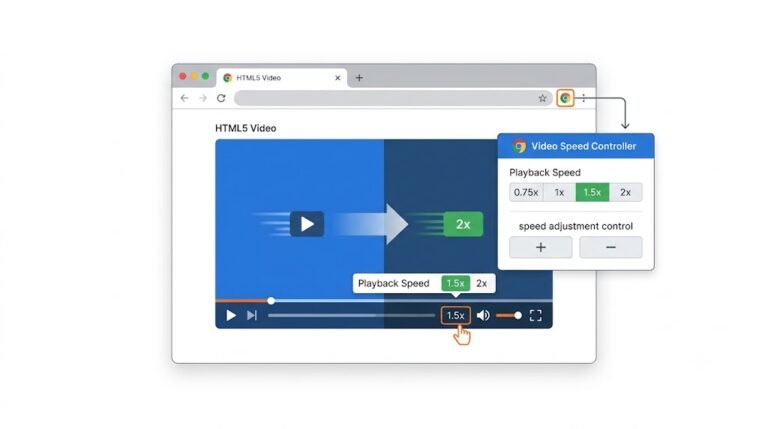
- How the Video Speed Controller popup gives you a continuous slider, live speed readout, and instant reset
- Real‑time speed changes that work on freeCodeCamp’s embedded YouTube player — no buffering, no re‑encoding, no accounts
- Lightweight Manifest V3 architecture keeps Chrome fast while you accelerate through JavaScript, React, or Data Structures
Why Do freeCodeCamp’s Built‑In Speed Controls Feel So Restrictive?
Every freeCodeCamp video is hosted on YouTube, so you’re stuck with the same tiny gear menu that offers three presets above normal speed. For a 10‑minute explanation of React hooks or a slow‑paced CSS Grid demo, those presets often miss the sweet spot. 1.25× might still feel too slow, but 1.5× can suddenly blur the instructor’s words — especially if English isn’t your first language.
The core problem is that the default YouTube player forces you to open a menu, click an option, and then re‑open it if the speed doesn’t feel right. That friction breaks your focus. A proper Video Speed Controller removes that friction entirely: one click on the extension icon and you can drag a slider to any value you want, watching the video adapt in real time without ever interrupting playback.
Because freeCodeCamp uses standard HTML5 video embeds, the extension detects the <video> element inside the iframe just as easily as it does on YouTube itself. No extra configuration is needed. If you’d like to learn more about controlling speed on YouTube and other platforms, check out our guide on speeding up YouTube videos.
How Can a Video Speed Controller Transform Your freeCodeCamp Learning?
The extension puts you in charge of the pacing. Instead of forcing your brain to follow the instructor’s rhythm, you make the video match your natural comprehension speed. Here’s how you’ll typically interact with it during a freeCodeCamp session:
- Open a lesson tab. Visit any freeCodeCamp video page — for example, a section from the JavaScript Algorithms and Data Structures curriculum.
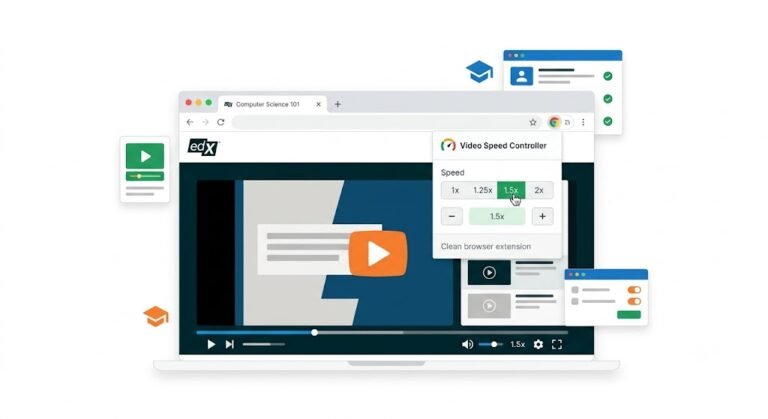
- Click the extension icon. The popup appears, instantly recognising the active video element. The current speed is displayed clearly.
- Drag the speed slider. Move it to 1.6× for the theoretical part, then pull it down to 1.0× when the instructor starts typing code you need to follow precisely. The video never stutters because only the
playbackRateproperty changes. - Use the reset button. When you switch to a different tab or want to hear the natural voice again, one click returns the speed to 1.0×.
Every adjustment happens locally inside Chrome. The extension reads the media element’s playbackRate attribute, sets a new value, and displays it — nothing more. This approach is zero‑data, zero‑latency, and zero‑risk.
What Controls Will You See in the Popup While Watching freeCodeCamp?
The popup is purpose‑built for speed control only. On a freeCodeCamp lesson page, this is what you’ll find:
- Continuous speed slider: A large, responsive control that spans from well below 1.0× to well above 2.0×. You aren’t limited to presets — you can pick 0.85× for a heavy accent or 2.3× for a lightning‑fast recap. The exact value updates live in the display.
- Playback speed readout: Shown as a decimal multiplier (e.g.,
1.35), this makes it easy to note which speeds work best for different instructors or topics. - Reset button: Instantly sets the video back to
1.0×. Handy when you finish a sped‑up theory section and need to code along with the example at normal speed. - Optional browser badge: If you enable it, the extension icon shows the current speed directly on the toolbar — a quick reminder without opening the popup.
All these controls act only on the active tab. You can have one freeCodeCamp video playing at 1.8× while a documentary in another tab remains untouched. For users who prefer keyboard‑based workflows, we’ve also published a dedicated article on keyboard shortcuts for faster video watching.
What Happens Inside Chrome When You Speed Up a freeCodeCamp Video?
Understanding the internal flow reassures you that no video data is ever touched — only the timing signal changes. Here’s the step‑by‑step inside your browser:
- Active tab detection: When you click the extension icon, Chrome’s
activeTabpermission grants temporary access to the current page. The content script immediately queries the DOM for<video>elements, including those inside YouTube’s embedded iframe. playbackRateassignment: Settingvideo.playbackRate = 1.7instructs Chrome’s media pipeline to adjust the rate at which frames are decoded and presented. The audio pitch remains natural because Chrome’s Web Audio engine applies time‑stretching automatically.- Zero data copying: No video frame, audio sample, or subtitle is extracted, buffered, or transmitted. The extension never even opens a network connection — all processing stays inside the sandbox.
- Compliance with Manifest V3: The extension’s service worker is event‑driven; it sleeps when you aren’t actively using the popup, consuming no background resources.
This architecture means that while you’re racing through a 2‑hour freeCodeCamp lecture, your viewing speed, watch history, and even the fact that you changed the speed remain completely private. For a list of the many platforms where this local‑only approach works, visit our page on websites that support video speed control.
Real‑World Examples: Speeding Up (or Slowing Down) freeCodeCamp Courses
These three scenarios show how a flexible slider directly impacts your learning efficiency.
Example 1: The JavaScript Student Tackling Closures
- Situation: A 25‑minute freeCodeCamp video explains closures with multiple code examples. The student understands the basic idea but wants to replay the tricky nested‑function part slowly without wasting time on the rest.
- User action: During the opening recap, they set the slider to 1.8×. When the instructor reaches the key nested‑function demo, they drag it down to 0.85× to absorb every word. As the demo ends, they reset to 1.5× for the conclusion.
- Result: The entire video is finished in under 18 minutes, with perfect comprehension of the hard part. No menu clicks, no buffering — just sliding a thumb and staying in flow.
Example 2: The Non‑Native English Speaker Following a Full‑Stack Project
- Situation: A learner from Brazil follows a 3‑hour freeCodeCamp project where the instructor speaks quickly with some colloquialisms.
- User action: They open the extension and set the slider to 0.9× for the first hour. The slightly slower pace gives them time to mentally translate and process. As they become accustomed to the accent, they nudge the slider up to 1.1×. When the instructor demonstrates code, they reset to 1.0× to type along accurately.
- Result: The learner completes the project in about the same total time as at normal speed, but with far less fatigue. The reset button becomes a reliable “return to real life” switch.
Example 3: The Experienced Developer Reviewing a New Library
- Situation: A developer familiar with React wants to quickly scan a 40‑minute freeCodeCamp video on a new state‑management library, skipping the basics but catching the advanced patterns.
- User action: They set the slider to 2.2× right at the start. During the comparison section, they drop to 1.5× to see the code side‑by‑side. When the instructor dives into a complex state diagram, they reset to 1.0× for 2 minutes, then slide back to 2.0× for the wrap‑up.
- Result: The video is reviewed in 20 minutes. The extension’s instant response allows rapid toggling without any jank, because the browser’s decoder never re‑initialises — it just changes the timing signal.
Does Speeding Up a freeCodeCamp Video Hurt Audio or Video Quality?
A common concern is that faster playback will make voices squeaky or video choppy. Because the Video Speed Controller only alters the playbackRate property — not the encoded data — those artifacts don’t appear.
- Audio: Chrome’s built‑in audio time‑stretching preserves pitch up to about 2.5× for most content. Voices sound natural, not chipmunk‑like. At extremely high speeds above 3×, some warble may occur, but that’s a browser‑level limitation, not caused by the extension.
- Video: Frames are displayed for a shorter duration. Modern monitors handle refresh rates up to 60 Hz smoothly; when the required frame rate exceeds the monitor’s capability, Chrome drops frames intelligently so motion remains fluid. There’s no ghosting or colour distortion because no pixel filtering is applied.
- Comprehension: Research on learning and speed listening suggests that most people can comfortably absorb spoken information at 1.5×–1.8× with no loss in retention. Because you control the exact multiplier, you can always back off when the material gets dense.
In short, what you hear and see is the same audio‑video stream, just delivered at a different pace. The quality depends entirely on freeCodeCamp’s original upload and your internet connection — the extension never degrades it.
Frequently Asked Questions
Will the extension work on freeCodeCamp’s embedded YouTube player?
Yes. The content script searches all frames on the page, so it detects the <video> element inside YouTube’s embedded player. As soon as you click the extension icon, the active video is identified and you can adjust its speed instantly.
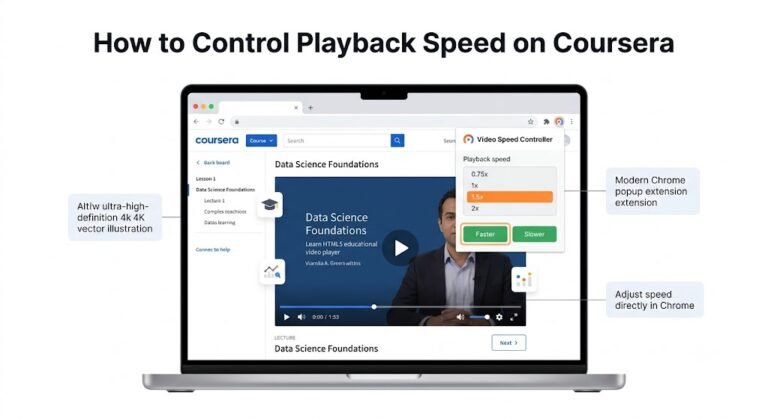
Can I use the same speed controller on other learning platforms like Coursera or Udemy?
Absolutely. The extension works on any website that uses standard HTML5 video elements. We’ve written specific guides for platforms such as Coursera and Udemy, but today’s focus is freeCodeCamp — where it works out‑of‑the‑box.
Does the extension collect my watch data or freeCodeCamp progress?
Never. The extension runs entirely on your device. It doesn’t access your freeCodeCamp account, read lesson metadata, or send any information to external servers. There are no analytics, no advertising, and no tracking. You can verify this by opening Chrome’s network tab: you’ll see zero requests while changing speed.
How do I quickly return to normal speed after fast‑forwarding?
Click the Reset button inside the popup. It immediately sets the video’s playbackRate back to 1.0. Many learners use this like a clutch: speed through the theory, click reset when the coding starts, then slide up again.
Can I make all freeCodeCamp videos start at, say, 1.4× by default?
If your extension supports saving a preferred speed, that value is stored in Chrome’s local storage. Every time a new video loads, the extension applies your saved default automatically. The reset button always overrides it to true 1.0×. No cloud sync, just a local preference.
Will changing speed affect my freeCodeCamp certification progress?
No. The extension does not interact with freeCodeCamp’s interface, quizzes, or progress tracking. It only modifies the playback rate of the video element. Your completion status, code submissions, and certifications remain completely untouched.
Take Charge of Your freeCodeCamp Learning Pace — Privately and Instantly
Watching freeCodeCamp videos should feel like a dialogue with a patient mentor, not a fixed‑speed lecture you have to endure. By replacing the limited YouTube gear menu with a Video Speed Controller, you gain the flexibility to match every lesson to your current comprehension, energy level, and schedule — without ever compromising your privacy.
- Leave behind the frustration of presets: a fluid slider gives you any speed you need, from 0.5× to well beyond 2×.
- All processing remains local; no video is uploaded, analysed, or shared. Your learning habits are yours alone.
- The popup’s slider, readout, and reset button make speed changes feel instinctive — even mid‑video.
- Per‑tab isolation and a lightweight Manifest V3 design keep your browser fast, no matter how many lessons you stack.
Next time you open a freeCodeCamp course, click the extension icon and drag the slider just a few notches. Feel how the video responds immediately, with zero buffering and zero distractions. When you need to pause and code along, hit Reset and type at your own pace. For more tips on controlling video playback across the web, browse the Video Speed Controller blog or return to our home page for an overview of all features.