How to Set a Default Playback Speed for All Videos
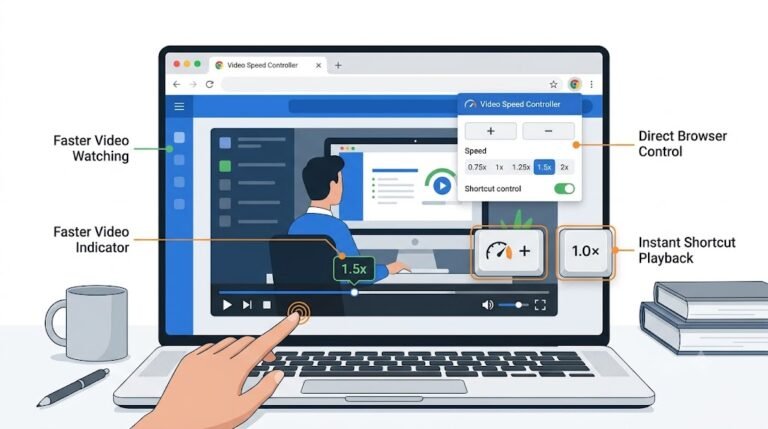
Tired of manually adjusting the speed every time you open a lecture, tutorial, or documentary? The Video Speed Controller extension lets you define a custom playback speed for HTML5 video and then applies it automatically to every eligible video you watch — all inside your browser, without any cloud or account.
- Why the native Chrome speed menu fails anyone who needs a persistent, fine‑grained default
- How the extension stores your preferred speed locally and re‑applies it on every new tab
- Exactly what happens under the hood: zero data leaves your device, ever
- How to combine the default speed with the on‑the‑fly slider for total control
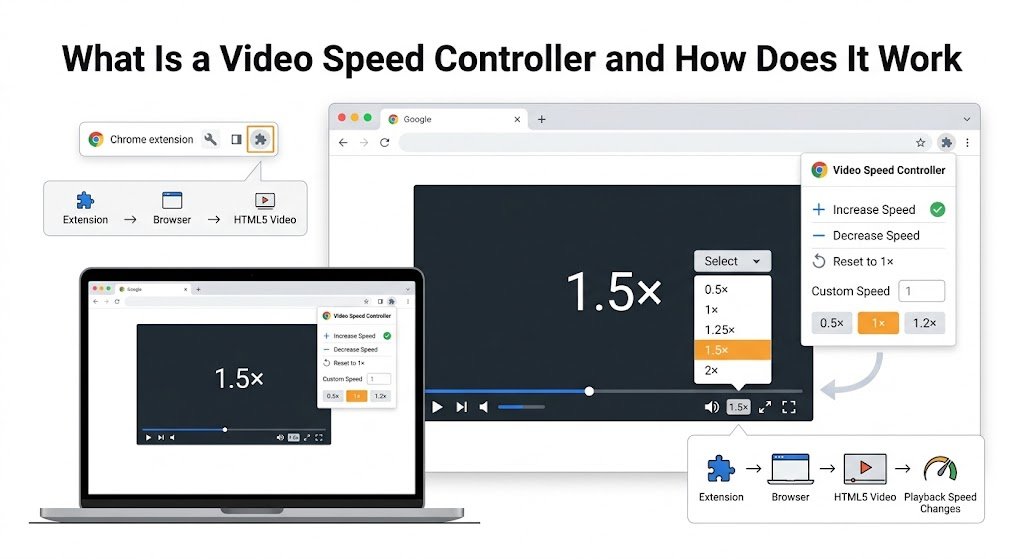
Why Would You Want a Default Custom Playback Speed for HTML5 Video?
Most streaming platforms and learning management systems open every video at 1× — a pace that often wastes time for experienced viewers or frustrates language learners who need a slightly slower rhythm. Changing the speed manually on each new video quickly becomes a chore. A custom playback speed for HTML5 video that sticks solves this completely: set it once, and every video that supports HTML5 playback automatically starts at your chosen rate.
Consider a typical week for an online learner. You watch three recorded lectures on your university portal, a couple of YouTube tutorials, and a training module on a corporate LMS. If you perform at your best with a 1.4× tempo, you’d otherwise repeat the same adjustment at least seven times. With a saved default, you open the video and it’s already at 1.4× — no clicks wasted. This isn’t a luxury; it’s a productivity baseline that keeps you in the flow.
Moreover, a global default speed can help people with auditory processing differences or attention challenges. Setting a consistent 0.9× or 1.15× across all platforms creates a predictable audio environment, reducing cognitive load. And because Video Speed Controller runs entirely on your machine, this personalisation is never shared with any server.
How Does the Video Speed Controller Extension Remember Your Preferred Speed?
When you drag the popup’s slider to, say, 1.35×, the extension does more than just change the current tab. It quietly writes that value into Chrome’s localStorage — a secure, sandboxed storage area available only to the extension itself. This storage is never synced to the cloud, never read by other websites, and survives browser restarts.
Here is the lifecycle of your default speed:
- You set the speed: Using the large slider in the extension popup, you choose a comfortable multiplier. The display updates instantly, confirming the value.
- Local save: The extension’s service worker stores the number as a simple key‑value pair, e.g.
{"defaultSpeed": 1.35}. No other information — no URL, no video title, no timestamp — is saved. - Automatic application: When you later navigate to any page with an HTML5 video, the content script reads that stored value and applies
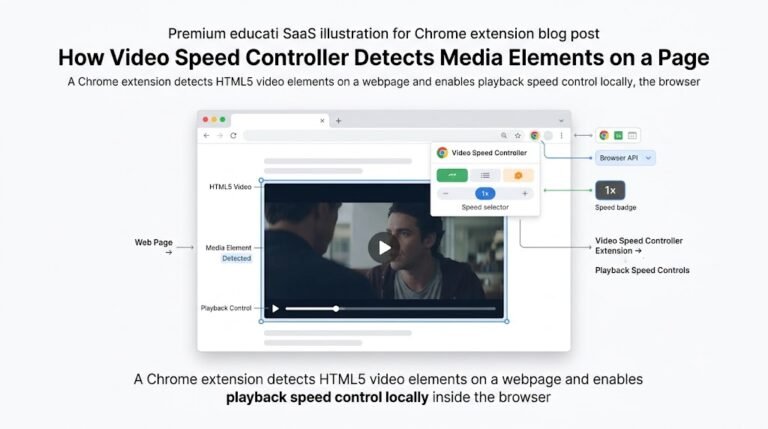
video.playbackRate = 1.35to every detected<video>element. The change happens so quickly that the video begins playing at your desired speed before you even notice. - Respectful override: If you adjust the speed manually for a particular video via the slider, the new value is used for that tab and is then stored as the updated default — so your preference evolves naturally.
This behaviour is powered by Chrome’s Manifest V3 event‑driven architecture. The service worker wakes up only when needed, applies the setting, and goes back to sleep — no persistent background process, no memory drain. For the full technical picture, explore the Video Speed Controller extension page.
How to Set a Custom Playback Speed for HTML5 Video as Your Default
Turning a one‑time speed change into a universal default is designed to be as simple as the rest of the extension. You don’t need to dig into a settings page or edit a configuration file — the popup is the control centre.
- Step 1 — Open any video: Navigate to a page that uses a standard HTML5 player, such as a YouTube video or a lecture on your university’s platform. The extension icon lights up when it detects playable media.
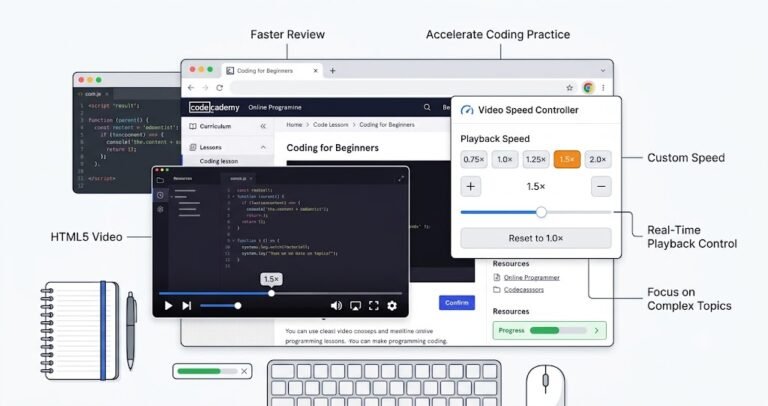
- Step 2 — Click the extension icon: The popup appears with the speed slider, current speed display, and Reset button. It shows the active tab’s current speed, or “1.0” if untouched.
- Step 3 — Drag the slider to your ideal speed: Move the slider until you reach, for example, 1.28×. The video’s playback adjusts in real time, so you can hear and feel the difference immediately. No guessing, no menu diving.
- Step 4 — Let the extension remember: There is no separate save button. The moment you release the slider, the new speed is stored locally. From now on, every new video tab will automatically receive that custom playback speed for HTML5 video.
- Step 5 — Return to true 1× when needed: Tap the Reset button in the popup. This sets the current video back to 1.0× and also overwrites the stored default, so subsequent videos will start at normal speed. It’s a clean, global reset.
Because the extension uses the activeTab permission, it never reads your browsing history. The default speed is purely local, and the reset behaviour gives you full control without ever creating an account. If you’d like more tips on customising speed across different sites, read the guide on how to change video playback speed on any website.
What Happens When a Website Already Has a Built-in Speed Setting?
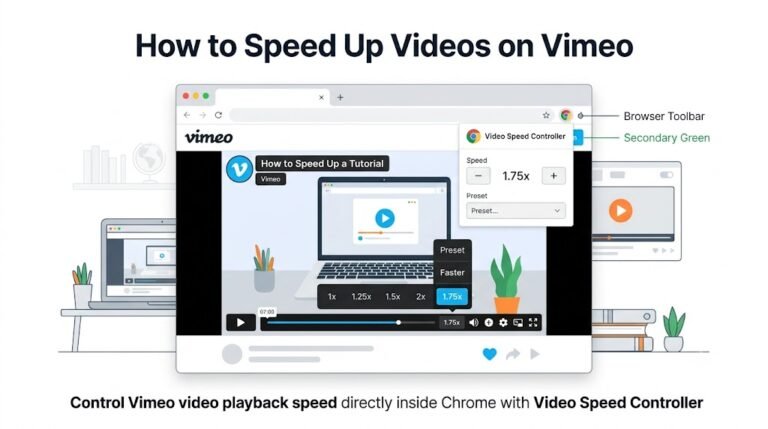
A common concern is that a global default might fight with a platform’s own speed controls — for example, YouTube’s gear‑menu presets or Vimeo’s player settings. In practice, the Video Speed Controller extension works harmoniously with native controls, because all of them ultimately change the same playbackRate property.
- Last writer wins: If you manually click YouTube’s 2× preset after the extension has applied your default 1.4×, the video jumps to 2×. The extension does not fight back; it respects the most recent change.
- Default reapplies on new page loads: The next time you open a fresh video, the extension once again sets your stored default. This means you get the benefit of a personalised baseline without losing the ability to tweak a single video with the platform’s own controls.
- No conflicts with DRM: For encrypted streams that block external playback rate changes, the extension quietly fails without breaking the page. Your browser remains stable.
This design keeps you in the driver’s seat. The extension’s default is a gentle suggestion, not a rigid lock. For a more detailed look at how playback speed interacts with different video technologies, visit the HTML5 video playback speed resource.
Practical Examples: Default Speed in Action
Real‑life workflows show how a persistent custom speed saves time and mental energy. Here are three scenarios where the default speed feature becomes indispensable.
The Lifelong Learner with a Busy Schedule
- Situation: A professional studying for a certification watches videos across three different platforms: Udemy, LinkedIn Learning, and a private corporate portal. Their ideal comprehension speed is 1.35×.
- User action: They open the Video Speed Controller popup once, slide to 1.35×, and close it. The extension saves the value. Over the next week, every course video — regardless of platform — starts at 1.35× instantly.
- Extension processing: Each time a page loads with a
<video>tag, the content script setsplaybackRate = 1.35. No buffering, no re‑encoding, purely a timing instruction. - Result: The learner saves roughly 20 minutes per hour of content. They never have to touch the speed control again, except to occasionally slow down a particularly dense section with the slider.
The Language Learner Needing Consistent Slowdown
- Situation: A student watches German news reports and French interviews on multiple sites. Normal speed feels too rapid, but the ideal clarity arrives at 0.83×.
- User action: They set the extension’s slider to 0.83× while watching a Deutsche Welle report. The extension remembers it. Every subsequent video on any news site, YouTube, or language platform automatically plays at 0.83×.
- Result: The learner hears authentic pronunciation with the pitch preserved (Chrome’s audio time‑stretching handles it) and never struggles with a speed menu again. The privacy‑first design ensures their learning pattern stays completely private.
The Developer Reviewing Conference Talks
- Situation: A programmer watches multiple tech conference recordings in a day. They need a fast baseline — 2.2× — but occasionally drop to normal speed for code demos.
- User action: Default is set to 2.2×. When a complex code walkthrough appears, they click the extension’s Reset button to jump to 1×, then later drag the slider back to 2.2× for the next session. The new value is automatically stored again.
- Result: The developer processes hours of talks in a fraction of the time, with zero administrative overhead. The laptop’s CPU stays cool because all that changes is the playback rate, not the video data.
Does Setting a Default Playback Speed Affect Video Quality or Privacy?
Video quality remains untouched. A custom playback speed does not re‑encode, compress, or alter the video stream. The playbackRate property simply tells Chrome’s media engine to display frames and play audio at a different rate. At 2×, the browser drops every second frame, but the resolution and colour fidelity stay exactly as the platform delivers. Audio pitch is preserved through built‑in time‑stretching, so voices don’t turn into chipmunks.
Privacy is absolute. Because the extension stores your default speed in local storage and never makes a network request, your viewing habits remain invisible to any server. There are no analytics, no user accounts, and no telemetry. Even if you enable the optional browser badge, it’s a purely cosmetic number derived from local data — nothing is sent anywhere. This stands in stark contrast to online video tools that require you to paste a URL or upload a file. To understand the full privacy architecture, see the Video Speed Controller home page.
Frequently Asked Questions About Default Playback Speed
Will the default speed apply to every single website I visit?
It applies to any page where the extension detects an HTML5 <video> element. That includes YouTube, Vimeo, most online learning platforms, Google Drive video previews, and countless other sites. It does not affect Flash‑based players, Silverlight, or certain DRM‑protected streams that disable script access to the media element.
Can I have different defaults for different sites?
The extension currently stores one global default speed. If you frequently switch between vastly different speeds, you can still use the popup slider to adjust on a per‑tab basis. The global default acts as your most‑used baseline, and you can always override it for a specific video. The updated speed then becomes the new default.
Is my default speed backed up anywhere?
No. The extension does not sync with any cloud service. The value lives solely in Chrome’s local storage. If you clear the extension’s data or uninstall it, the default speed is deleted. This intentional design reinforces the extension’s privacy‑first philosophy — your data never leaves your device.
Does setting a default slow down Chrome’s startup or cause extra CPU usage?
Not at all. The extension uses a Manifest V3 service worker that only activates when you open a tab with video or click the icon. It does not run persistently. The default speed is applied in a few milliseconds, and the service worker sleeps immediately after. Memory usage is negligible, and there’s no measurable impact on browser performance.
What if I want to temporarily disable the default speed?
Click the Reset button in the popup. That sets the current video to 1.0× and also overwrites the stored default, so all new videos will start at normal speed. When you’re ready to resume your custom tempo, simply drag the slider again. The extension will re‑store the new value. It’s a quick, seamless toggle.
How does this differ from the speed controls built into websites?
Built‑in controls typically offer a small set of fixed presets and must be activated on every single video. The extension provides a continuous slider, instant real‑time feedback, and the ability to remember your choice across all sites — all from a single, privacy‑respecting popup. For a deeper comparison, check out the Chrome video speed control guide.
Take Charge of Your Viewing Speed — Once, for Every Video
Setting a default custom playback speed for HTML5 video transforms passive watching into an efficient, personalised experience. Instead of wasting clicks on every new video, you define your rhythm once and let the Video Speed Controller handle the rest — completely offline, with no accounts and no privacy trade‑offs.
Key points to remember:
- A global default eliminates repetitive manual adjustments and keeps you focused on the content, not the controls.
- The extension uses Chrome’s local storage to remember your speed; it never syncs to the cloud or shares your data.
- You can always override the default for a single video, and the Reset button instantly brings everything back to 1×.
- Performance remains pristine: no extra CPU, no battery drain, just a lightweight Manifest V3 service worker.
Whether you’re speeding through a conference playlist or gently slowing down an accent‑heavy lecture, a consistent default keeps you in the zone. Install the extension, open a video, slide to your sweet spot, and forget about it. The next time you load a page, your tempo is already waiting. Explore more ways to control your playback by visiting the Video Speed Controller blog.