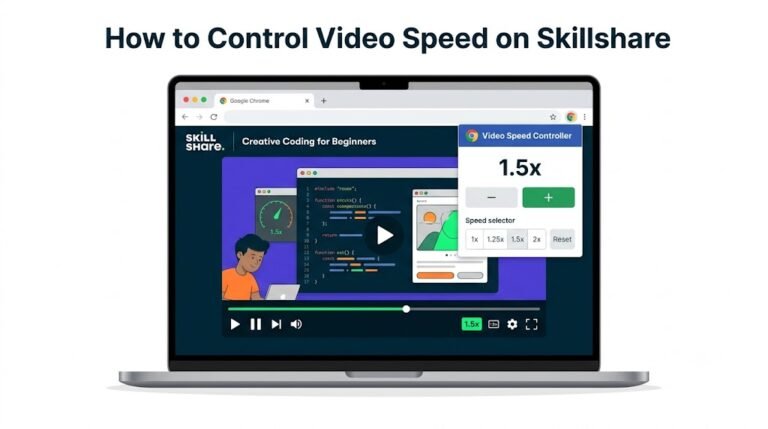
Controlling Playback Speed on Codecademy Video Lessons
Codecademy’s video lessons are packed with valuable information, but the platform’s built‑in speed menu only gives you a handful of presets. The Video Speed Controller extension replaces that rigid menu with a fluid, real‑time slider — every speed change happens locally inside Chrome, keeping your learning habits completely private.
- Why Codecademy’s default 1×, 1.25×, 1.5×, and 2× presets often feel too coarse for efficient study
- How the Video Speed Controller extension gives you any speed from 0.1× to 16× with a single slider
- Exactly what happens in the browser when you adjust speed on a Codecademy video — no uploads, no accounts, 100% local processing
- How per‑tab speed isolation and a minimal Manifest V3 design keep your browsing fast and your data safe
Why Codecademy Learners Need Better Playback Speed Control
Codecademy’s video lessons are a core part of many courses — concise, instructor‑led walkthroughs that explain concepts step by step. But the default speed controls built into the video player offer only a few fixed options: 1×, 1.25×, 1.5×, and 2×. For a learner who already understands a portion of the material or who finds the instructor’s pace a bit too rapid, these presets feel like a straitjacket.
Maybe you’re revisiting a CSS layout module and just need a 1.35× boost to skim through familiar syntax. Or perhaps a JavaScript closure explanation is too dense at full speed — you need 0.85× to catch every nuance, not the jarring 0.75× that the built‑in menu might force. The Video Speed Controller gives you that fluid, in‑between precision instantly, without pausing the video or digging into hidden menus.
Because Codecademy uses standard HTML5 video elements, the extension works right away. No configuration, no compatibility tweaks — just open the popup and drag the slider. And unlike web‑based speed‑changing services, it never touches the video data itself. Your progress and playback habits stay entirely on your machine.
How the Video Speed Controller Works on Codecademy Video Lessons
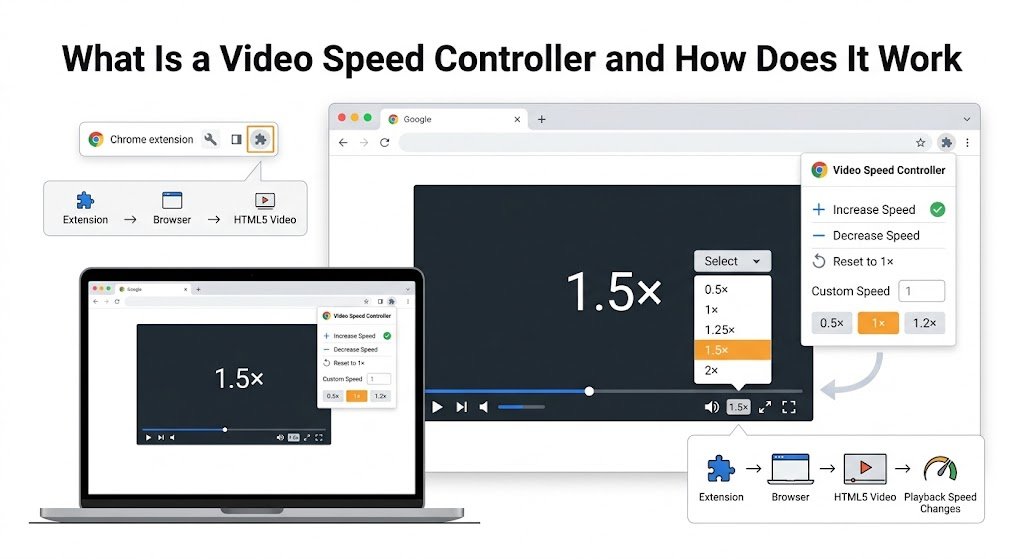
When you’re watching a Codecademy lesson in Chrome and click the extension icon, a lightweight content script jumps into action — all inside the browser’s sandbox. It does not scan your course progress, read the page text, or interact with any other part of Codecademy. Its only job is to find the HTML5 <video> element and adjust its playbackRate property.
Here’s the process, step by step:
- Active tab detection: The popup’s service worker (running under Manifest V3) checks which Codecademy tab is currently active. It uses the
activeTabpermission — granted only when you click the icon — to confirm the presence of a playable video. No background scanning ever happens. - Real‑time speed adjustment: Once you drag the slider to, say, 1.7×, the content script sets
playbackRate = 1.7on every detected<video>node. The change applies instantly — the video continues playing, and the audio pitch remains natural thanks to Chrome’s built‑in time‑stretching. - Visual feedback: The popup displays the current speed as a clear multiplier (e.g., “1.70×”). A dedicated reset button immediately returns the video to 1.0×, so you can jump back to normal speed for a tricky concept and then slide up again for the recap.
All this communication stays inside Chrome’s extension environment. The extension never initiates network requests, never copies video data, and never reads your Codecademy account information. It’s a pure local playback rate controller. For a broader look at where the extension works, visit the full list of supported websites.
What Controls Does the Video Speed Controller Popup Give You?
The popup is deliberately minimal — no sub‑menus, no options pages to open, no learning curve. Everything you need for Codecademy viewing is right there.
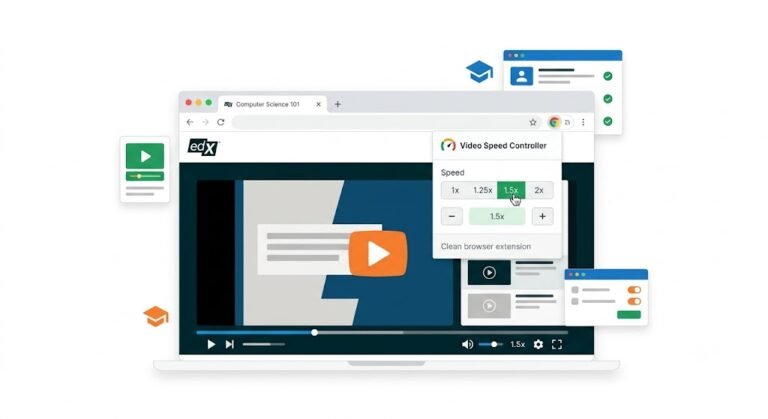
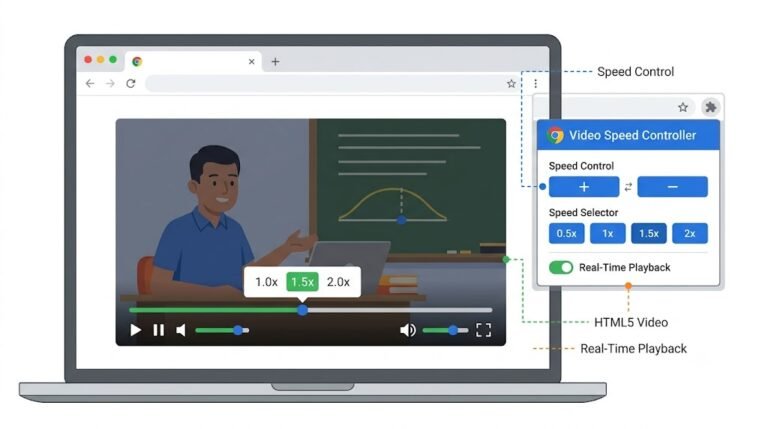
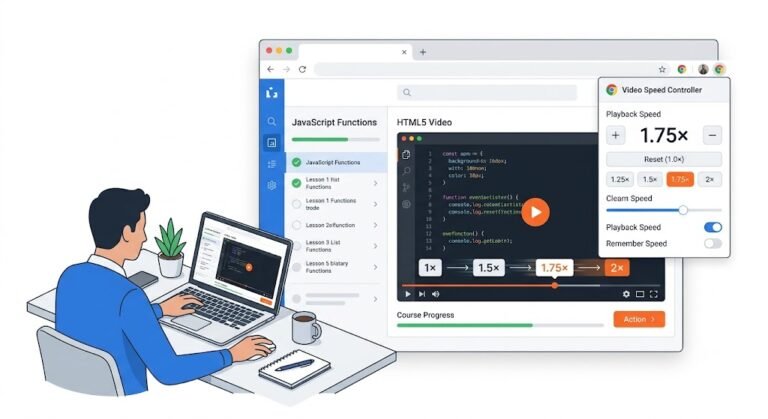
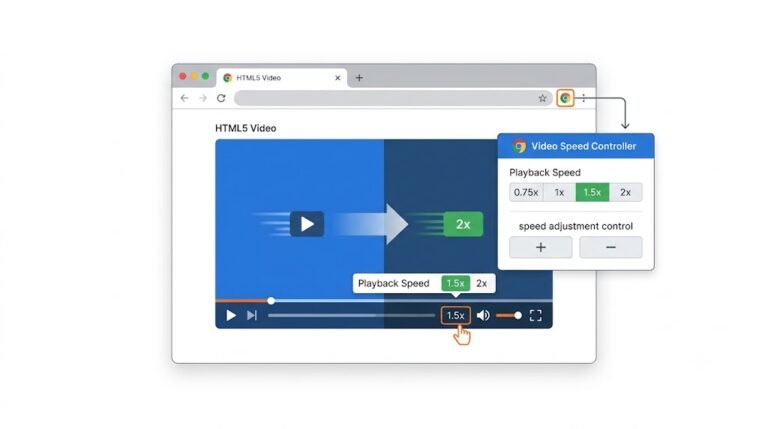
- Speed slider: A large, touch‑friendly slider that covers a huge range. Drag it to any value, from 0.1× (extreme slow‑motion) up to 16× (ultra‑fast skimming). The current speed updates live as you drag, so you can instantly feel the difference between 1.4× and 1.55×. This replaces the frustrating “1.25× or 1.5×” dilemma of the built‑in menu.
- Playback speed display: Next to the slider, the exact multiplier is shown in bold, easy‑to‑read text. No guesswork — you always know your current tempo, which is especially helpful when switching between multiple Codecademy tabs.
- Reset button: One click returns the active video to the browser’s default 1.0×. Use it to instantly restore normal speed after a fast‑forwarded recap, or to avoid a sudden speed surprise when you switch from a slowed‑down lecture to a live coding environment.
- Browser badge (optional): You can enable a small badge on the extension icon that shows the current speed multiplier for the active tab. It’s a quick glance‑and‑go reminder that doesn’t break your flow.
Because the popup only controls the tab you’re currently working on, you can have a Codecademy Python lesson playing at 1.8× while a reference video in another tab stays at 1.0×. That per‑tab isolation is what makes the extension a genuine productivity ally for multi‑tasking learners.
Practical Examples: Using Video Speed Controller with Codecademy Lessons
Below are three real‑life study scenarios that show how a fluid speed slider changes the way you absorb Codecademy content.
Example 1: The Returning Learner Re‑Visiting a Known Topic
- Situation: You’ve already completed Codecademy’s HTML & CSS course, but you want to re‑watch the “Flexbox” video module as a quick refresher. The instructor’s pace is perfect for a beginner, but for you it feels unnecessarily slow.
- User action: While the Flexbox lesson is playing, you click the Video Speed Controller icon and slide to 1.9×. The video speeds up instantly, and the voice remains crisp.
- Extension processing: The content script sets
playbackRate = 1.9. Chrome’s media pipeline adjusts the frame presentation timing; no re‑encoding occurs. - Result: You finish the 12‑minute video in just over 6 minutes, jogging your memory without wasting time. A quick click on Reset brings you back to 1× when you switch to a new, unfamiliar lesson.
Example 2: The Non‑Native English Speaker Tackling Dense Terminology
- Situation: A Codecademy course on React explains “state” and “props” in rapid‑fire English. You understand the code, but the spoken explanations fly by a little too fast for your comfort.
- User action: You open the popup and gently nudge the slider to 0.85×. The audio slows down just enough to let you mentally process each sentence, while Chrome’s pitch‑preserving algorithm keeps the instructor’s voice natural.
- Result: You no longer need to hit rewind constantly. The extension gives you a personalized listening pace, and because everything happens locally, no one — not even Codecademy — knows you’re watching at a different speed.
Example 3: The Crammer Scanning for a Specific Concept
- Situation: Before a job interview, you’re quickly reviewing a Codecademy Data Science module, hunting for the exact moment where the instructor explains a particular Pandas function.
- User action: You set the slider to 3.2×. The video races ahead. When the visual cues on screen indicate the right section, you hit Reset to drop to 1×, watch the important part, then slide back to high speed.
- Result: The extension lets you scan a 20‑minute lesson in under 7 minutes. The lightweight design means your laptop stays responsive even during extreme speed playback — no lag, no extra CPU drain.
Does Changing Playback Speed Affect Codecademy Video Quality?
No — what you see and hear is the original video stream, just played back at a different rate. The extension does not transcode, filter, or alter a single pixel. It only changes the playbackRate property, which tells Chrome’s media engine how quickly to present the frames.
What you can expect:
- At moderate speed increases (1.3× – 2.5×), motion stays smooth because Chrome’s decoder naturally drops a frame now and then to keep the audio in sync. Speech remains perfectly intelligible, with no chipmunk effect.
- Very high speeds (above 3×) may create a slight visual stutter, but that’s due to the sheer frame‑rate limitation of your screen — not the extension or the video.
- Slowing down (0.5× – 0.9×) simply displays each frame for a longer period. The audio becomes deeper but stays clear and natural‑sounding.
Since Codecademy hosts its videos as standard MP4 streams, the extension works without any degradation. You get exactly the resolution and clarity that Codecademy serves, just at the speed that matches your brain.
Frequently Asked Questions About Controlling Speed on Codecademy
Will the extension work on every Codecademy video lesson?
Yes, as long as the lesson uses a standard HTML5 <video> player. Codecademy’s video content is built this way, so the extension works out of the box. If Codecademy ever introduced a DRM‑locked custom player, the extension might not detect the video, but that hasn’t been the case to date.
Does using the extension log me out or affect my Codecademy progress?
Not at all. The extension operates purely on the video element in the browser tab; it never interacts with Codecademy’s tracking scripts, cookies, or authentication. Your course completion status, points, and badges are completely unaffected.
Can I set a custom default speed so every Codecademy video starts at 1.4×?
Yes. If you save a preferred speed through the extension, it stores that value in Chrome’s local storage — no accounts, no cloud. Any new video that loads in a tab where the extension is active will automatically adopt your saved rate. The reset button always overrides it to bring you back to 1×.
Is my privacy safe when I change playback speed on Codecademy?
Absolutely. The extension runs entirely inside Chrome. It never sends any data — not your browsing history, not your speed settings, not the video content — to any server. It has no analytics, no tracking, and no advertising modules. You can confirm this by opening Chrome’s network panel while the extension is active: there are zero outgoing requests from the extension.
Why does the extension ask for “activeTab” permission?
The activeTab permission is needed only to read the current page’s video elements when you click the extension icon. It does not give the extension ongoing access to your tabs, and it cannot read data from other open sites. It’s the most privacy‑respecting permission a speed controller can request.
Can I use the extension if I’m taking a Codecademy course on a Chromebook or a low‑power laptop?
Yes. The extension is extremely lightweight — it uses a tiny content script and a service worker that sleeps when not in use. There’s no video processing overhead, so even modest hardware can handle high‑speed playback without stutter or battery drain.
Make Codecademy Video Lessons Fit Your Pace — Privately and Instantly
Codecademy’s video modules are a fantastic learning resource, but everyone’s ideal pace is different. The Video Speed Controller gives you back control, letting you dial in the exact playback speed that matches your comprehension, your schedule, and your learning style — all without sending a single byte of data outside your browser.
Key takeaways:
- Codecademy’s built‑in speed presets are limited; a dedicated extension provides continuous, fine‑grained speed adjustment.
- Every speed change happens locally through Chrome’s standard
playbackRateAPI — no video uploading, recording, or external processing. - The popup’s large slider, live speed readout, and reset button make it easy to switch between rapid skimming and careful listening without missing a beat.
- Per‑tab isolation ensures you can have one Codecademy lesson at 2× and another tab at normal speed, with zero interference.
Because the extension is privacy‑first, Manifest V3 compliant, and built on standard browser APIs, it integrates seamlessly into any Codecademy study session. Open your next video lesson, click the extension icon, and slide the speed up or down a few notches. Watch how the video obeys instantly, with no buffering and no disruption. When you’re done, tap Reset and carry on. For more ways to control video speed across the web, visit the Video Speed Controller home page or read our latest guides.