How to Control Video Speed on Skillshare
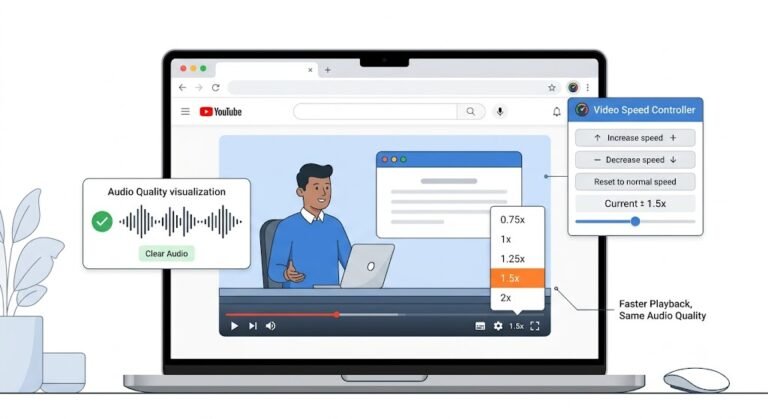
Skillshare’s video player doesn’t include a speed button, leaving students stuck at one pace. With the Video Speed Controller extension you get a fine‑grained speed slider that works on every Skillshare lesson — completely locally, without accounts or uploads.
- Why Skillshare’s default player lacks a built‑in speed control and how that hurts learning efficiency
- How the Video Speed Controller extension adds a popup slider, live speed readout, and instant reset
- Exactly what happens inside Chrome when you drag the slider — no data leaves your device
- Per‑tab, zero‑lag speed control that respects the privacy‑first, Manifest V3 architecture
Why Doesn’t Skillshare Have a Built‑in Video Speed Control?
Skillshare’s web player is designed for a straightforward watching experience, but it lacks any playback speed options. No 1.25×, no 1.5×, no slow motion. This is fine for casual viewing, but serious learners who work through hours of creative classes often feel trapped at the instructor’s natural pace. Dense illustration tutorials, coding walkthroughs, or entrepreneurial deep‑dives become harder to consume efficiently when you can’t adjust the tempo.
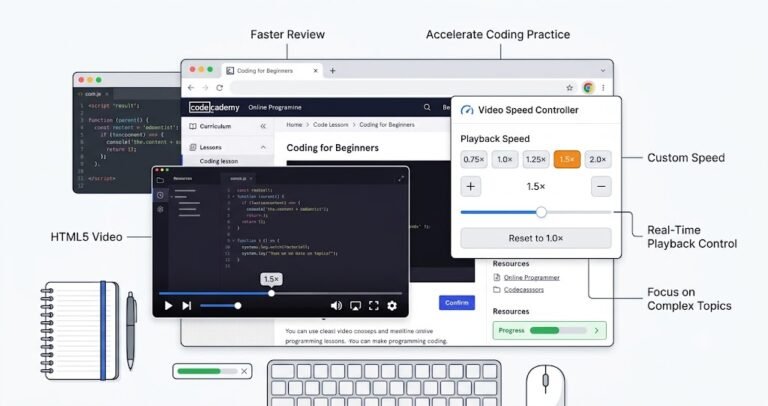
Because Skillshare uses standard HTML5 <video> elements, the platform is technically capable of variable playback; it simply doesn’t expose the controls. The Video Speed Controller Chrome extension bridges this gap by talking directly to the browser’s media engine, giving you the slider that Skillshare didn’t include — without modifying the site’s code or requiring any special permissions.
This is especially important for students who complement Skillshare with other platforms. For example, you might be accustomed to the speed controls on Udemy or Coursera, and you want the same flexibility while learning on Skillshare. The extension gives you a consistent experience across all HTML5‑based sites. Read more about how it works on other learning platforms on our supported websites page.
How Can You Add Video Speed Control to Skillshare?
Adding playback speed control to Skillshare lessons requires only the Video Speed Controller extension and a Google Chrome browser. No tampering with video files, no sign‑up, and no extra software. Everything runs inside Chrome’s secure sandbox.
Step‑by‑step:
- Install the extension: Add Video Speed Controller from the Chrome Web Store. The installation needs only the minimal “activeTab” permission.
- Open a Skillshare lesson: Navigate to any class video. The extension’s icon stays in your toolbar, ready to work.
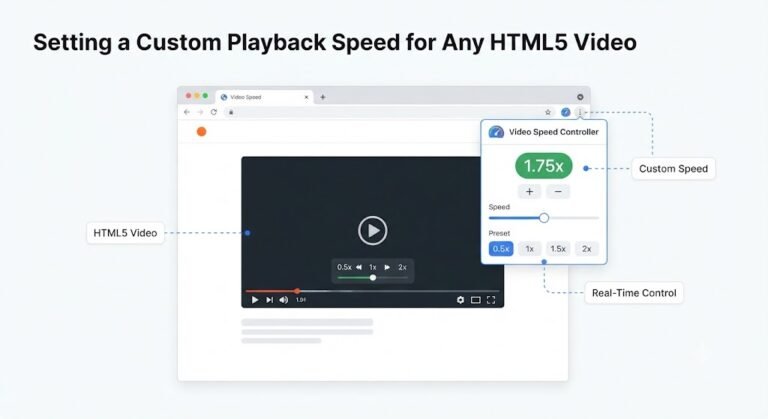
- Click the icon while the video tab is active: A clean popup appears with a large speed slider, a current multiplier display, and a Reset button.
- Drag the slider: Move it to 1.4× to breeze through an introduction, or down to 0.85× for a meticulous art demo. The change takes effect instantly — no page reload, no buffering.
- Hit Reset when needed: One click returns the video to 1.0×, so you never accidentally leave a video at double speed when switching to a call or another tab.
Because the extension uses Chrome’s activeTab permission, it can only see and modify the Skillshare video when you actively invoke the popup. It never reads your Skillshare page content, tracks your course progress, or collects any data. The entire interaction is local and ephemeral.
How Does the Video Speed Controller Work on Skillshare?
Under the hood, Skillshare’s video player is just a <video> tag embedded in the page. The extension’s content script identifies this element and directly sets its playbackRate property. No video bytes are copied, no canvas is used, and no media stream is intercepted.
- Detection: When you click the extension icon, the service worker (Manifest V3) locates the
<video>node in the current Skillshare tab using theactiveTabpermission. - Rate assignment: Setting
video.playbackRate = 1.7tells Chrome’s built‑in decoder to present frames 70% faster while preserving the original pitch (thanks to the Web Audio API’s time‑stretching). - No external requests: The extension never makes network calls. Changing speed does not ping any server, so Skillshare (or anyone else) cannot detect your playback rate.
- Per‑tab isolation: Only the Skillshare lesson you’re watching gets the speed change. Other tabs, including background Skillshare pages, remain at their own rates — or at 1.0× if untouched.
This architecture means even when you watch a Skillshare class at 2.5×, your browser’s memory and CPU usage stay almost identical to 1.0×. The extension simply tells the player “go faster”, and Chrome handles the rest with its highly optimized video pipeline.
What Controls Are Inside the Video Speed Controller Popup?
The popup is deliberately minimal and focused. Everything you need is immediately visible — no nested menus or settings pages that distract from the lesson.
- Speed slider: A responsive, draggable control covering a wide range (e.g., 0.25× to 4×). You can settle on 1.35× for a brisk learning pace or 2.1× for quickly scanning a repetitive section. The current value updates in real time as you drag.
- Playback speed display: Next to the slider, the exact multiplier is shown in large, readable text. This eliminates guesswork and helps you develop a muscle memory for your preferred Skillshare speed.
- Reset button: A single click restores 1.0× — the default Chrome speed. Essential for transitioning from a slowed‑down watercolour tutorial to a fast‑paced marketing lecture without audio chaos.
- Optional browser badge: If enabled, a small badge appears on the extension icon showing the current speed (e.g., 1.5). It serves as a subtle reminder that you’re watching a Skillshare lesson at a custom rate.
This layout ensures you never lose your place in a course while adjusting speed. All controls stay in the popup, which closes as soon as you click outside it — keeping the Skillshare player front and centre.
Practical Examples: Learning on Skillshare at Your Own Speed
Real‑world scenarios show how a fluid speed slider transforms the Skillshare experience.
Example 1: The Creative Professional Skimming a Long Tutorial
- Situation: A graphic designer is watching a 90‑minute Skillshare class on advanced Illustrator techniques. The first 20 minutes cover basics they already know.
- User action: During the introductory recap, they open the Video Speed Controller popup and drag the slider to 2.3×. The narrator’s voice remains clear, and screen recordings of menu clicks stay smooth.
- Result: They whiz through the fluff in under 9 minutes, then hit Reset when the advanced portion starts. The whole class now fits into a lunch break.
Example 2: The Language Learner Watching a Skillshare Conversation Class
- Situation: A learner is taking a Skillshare “Spanish for Beginners” class. The instructor speaks at a conversational pace, but some phrases blur together.
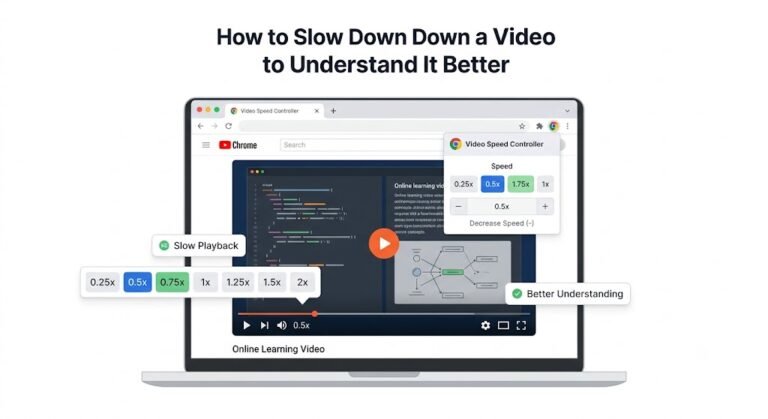
- User action: They set the slider to 0.85×. Chrome’s time‑stretching keeps the pitch natural, so the pronunciation stays authentic while each word becomes easier to parse.
- Result: Comprehension improves dramatically without altering the original audio quality. No subtitles needed, and no data about listening speed is ever recorded.
Example 3: The Multi‑Tasker Balancing Multiple Classes
- Situation: A student has a Skillshare photography class open in one tab and a YouTube lecture in another. They want photography at 1.2× and YouTube at 1.6×.
- User action: They click the extension icon on the Skillshare tab, set 1.2×, then switch to YouTube and set 1.6× via the popup (or using the built‑in controls supplemented by the extension). The per‑tab design remembers each tab’s speed independently.
- Result: Both lessons run at the ideal personal pace without any cross‑tab interference. When the Skillshare video ends, hitting Reset on that tab returns it to 1.0× for the next lesson.
Does Changing Playback Speed Affect Skillshare Course Progress?
A common concern: will speeding up a video cause Skillshare to mark the lesson incomplete, or lose my place? The answer is no. The extension only changes playbackRate — it does not interfere with Skillshare’s progress‑tracking scripts. The platform still sees the video playing from start to finish at the original timeline positions; the speed of presentation is purely a client‑side rendering detail.
What to expect:
- Skillshare continues to record lesson completion based on the video’s
currentTimereaching the end, regardless of playback speed. - Notes and project sections remain fully accessible — no part of the Skillshare interface is blocked or altered.
- If you need to re‑watch a tricky part at normal speed, just hit Reset and scrub back; the slider can be readjusted later without restarting the video.
Because the extension is non‑invasive, it’s compatible with Skillshare’s full feature set, from community discussions to downloadable resources.
Frequently Asked Questions
Will the extension work on Skillshare mobile or in the Android/iOS app?
The Video Speed Controller is a Chrome desktop extension. It doesn’t run inside the Skillshare mobile app or on mobile browsers. For on‑the‑go learning, plan to use a desktop or laptop where Chrome extensions are supported.
Is my privacy safe when I change speed on Skillshare?
Yes, completely. All speed adjustments happen locally inside Chrome. The extension never sends your viewing data, Skillshare login tokens, or any browsing information to external servers. It has no analytics, no tracking, and no advertising. You can verify this by opening Chrome’s DevTools Network panel while using the slider — you’ll see zero outgoing requests from the extension.
Can I save a default speed so all Skillshare lessons start at, say, 1.3×?
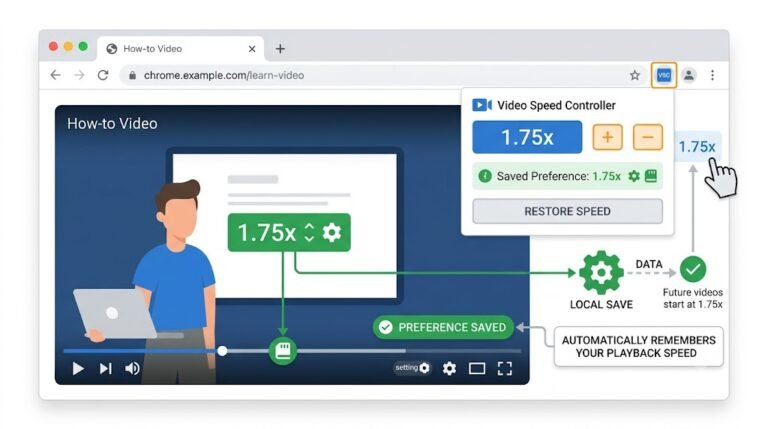
Yes. If your version of the extension supports saving settings, you can set a preferred speed that applies to every new video — including Skillshare lessons. The value is stored in Chrome’s local storage on your device, not in the cloud. The Reset button always returns you to 1.0×.
Does the extension slow down my browser or drain battery?
No. The extension’s CPU footprint is negligible because it only executes a tiny content script to set playbackRate. The service worker sleeps when you’re not interacting with the popup. Manifest V3 guarantees the extension won’t keep background processes alive.
Why does the extension need the “activeTab” permission?
The activeTab permission allows the popup to access the Skillshare page’s video element only when you click the extension icon. It doesn’t provide persistent access to your tabs, and it never reads browsing history. This permission is strictly used for detecting and adjusting the HTML5 video playback rate.
What if Skillshare updates its player — will the extension stop working?
The extension relies on standard HTML5 <video> elements. As long as Skillshare continues to use browser‑native video playback (which is the basis of its web player), the speed control will remain functional. Major redesigns that switch to a custom, non‑HTML5 renderer are unlikely and would break many other browser features. If you ever encounter an issue, you can check the Video Speed Controller blog for updates.
Watch Skillshare Courses at Your Pace — Locally and Privately
Skillshare’s library is packed with creative skills, but the lack of a speed control puts an unnecessary brake on learning. The Video Speed Controller Chrome extension fills that gap with a simple slider, instant response, and a privacy‑first design. Every speed change happens inside your browser, with no accounts, no analytics, and no performance penalty.
Key takeaways:
- Skillshare’s built‑in player hides speed controls; the extension unlocks them on every lesson.
- Dragging the popup slider changes
playbackRateinstantly — your course progress and notes are never affected. - Local processing means zero data leaves your device, aligning perfectly with the Manifest V3 privacy model.
- Per‑tab isolation lets you watch Skillshare at one speed while other platforms run at different rates.
Whether you’re speeding through a long documentary‑style class or slowing down a technical walkthrough, the extension gives you total control without complications. Open your next Skillshare class, click the icon, and find the tempo that fits your brain. When you’re done, hit Reset and carry on. For more privacy‑first video speed tips, explore the Video Speed Controller home page or see how it performs on other platforms like YouTube and Coursera.