How to Control Playback Speed on Coursera
Coursera’s built‑in speed options often jump between a few presets, forcing learners into speeds that don’t quite fit. A dedicated Video Speed Controller eliminates that limitation — giving you smooth, real‑time control over any HTML5 lecture, all processed locally in your browser without accounts, uploads, or tracking.
- Why the default Coursera speed menu feels too rigid for efficient learning
- How the Video Speed Controller extension adds a fine‑grained slider right inside Chrome
- Exactly what happens when you move the slider — pure local
playbackRateadjustment, zero data sharing - Per‑tab isolation and a reset button keep every course organised, with no performance drain
Why Would You Need to Control Playback Speed on Coursera?
Coursera’s lecture videos are packed with dense information. An instructor’s natural pace might be too slow when you’re reviewing familiar concepts, or too fast when you’re grappling with new terminology. The platform provides a small set of fixed speeds — often 0.75×, 1×, 1.25×, 1.5×, 1.75×, and 2× — but that leaves enormous gaps in between.
Real comprehension rarely fits neatly into those presets. You might need 1.15× for a moderate speed‑up that doesn’t distort speech, or 2.3× when skimming through a recap section. A tool that offers a continuous slider lets you land on the exact tempo that matches your brain’s processing speed, without constantly tapping through a menu.
Because Coursera uses standard HTML5 video, any extension that respects that standard can work instantly. No re‑encoding, no downloading — just fluid, on‑the‑fly adjustments that stay entirely within Chrome’s sandbox.
How Does the Built‑in Coursera Player Handle Speed Control?
Coursera’s video player offers a gear icon that reveals a handful of playback speeds. While functional, this design has two key drawbacks: the limited step sizes and the need to open a menu every time you want to tweak the speed. If you’re trying to fine‑tune by 0.1×, you can’t — the player forces you into its predetermined increments.
Under the hood, the Coursera player is just an HTML5 <video> element wrapped in a custom skin. All it does is set the playbackRate property to a few preset values. The video data itself never changes; only the playback tempo shifts. That means any external controller that can write to that same property will work perfectly, bypassing the built‑in menu entirely.
A Chrome extension that directly manipulates playbackRate gives you infinite increments — from 0.1× to 4× and beyond — without ever touching the course material or your account data.
How Can a Dedicated Chrome Extension Give You More Control?
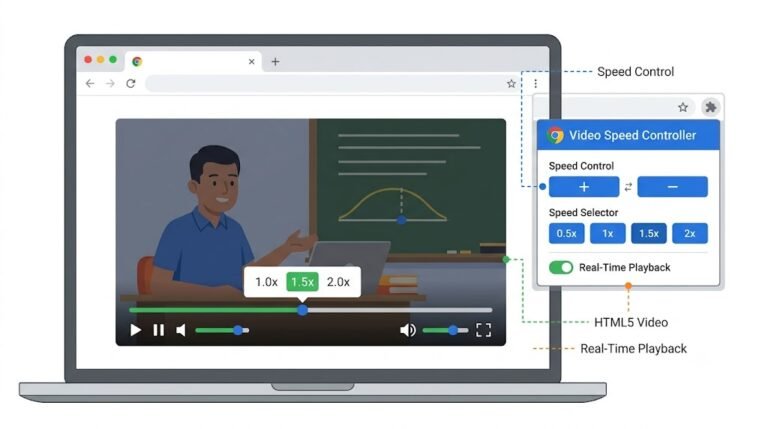
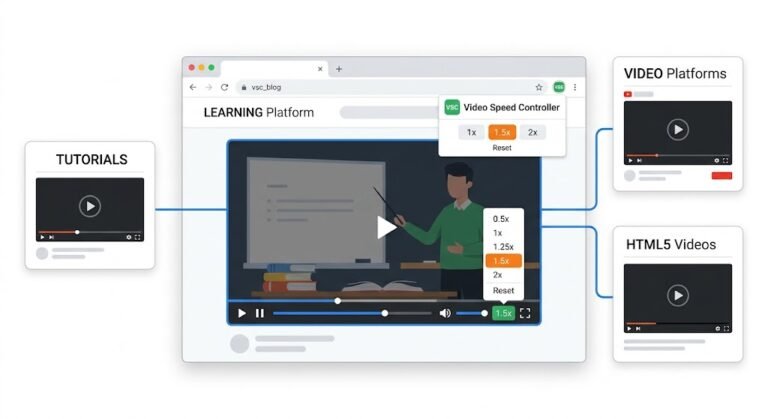
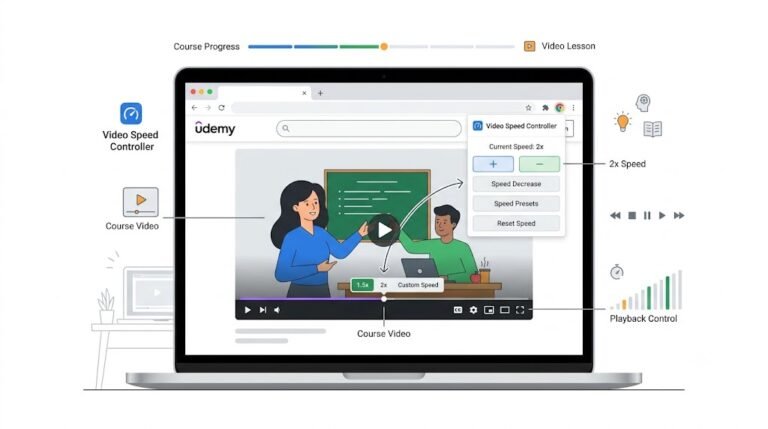
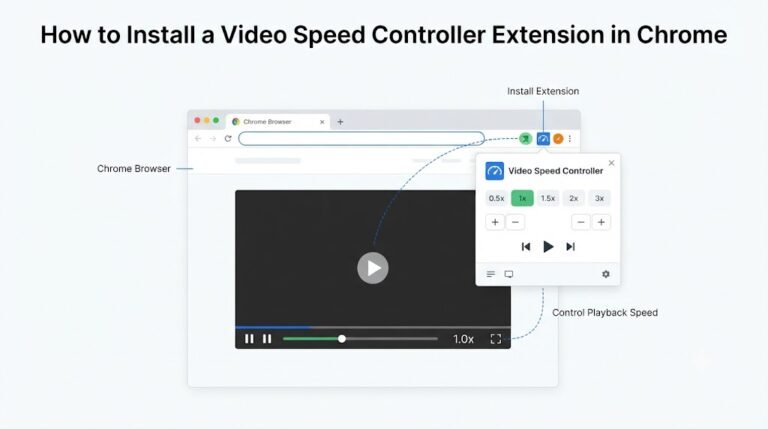
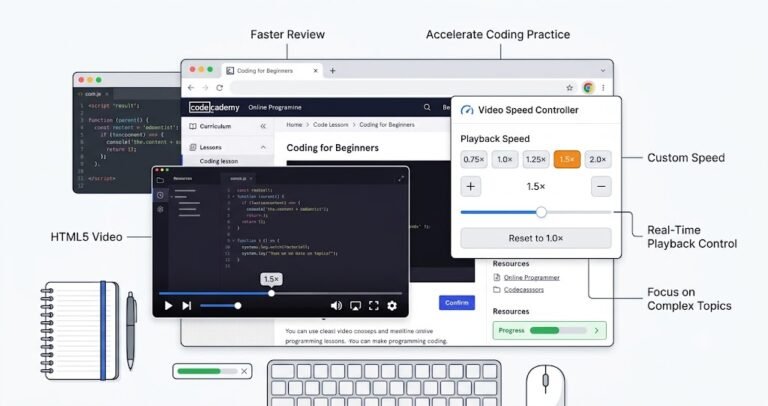
The Video Speed Controller extension sits quietly in your toolbar. When you’re on a Coursera lecture page, clicking its icon opens a popup with a large, draggable slider, a live speed readout, and a reset button. That’s it — no menus, no settings buried in sub‑pages. The slider covers every tiny increment, so you can watch at exactly 1.37× if that’s what feels right.
- Slider & live display: Drag the handle to instantly set the speed; the popup shows the exact multiplier (e.g., 1.65×) as you move. This removes guesswork and helps you learn your ideal speed for different types of lectures.
- Reset button: One click returns the active tab to 1.0×. Essential when you’ve been blasting through a module and need to switch to a live meeting or a different video at normal speed.
- Per‑tab awareness: The extension only controls the video in the current active tab. You can keep a Coursera lecture at 2× while a YouTube music tab plays at 1× — no interference, no confusion.
- Optional badge: If enabled, a tiny badge on the icon can show the current speed, giving you an at‑a‑glance reminder without opening the popup.
Everything works through standard Chrome APIs and the activeTab permission, granted only when you click the icon. There’s no background logging, no analytics, and no reliance on external servers — pure local execution.
What Happens Inside Chrome When You Speed Up a Coursera Lecture?
Behind the scenes, the extension’s content script locates every <video> node on the Coursera page. Once you choose a new speed (say, 1.8×), the script writes that value to the video’s playbackRate property. Chrome’s media engine then immediately re‑times the frame presentation and audio output — without re‑buffering the stream.
Step‑by‑step internal flow:
- Tab & video detection: The popup’s service worker checks the active tab for playable HTML5 media. If a lecture is running, it’s detected instantly. This uses the
activeTabpermission, which never reads browsing history. playbackRateassignment: The content script sets the video’splaybackRateto your chosen value. Chrome’s built‑in time‑stretching algorithm preserves audio pitch, so the instructor’s voice stays natural even at high speeds.- Real‑time feedback: The popup updates its display to reflect the current speed. No data leaves your device; the extension does not even access the network.
- Reset mechanism: Clicking Reset sets
playbackRate = 1.0, restoring the default course playback instantly.
Because the extension never touches the video bytes and only sets a property that Chrome already supports, it’s lightweight and adds virtually zero CPU overhead. Learn more about how HTML5 video speed control works on the custom playback speed page.
Practical Examples: Using Video Speed Controller with Coursera Courses
Real‑world scenarios show how a fluid speed slider transforms the Coursera experience. Below are three common situations where precise control makes a measurable difference.
Example 1: The Working Professional Taking a Business Specialisation
- Situation: A marketing manager is enrolled in a Coursera specialisation and needs to review a 45‑minute lecture on analytics after a long workday. The built‑in 1.5× feels slightly too fast, while 1.25× feels sluggish.
- User action: With the lecture tab open, she clicks the Video Speed Controller icon and drags the slider to 1.35×. The instructor’s pace becomes comfortable, and she can follow the slides without rewinding.
- Extension processing: The content script sets
playbackRate = 1.35. Chrome’s decoder adjusts frame timing; the audio pitch remains natural thanks to the Web Audio pipeline. - Result: She finishes the lecture in 33 minutes, saving 12 minutes without sacrificing comprehension. When moving to the next quiz, the reset button instantly returns the speed to normal, avoiding a disorienting jump.
Example 2: The Non‑Native English Speaker Studying Machine Learning
- Situation: A student whose first language isn’t English finds the instructor’s speed a bit overwhelming for technical terms. 0.75× feels too slow and unnatural, but 1× causes missed details.
- User action: He opens the popup, carefully drags the slider to 0.85×. The live display confirms the exact multiplier while the audio stays intelligible.
- Result: Comprehension improves immediately. The extension’s privacy‑first design means no one tracks that he’s slowing down the video — it’s entirely a local adjustment. He pairs the tool with course subtitles (Coursera’s own) for even better retention.
Example 3: The Speed‑Learner Preparing for a Certification Exam
- Situation: A developer is revisiting a recorded Coursera course on cloud architecture to revise before an exam. He only needs to skim the overview sections and slow down for the hands‑on demos.
- User action: For introductory recap videos, he sets the slider to 2.5×. When a demo appears, he quickly resets to 1.0× or fine‑tunes to 1.2×, then speeds back up afterwards.
- Result: The whole revision session is cut in half. The lightweight extension never causes stuttering, and the per‑tab isolation ensures that other open course tabs remain at their own speeds.
See a full list of supported websites on the websites that support video speed control page, including all major learning platforms.
Does Speeding Up Affect Lecture Quality or Understanding?
It’s natural to worry that faster playback will garble speech or make slides unreadable. With pure playbackRate adjustments — exactly what the extension does — the video’s resolution and frame data stay untouched. What changes is the cadence at which they’re presented.
- Audio clarity: Chrome applies time‑stretching that preserves pitch. At 1.5×, the instructor’s voice sounds slightly quicker but still natural. Even at 2.5×, words remain recognisable, though you may need a moment to adapt.
- Visual smoothness: Because the browser drops frames only when necessary, moderate speeds (up to 2.5×) usually look fluid. Extreme speeds may introduce minor stutter, but that’s limited by your screen’s refresh rate and the video’s frame rate, not by the extension.
- Learning retention: Research on accelerated playback suggests that many learners maintain strong comprehension up to around 2×, especially when they can pause or slow down for complex passages. Having a precise slider lets you adjust on the fly, preserving understanding rather than harming it.
The extension never degrades the actual video stream, so you’re always seeing and hearing the same quality that Coursera delivers — just at a tempo that suits you.
Frequently Asked Questions About Controlling Speed on Coursera
Will the extension work with all Coursera videos?
Yes, as long as the video is delivered through standard HTML5. Virtually every modern Coursera course uses this technology, so the extension detects the video element and controls its speed without issue. If a course uses a legacy or heavily DRM‑protected player, compatibility might be limited, but those cases are extremely rare on Coursera today.
Does changing speed affect my quiz progress or course completion?
No. The extension only influences the playback rate of the <video> element; it doesn’t interact with Coursera’s progress tracking, completion APIs, or any server‑side logic. Your watched‑status, quiz attempts, and certificates are completely unaffected. You can speed through a lecture and still get full credit.
Is my viewing data safe when I use a speed controller?
Absolute safety is a core design principle. The extension processes everything locally — it never sends your browsing activity, course names, or speed preferences to any server. There are no analytics, no tracking scripts, and no advertising modules. You can verify this by opening Chrome’s developer tools: the extension makes zero network requests.
Can I set a default speed so all Coursera lectures start at 1.3×?
Yes. If the extension offers a default‑speed feature, you can save your preferred value in Chrome’s local storage. Each time a new lecture loads, the content script will automatically apply that speed. The reset button always brings you back to true 1.0× when you need it. Check the default playback speed page for details.
Why does the extension need the “activeTab” permission?
The activeTab permission is required to access the current page’s video elements only when you click the extension icon. It does not grant ongoing access to your tabs, and it never reads your Coursera credentials or personal information. The permission is temporary and solely used to detect and control HTML5 video playback.
Does the extension work on mobile (Chrome for Android)?
Chrome for Android does not support extensions, so the Video Speed Controller is limited to desktop Chrome, Edge, Brave, and other Chromium‑based browsers. On a laptop or desktop, however, it runs seamlessly alongside Coursera, Udemy, YouTube, and thousands of other HTML5‑based platforms.
Take Full Control of Your Coursera Learning Pace
Fine‑grained playback speed isn’t a luxury — it’s a practical necessity for modern online learning. With the Video Speed Controller extension, you replace Coursera’s rigid preset menu with a fluid, local, and privacy‑first slider that works exactly the way your brain does.
Key takeaways:
- Coursera’s built‑in speed options skip valuable increments; a dedicated extension gives you infinite precision.
- All adjustments happen inside Chrome via the
playbackRateproperty — no video data is uploaded, recorded, or shared. - The popup’s slider, live speed display, and reset button make mid‑lecture changes instant and effortless.
- Per‑tab isolation and minimal permissions protect your privacy and keep your browser running at full speed.
Because the extension is built on standard Chrome APIs and Manifest V3, it fits cleanly into any learning workflow. Open your next Coursera lecture, click the icon, and slide to your perfect tempo. When the lecture ends, hit Reset and move on — no traces left behind. For a broader view of how video speed control can transform online learning, browse the Video Speed Controller blog or explore the extension details page.