Why Chrome Doesn't Let You Control Video Speed by Default
Open any YouTube lecture or training video in Chrome, right‑click the player, and you'll find a "Playback speed" menu tucked away with a handful of fixed presets — 0.25×, 0.5×, 1×, 1.25×, 1.5×, 2×. That's it. For a browser that handles billions of video views daily, the built‑in Chrome video speed control feels surprisingly restrictive and imprecise. This isn't an oversight — it's a deliberate design trade‑off. Understanding why reveals a lot about browser architecture, user experience philosophy, and how a lightweight extension can restore the precision you need without compromising privacy.
- Why Chrome's native speed menu stops at coarse presets instead of giving you a fluid slider
- How the browser prioritises simplicity for casual viewers over power‑user flexibility
- What happens internally when you adjust
playbackRate— and why Chrome keeps it buried - How the Video Speed Controller extension bridges the gap with precise, local‑only speed adjustments
The Real Reason Chrome Limits Built‑In Speed Control
Chrome's playback speed menu isn't lazy engineering — it's a conscious product decision rooted in the browser's role as a general‑purpose tool serving billions of users with wildly different technical skills. The design team at Google faces a constant tension: expose enough functionality to be useful without overwhelming the majority who never change speed at all.
Consider these factors that shape Chrome's native approach to Chrome video speed control:
- Casual‑first design: Most people watching a YouTube recipe video or a news clip never touch the speed setting. For them, the menu is already more than they need. Adding a granular slider to the default right‑click menu would clutter the interface for the 95% who never use it.
- Preset safety net: Fixed increments like 1.25× and 1.5× prevent users from accidentally setting absurd speeds. A slider introduces the risk of someone dragging to 4×, blaming Chrome for "broken audio," and abandoning the browser. Presets are foolproof by design.
- Cross‑platform consistency: Chrome runs on desktops, tablets, phones, and Chromebooks. A slider that works beautifully with a mouse becomes fiddly on a touchscreen. Presets translate cleanly across every input method without extra development overhead.
- Minimal permission surface: Every interactive control added to Chrome's core increases the browser's attack surface. Keeping speed controls simple reduces the code paths that need security auditing across every platform Chrome supports.
None of this means Google thinks precise speed control is unimportant. It means they've drawn the line at basic functionality, leaving specialised needs to the extension ecosystem — which is exactly where Video Speed Controller lives.
The Hidden Cost of Relying Only on Chrome's Preset Speeds
If you're a student, researcher, or professional who watches hours of video content weekly, Chrome's preset‑only approach to Chrome video speed control carries real productivity penalties. The gaps between presets represent significant wasted time — or uncomfortable viewing experiences — that compound over weeks and months.
Let's quantify what those gaps actually mean:
- The 1.0× to 1.25× dead zone: For dense technical content where the instructor speaks at a moderate pace, 1.25× may feel just slightly too fast, causing you to miss key points. But 1.0× wastes 25% of your time. The ideal speed might be 1.15× — a setting Chrome's menu can't reach. Over a 40‑hour course, that missing 0.15× increment costs roughly 5 hours of unnecessary viewing time.
- The 1.5× to 2.0× cliff: Jumping from 1.5× to 2.0× is a massive 33% increase. For many listeners, 1.5× feels comfortable while 2.0× turns speech into unintelligible chatter. A speed like 1.7× or 1.8× — accessible with a slider — would save an additional 10–15% without sacrificing comprehension.
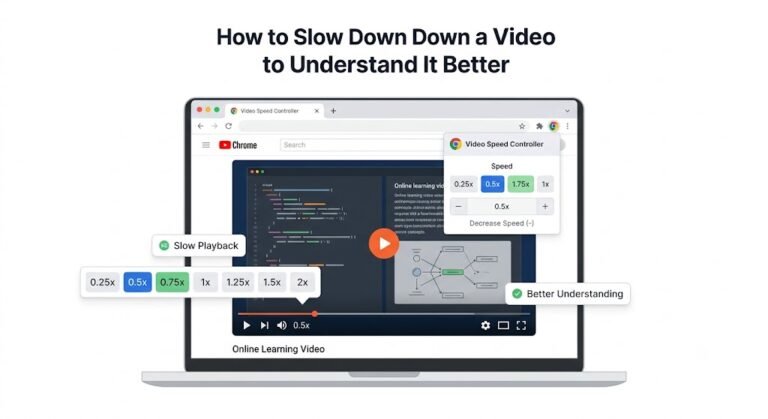
- Slow‑down imprecision: Language learners often need 0.85× or 0.9× to parse native speech. Chrome offers 0.75× (too slow and unnatural) or 1.0× (too fast). That 0.1× difference determines whether a listening session feels productive or frustrating.
These aren't edge cases. Anyone who regularly watches educational content, conference talks, or training videos encounters this friction daily. The preset menu works for casual viewing; it fails for intentional, efficiency‑focused consumption.
For a complete breakdown of how speed adjustments affect learning outcomes, explore the Video Speed Controller blog.
What Chrome Actually Does When You Change Playback Speed
Understanding the mechanics of Chrome video speed control helps demystify why an extension can offer more precision than the built‑in menu — and why doing so remains completely safe. The browser's entire speed adjustment system hinges on a single property of the HTML5 media element: playbackRate.
Here's the technical reality of what happens when any speed change occurs — whether through Chrome's menu or an extension:
- The
playbackRateproperty: Every<video>and<audio>element in the DOM exposes aplaybackRateproperty that accepts floating‑point values. Settingvideo.playbackRate = 1.7instructs Chrome's media pipeline to present frames at 1.7× their encoded timestamp interval. This property accepts any value — Chrome's built‑in menu simply chooses not to expose arbitrary numbers. - Audio time‑stretching: Chrome uses the Web Audio API internally to stretch or compress audio without shifting pitch. When you speed up to 1.5×, the browser analyses short audio segments and overlaps them intelligently, preserving the speaker's natural vocal tone. This happens in real time on your CPU or GPU, not on any remote server.
- Frame presentation timing: The compositor thread receives adjusted presentation timestamps and decides which frames to display. At higher speeds, Chrome may drop non‑key frames to maintain smooth playback — but the video data itself remains untouched. No pixels are altered; only the schedule changes.
- Zero network activity: Changing
playbackRatetriggers no new HTTP requests. The video buffer already downloaded continues to play; the browser simply consumes it faster or slower. This is why speed changes feel instant — there's no round‑trip to a server.
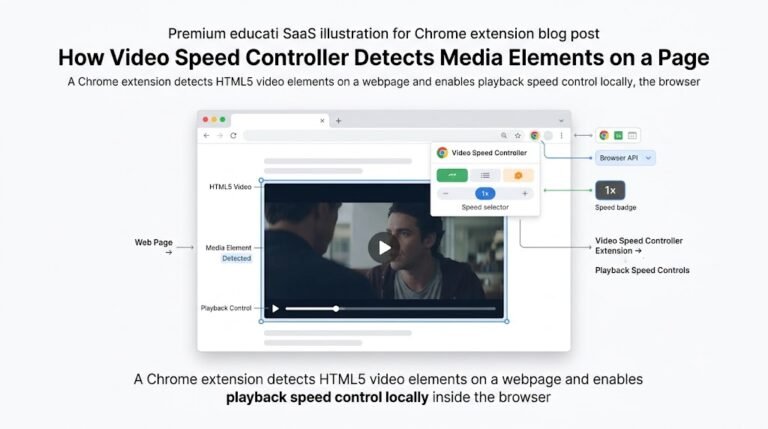
The key insight: Chrome's engine supports arbitrary playback speeds natively. The built‑in menu artificially limits you to presets. An extension like Video Speed Controller removes that artificial ceiling by setting playbackRate to whatever value you choose — all within the same sandboxed, secure environment Chrome already provides.
How Video Speed Controller Fills Chrome's Built‑In Gap
If Chrome's preset menu represents the baseline of Chrome video speed control, the Video Speed Controller extension represents the full potential. It doesn't hack the browser or bypass security — it uses the exact same playbackRate property, just exposed through a far more granular interface.
What the extension adds that Chrome's default controls cannot:
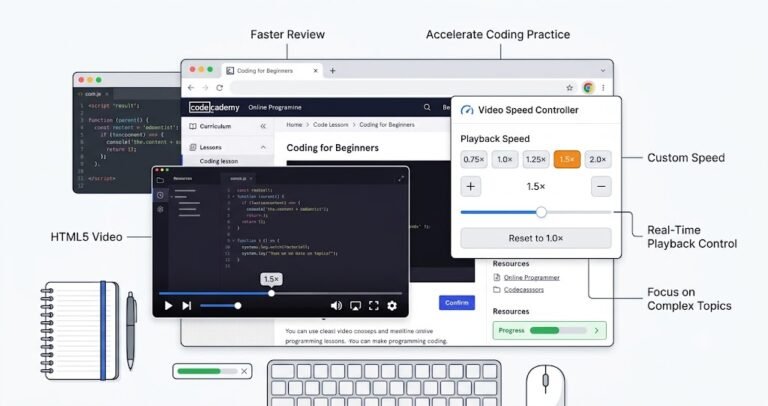
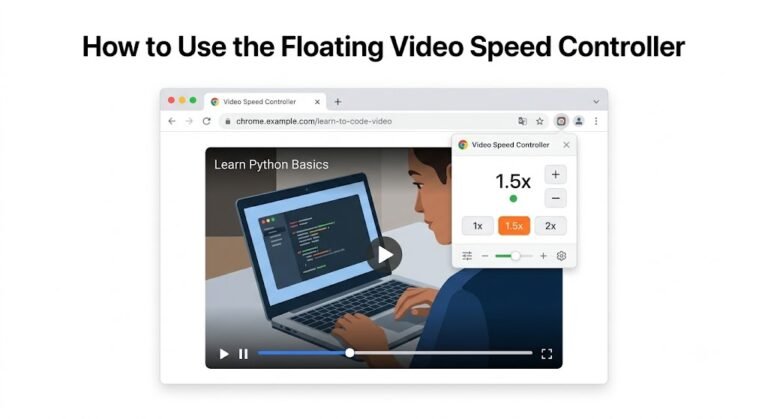
- Continuous slider control: Instead of seven fixed presets, you get a smooth slider covering a wide speed range. Want 1.35×? Drag to it. Need 0.92× for a particularly fast speaker? The slider handles it. Every intermediate value Chrome's engine already supports becomes accessible.
- Live speed readout: The popup displays your current speed as a precise multiplier, eliminating guesswork. You always know whether you're at 1.4× or 1.6× — a distinction Chrome's menu never communicates clearly.
- Instant reset to 1.0×: A dedicated reset button restores default speed in one click. No navigating back through menus, no remembering what "normal" feels like. This is especially valuable when you've been watching at 2× for an hour and switch to a video call.
- Per‑tab isolation: Each tab maintains its own speed setting. Your sped‑up lecture in tab one doesn't affect the tutorial in tab two. Chrome's built‑in controls offer no such isolation — they apply per‑video‑element and reset on page reload.
All of this runs under Chrome's Manifest V3 architecture, using only the activeTab permission granted at the moment you click the extension icon. There's no persistent background processing, no data collection, and no communication with external servers. The extension simply unlocks precision that Chrome's engine already contains.
Learn more about how the extension detects and controls video elements on the Video Speed Controller feature page.
Why Local‑Only Speed Control Matters for Privacy
Not all Chrome video speed control solutions are equal. Some online tools ask you to paste a video URL into their website, where they re‑stream the content at a different speed. Others claim to be "free speed changers" but quietly log your viewing habits, video URLs, and IP addresses. These services introduce a privacy risk that most users don't consider.
Video Speed Controller takes the opposite approach: nothing leaves your browser. Here's what that means in practice:
- No video URL collection: The extension never reads or transmits the URL of the video you're watching. It only accesses the
<video>element'splaybackRateproperty — not thesrcattribute, not the page location, not the video title. - No analytics or telemetry: There are no usage statistics, no crash reports, no "anonymous data collection." The extension contains zero analytics code. You can verify this by inspecting the extension's network activity in Chrome DevTools — you'll find no outgoing requests.
- No cloud storage: If you save a default speed preference, it's written to Chrome's
localStorage— a sandboxed storage area on your device that never syncs to any server. Your speed preferences are as private as your browser bookmarks. - No account, no login, no profile: The extension doesn't know who you are and doesn't want to. There's no authentication system, no user database, no social features. You install it and use it; that's the entire relationship.
This privacy‑first design isn't a marketing claim — it's a structural consequence of local‑only processing. When all computation happens inside the browser sandbox, there's simply nothing to collect and nowhere to send it. For a deeper dive into the extension's architecture, visit the HTML5 video playback speed guide.
Three Real Scenarios Where Chrome's Default Speed Controls Fall Short
Abstract explanations only go so far. Here are three concrete situations where the gap between Chrome's preset menu and a dedicated Chrome video speed control extension becomes painfully obvious.
Scenario 1: The Certification Exam Prep
- Situation: A professional is working through a 60‑hour cloud certification course on a platform like Udemy or Pluralsight. The instructor speaks clearly but at a relaxed pace. Chrome's 1.25× feels barely faster; 1.5× causes occasional missed details in complex diagrams. The sweet spot — around 1.35× — is inaccessible.
- What happens with presets alone: The learner bounces between 1.25× (too slow, losing ~12 hours across the full course) and 1.5× (too fast, causing rewinds that break flow). Frustration builds, and the course takes longer than necessary.
- How Video Speed Controller resolves it: The user opens the popup, slides to 1.35×, and watches comfortably. The extension sets
playbackRate = 1.35on the video element. Chrome's audio time‑stretching keeps the instructor's voice natural. Over 60 hours of content, 1.35× saves roughly 15 hours compared to 1.0× — without a single moment of confusion from excessive speed. - Practical takeaway: The ideal playback speed for dense educational content often falls between Chrome's presets. A slider unlocks that efficiency.
Scenario 2: The Language Immersion Listener
- Situation: A language learner is watching a native‑language news broadcast on YouTube to improve listening comprehension. At 1.0×, the anchors speak too fast for accurate parsing. Chrome's 0.75× makes the audio sound unnaturally slow, distorting the learner's sense of natural speech rhythm. The needed speed — roughly 0.85× — isn't available.
- What happens with presets alone: The learner toggles between 0.75× (which feels like "cheating" and sounds robotic) and 1.0× (which causes anxiety and missed words). Neither preset supports effective language acquisition.
- How Video Speed Controller resolves it: The learner sets the slider to 0.85×. Chrome's Web Audio engine preserves the anchors' pitch while slowing delivery just enough for comfortable comprehension. The learner hears authentic intonation and pacing — just slightly more spaced out. Privacy remains intact; no listening data is ever captured or analysed.
- Practical takeaway: Fine‑tuned slow‑down preserves natural speech characteristics far better than coarse presets, making it ideal for language learning.
Scenario 3: The Conference Talk Skimmer
- Situation: A developer is catching up on conference talks posted to YouTube. Some speakers deliver rapid, high‑density information; others spend minutes on introductions and anecdotes. The viewer wants to skim familiar sections at high speed but drop to normal for novel content.
- What happens with presets alone: Jumping directly from 2× to 1× (the nearest lower preset) creates a jarring transition. The developer can't access 2.4× for truly slow sections or 1.6× for moderately paced ones. The preset menu forces constant context‑switching between the video and the right‑click menu.
- How Video Speed Controller resolves it: The developer opens the popup once, leaves it pinned, and adjusts speed dynamically as the talk progresses: 2.4× for the intro, 1.6× for the first technical section, 1.0× for a dense code walkthrough, back to 2× for the Q&A. The slider responds instantly, with no buffering or reloading. The extension's lightweight design means zero perceptible lag even during rapid speed changes.
- Practical takeaway: Dynamic speed adjustment — impossible with Chrome's preset menu — lets experienced viewers consume content at variable rates that match the material's density.
For more real‑world usage patterns, see the guide to changing playback speed on any website.
Why Extensions Exist: Chrome's Design Philosophy Explained
To fully understand why Chrome video speed control remains limited in the default browser, you need to understand Chrome's architectural philosophy. Google deliberately keeps the browser core lean, pushing specialised functionality into the extension ecosystem. This isn't neglect — it's a security and maintainability strategy.
Key principles that explain Chrome's minimalist approach:
- Core vs. periphery: Chrome's engineering team maintains a browser used by over 3 billion people. Every feature added to the core must be tested across Windows, macOS, Linux, Android, iOS, and ChromeOS. A granular speed slider in the right‑click menu seems trivial — until you multiply the testing, accessibility, localisation, and maintenance burden across every platform. Extensions offload that burden to specialised developers while keeping the core lean and auditable.
- Permission model integrity: Chrome's permission system is designed around the principle of least privilege. A built‑in speed slider would need permanent access to every tab's video elements — a broad permission that contradicts Chrome's security model. An extension, by contrast, requests
activeTabpermission, granted only when the user explicitly clicks the extension icon. This just‑in‑time access is far more secure than a permanently active built‑in control. - Manifest V3 and service workers: Modern Chrome extensions run as ephemeral service workers that spin up, handle a request, and terminate. This architecture prevents extensions from draining battery or CPU when idle. Video Speed Controller follows this model exactly — it activates only when you open the popup or when a video loads in a tab you've granted access to. There's no persistent background process monitoring your browsing.
- Innovation without bloat: By keeping the core minimal, Chrome allows the extension ecosystem to innovate faster than any central team could. The Video Speed Controller extension can iterate on its slider design, add precision improvements, and respond to user feedback without waiting for Chrome's six‑week release cycle.
In short: Chrome doesn't give you a speed slider by default because extensions do it better, safer, and more flexibly than a built‑in control ever could. The limitation isn't a bug — it's an invitation to the extension ecosystem.
Will a Speed Controller Extension Slow Down Chrome or Drain Battery?
A legitimate concern with any Chrome extension is performance impact. Users rightly worry that adding extensions will bloat memory usage, consume CPU cycles, or reduce laptop battery life. With Chrome video speed control extensions specifically, the question becomes: does manipulating playbackRate add overhead?
The short answer: no measurable impact. Here's why:
- No video processing: The extension doesn't decode, re‑encode, filter, or transform video frames. It sets a single floating‑point property on an existing DOM element. The computational cost is effectively zero — comparable to changing a CSS property.
- Service worker lifecycle: Under Manifest V3, the extension's background service worker activates only when needed (popup open, tab update with video) and terminates immediately afterward. It doesn't persist in memory polling for videos. Chrome's own task manager will show the extension consuming negligible memory — typically under 5 MB when idle.
- Content script efficiency: The content script injected into pages with videos is minimal — it locates
<video>elements and setsplaybackRate. It contains no loops, no timers, no network requests, and no DOM observers beyond what's strictly necessary. It runs once and exits. - Audio time‑stretching is Chrome's job: Any computational cost associated with playing audio at non‑1.0× speeds is handled by Chrome's own Web Audio pipeline — the same pipeline used by the built‑in preset menu. The extension doesn't add or remove any processing; it simply requests a different rate from the same engine.
If you're watching a 4K video at 2× speed, your battery drains faster because Chrome's decoder works harder to process more frames per second — but that's true whether you set the speed via Chrome's menu or an extension. The extension itself adds zero additional drain. For more details on how speed adjustments interact with video quality, read the guide to slowing down videos.
Frequently Asked Questions About Chrome Video Speed Control
Why doesn't Chrome just add a speed slider to the default player?
Chrome's team has to balance functionality against interface simplicity for billions of users. A slider adds complexity that benefits a minority while potentially confusing casual viewers. Additionally, implementing a slider across all platforms (desktop, mobile, tablet, TV) with consistent behaviour requires significant engineering investment. Google's philosophy is to keep the core minimal and let extensions serve power users — which is exactly the niche Video Speed Controller fills.
Is using a Chrome extension for speed control safe?
When you choose a privacy‑first extension like Video Speed Controller, yes. The extension uses only the activeTab permission, runs entirely locally, and performs no network activity. You can verify this by opening Chrome DevTools (F12), switching to the Network tab, and using the extension — you'll see zero outgoing requests. Avoid extensions that request broad permissions like "Read and change all your data on all websites" unless they have a justified need.
Will speed control work on Netflix, Disney+, or other DRM‑protected platforms?
Generally, no. DRM‑protected video platforms use Encrypted Media Extensions (EME) that isolate video playback from standard DOM access. The <video> element exists but its playbackRate property may be locked or ignored by the DRM module. This is a platform‑side restriction, not an extension limitation. Most educational platforms, YouTube, Vimeo, and open‑web video players work perfectly.
Can I set a permanent default speed that applies to all videos?
Yes. Video Speed Controller allows you to save a preferred speed (for example, 1.3×) to Chrome's local storage. The extension reads this value and applies it to new videos automatically. The setting persists across browser restarts but never leaves your device. The reset button always returns you to true 1.0× when you need it.
Does changing speed affect video quality or cause buffering?
No to both. Playback speed adjustment doesn't alter video resolution, bitrate, or encoding. It only changes the rate at which already‑buffered frames are presented. You may notice occasional frame drops at extreme speeds (above 3×) on lower‑end hardware, but this is a rendering limitation of your device, not a quality degradation of the video itself. Buffering behaviour remains unchanged because the extension doesn't touch network requests.
Why does the extension need any permissions at all?
The activeTab permission is required to access the current page's video elements when you click the extension icon. Without it, the content script couldn't read or modify playbackRate. Crucially, this permission is granted only for the tab you're actively interacting with and only at the moment you click. It doesn't grant background access to all tabs, and it doesn't persist after you close the popup.
Chrome's Speed Limit Isn't a Wall — It's a Threshold
Chrome doesn't prevent precise Chrome video speed control — it simply doesn't expose it in the default interface. The browser's media engine fully supports arbitrary playback rates. The preset menu is a deliberate starting point, not the finish line. For casual viewers watching the occasional clip, 1.25× and 1.5× are perfectly adequate. For anyone who learns, works, or creates with online video, those presets represent a productivity bottleneck hiding in plain sight.
What you should take away from this exploration:
- Chrome's built‑in speed menu exists for simplicity and cross‑platform consistency, not because the engine can't handle more. The
playbackRateproperty accepts any floating‑point value — the menu just chooses not to offer them. - The gaps between presets cost real time and create real frustration. A 0.15× difference between 1.25× and 1.4× compounds into hours of unnecessary viewing over a typical online course.
- A dedicated extension like Video Speed Controller bridges the gap using the same browser APIs Chrome itself uses — just with a far more precise interface. No hacks, no workarounds, no privacy trade‑offs.
- Local‑only processing ensures your viewing habits stay private. No video URLs are collected, no speed preferences are uploaded, and no analytics track your behaviour. The extension works entirely inside Chrome's sandbox.
- Manifest V3 architecture keeps the extension lightweight, event‑driven, and battery‑friendly. It activates only when you need it and sleeps when you don't.
The next time you find yourself frustrated by Chrome's speed presets, remember: the limitation isn't in the browser — it's in the menu. A single click on the Video Speed Controller icon replaces that menu with a fluid slider, a live readout, and the precise control you've been missing. For more tips on efficient video consumption and browser productivity, explore the Video Speed Controller home page or browse the complete blog for additional guides.