How to Adjust Video Speed on edX
edX’s built‑in speed menu offers only a few fixed presets. A dedicated Video Speed Controller gives you a fluid slider that covers every decimal you actually need — all without uploading, recording, or tracking anything. Every adjustment stays local inside Chrome.
- Why edX’s 0.75×, 1.25×, 1.5×, and 2× presets leave big gaps for serious learners
- How the Video Speed Controller extension adds a continuous slider, live speed display, and instant reset
- Exactly what happens when you drag the slider — 100% local processing, zero video data sent anywhere
- How per‑tab speed control and a lightweight Manifest V3 design keep Chrome fast and your privacy intact
Why Is the Built‑in edX Speed Control Not Enough?
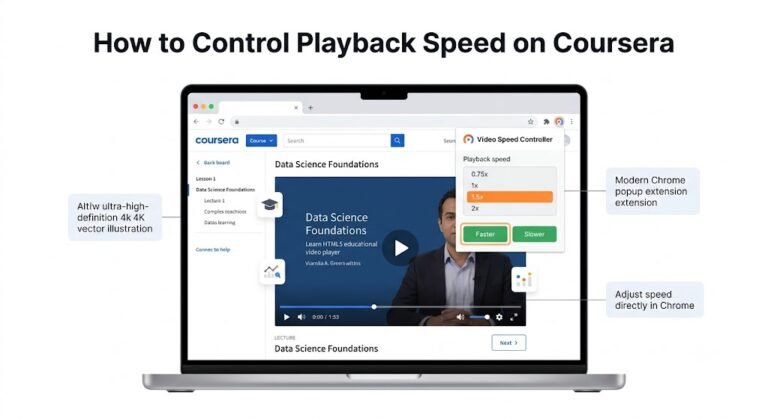
Every edX course video has a small gear icon that reveals five fixed playback speeds. For many learners, these rigid steps feel like a guessing game: 1.25× is often too slow to save time, but 1.5× can make the instructor sound like a chipmunk. There’s no way to land on 1.35× or 2.2× — the exact speeds that match your attention span and the material’s complexity.
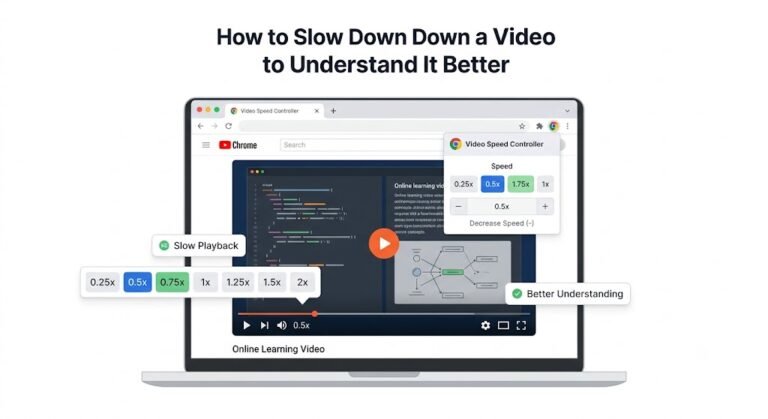
When you’re revisiting a recorded lecture to review a tricky concept, you might need ultra‑fine control — say 0.85× to catch every word without the audio becoming unnaturally deep. A dedicated speed controller fills these precision gaps instantly, without breaking your focus.
Because edX uses standard HTML5 video, the Video Speed Controller works immediately on any course page. You don’t need to change settings inside edX; just open the extension popup and slide to your ideal pace.
How Can You Use the Video Speed Controller on edX?
Getting started takes less than a minute. Once the extension is installed, any edX video becomes instantly adjustable.
- Open your edX course and start a lecture video. The video player must be visible in the active tab.
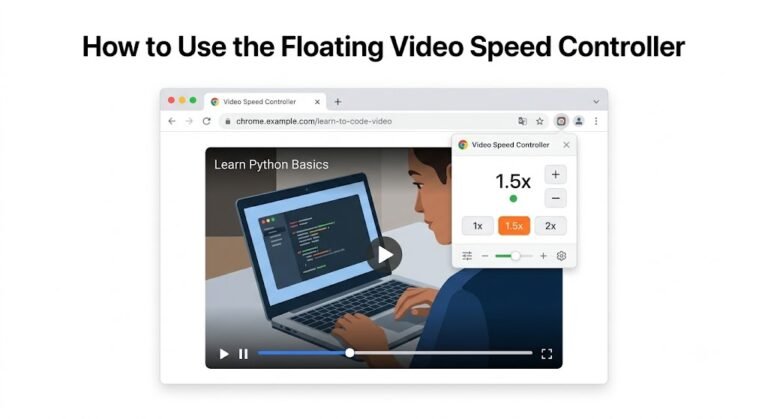
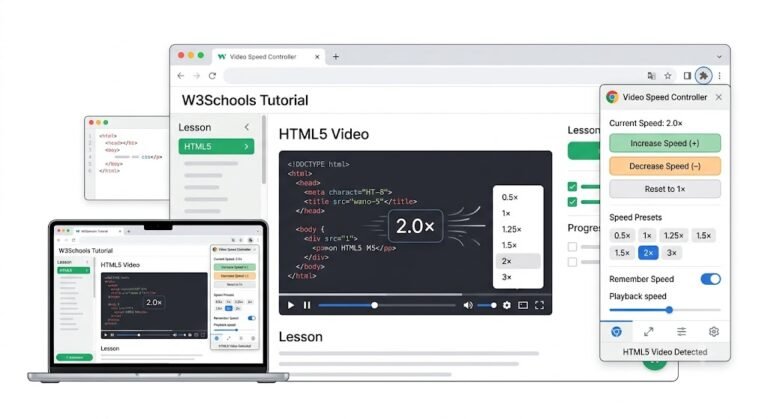
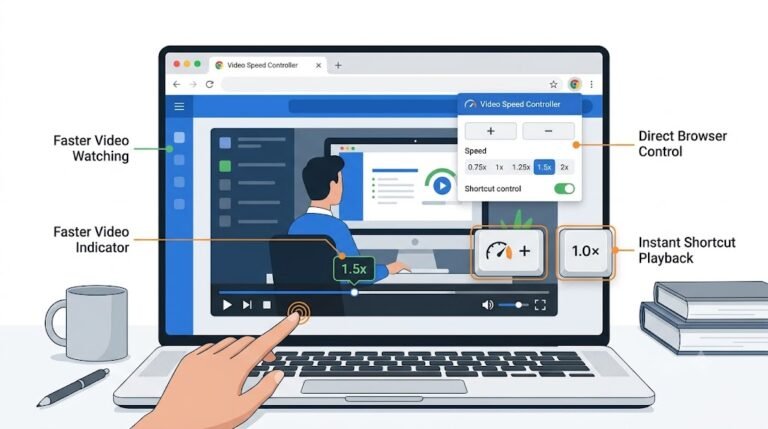
- Click the extension icon in Chrome’s toolbar. A clean popup appears, showing the current speed, a large slider, and a reset button.
- Drag the slider anywhere within the full speed range. The video’s playback rate changes in real time — no buffering, no reloads.
- Hit Reset anytime to jump back to exactly 1.0×. Perfect for switching from a slowed‑down lecture to a normal‑speed video call.
Everything happens inside that tab. The extension never touches your edX account, course progress, or any other personal data. For an overview of the controller’s full capabilities, visit the Video Speed Controller home page.
What Controls Does the Extension Give You?
The popup is built for speed and simplicity. There are no buried menus, no configuration pages — just the controls you need to watch edX videos at your own rhythm.
- Speed slider: A large, responsive slider that covers the full usable range. Drag it to 1.7× for a brisk review, or down to 0.9× to dissect a dense explanation. The current multiplier updates as you move.
- Playback speed display: A big, readable number next to the slider eliminates guesswork. You’ll know at a glance that you’re at 2.3×, not 2.5×.
- Reset button: One click returns the video to 1.0× — the browser’s default. This is essential for avoiding disorienting speed shocks when you move to a different tab or a live session.
- Browser badge (optional): If you enable it, a tiny speed indicator appears on the extension icon. It’s a quick reminder of your active pace without opening the popup.
Because the popup only controls the active tab, you can have an edX lecture playing at 1.4× while another tab’s video stays untouched. That per‑tab isolation is what turns the extension into a real productivity booster.
What Happens Inside Chrome When You Change the Speed on an edX Video?
Understanding the internals shows why a local extension is far safer than any online “speed changer” website. The extension never touches the video stream’s data — it simply tells Chrome’s media engine to present frames and audio at a different rate.
- Video element detection: When you click the icon, the extension’s content script finds all
<video>elements in the current edX page. It doesn’t scan text or other DOM parts. playbackRateassignment: Settingvideo.playbackRate = 1.85instructs Chrome’s decoder to adjust frame timing. Audio stays pitch‑natural because modern Chrome automatically time‑stretches the sound.- Zero data transfer: No video bytes are captured or sent over the network. The extension never makes an external request — everything stays inside your device.
- Manifest V3 architecture: The extension runs as a lightweight service worker. It uses only the
activeTabpermission, granted at the moment you click the icon, and sleeps when you’re not actively controlling speed.
This local‑only design means you can fast‑forward through a corporate compliance training on edX without worrying that your viewing speed is being logged or profiled. Your playback choices are yours alone.
Practical Examples: When Does Video Speed Controller Make the Biggest Difference on edX?
Real edX learners face distinct rhythms. Here’s how a fine‑grained slider helps in three common scenarios.
Example 1: The Student Unpacking a Complex Lecture
- Situation: A data science course explains Bayesian inference. The instructor speaks clearly but quickly. The built‑in 0.75× feels too slow, making the audio drag, while 1× is too fast to absorb the equations.
- User action: With the edX lecture tab open, the student clicks the extension icon and drags the slider to 0.85×. The speech remains perfectly natural, and the equations sink in.
- Extension processing: The content script sets
playbackRate = 0.85on the video element. No buffering — the browser simply displays each frame a little longer, keeping audio pitch intact. - Result: The student grasps the concept in one pass instead of rewinding repeatedly. After the lecture, hitting Reset returns the tab to normal speed for the next activity.
Example 2: The Professional Skimming Through a Certification Review
- Situation: A project manager is recertifying on edX and needs to review a 2‑hour course. The material is familiar, but the default speed wastes time. 1.5× is okay, but 1.8× would be perfect.
- User action: They open the popup and set the slider to 1.8×. The lecture flows at an efficient pace, and the key terms remain clear. For the final exam‑prep module, they slow down to 1.3×.
- Result: The entire review is completed in under 80 minutes. The extension’s lightweight design adds zero lag, and the professional doesn’t worry about any tracking — all speed data stays local.
Example 3: The Language Learner Pausing on Pronunciation
- Situation: An edX language course features native‑speaker dialogues. The learner wants to catch the exact intonation, but 1× is too fast and 0.75× sounds unnatural.
- User action: They set the slider to 0.9×. The dialogue slows just enough to distinguish every syllable while keeping the rhythm authentic. For quick revision, they later crank it to 2.0×.
- Result: The extension preserves pitch, so pronunciation training remains accurate. Privacy is guaranteed — no listening data is collected, and the learner’s edX progress stays untouched.
Does Changing Playback Speed on edX Affect Video Quality?
A common concern is that speeding up or slowing down a video will cause blurriness, stutter, or distorted audio. With a pure playbackRate change — exactly what Video Speed Controller does — the video frames and audio samples themselves remain unchanged.
- At moderate speeds (0.8× – 2.0×) the motion stays smooth. Chrome’s media engine intelligently drops or duplicates frames when needed, so you don’t see judder. Audio pitch remains natural thanks to browser‑level time‑stretching.
- Extreme speeds above 3× may cause visual skipping on complex scenes, but that’s a limit of human perception and monitor refresh rate — not a problem with the extension or edX.
- Slowing down below 1.0× keeps every frame; they simply stay on screen longer. Voices sound deeper but remain perfectly intelligible, with no robotic artefacts.
Because the extension never re‑encodes, filters, or alters the video stream, you get the exact same picture quality edX delivers — just at a different pace.
Frequently Asked Questions
Will the extension work on every edX video?
Yes. edX uses standard HTML5 <video> players. As long as the course video is playing in a Chrome tab, the extension can control its speed. It does not work on DRM‑protected streams that bypass the browser’s media stack, but edX’s normal course videos are fully compatible.
Does the extension keep my edX learning data private?
Absolutely. The extension never reads your edX account, course progress, or any personal data. All speed adjustments happen inside your browser; no video, browsing history, or speed preferences are sent to any server. You can verify this by opening Chrome’s network panel — you’ll see zero external requests from the extension.
Can I save a default speed so every edX video starts at my preferred pace?
Yes. The extension stores your preferred speed (for example, 1.4×) in Chrome’s local storage. Whenever a new edX video loads, it automatically applies that rate. The Reset button still brings you back to true 1.0× with one click. No cloud account needed — the setting lives on your device.
What if I need to quickly return to normal speed?
The popup’s Reset button instantly sets the active tab’s video back to 1.0×. It’s designed for those moments when you’ve been watching a slow‑motion lecture and suddenly need to join a video call or listen to a music track at natural speed.
Does the extension offer keyboard shortcuts for speed control?
The current version of Video Speed Controller relies on the popup slider for precision. If you’re interested in keyboard‑driven control, our separate guide on using browser keyboard shortcuts for video speed covers native Chrome methods that can complement the extension.
Will the extension slow down my computer or drain battery?
No. The extension has an extremely small CPU footprint. It only runs a brief content script to set playbackRate when you interact with the popup; it doesn’t process video data. The Manifest V3 service worker sleeps when idle, keeping memory usage near zero.
Take Control of Your edX Playback Speed — Locally, Privately, and Instantly
The ability to fine‑tune video speed on edX isn’t just a luxury — it’s a practical way to learn faster, review more thoroughly, and match every lecture to your personal pace. By moving beyond the platform’s rigid presets, you gain pinpoint precision without ever sacrificing privacy.
Key takeaways:
- edX’s built‑in speeds leave large gaps; a dedicated extension fills them with a continuous slider.
- All speed changes happen inside your Chrome tab — no video data is uploaded, recorded, or analysed.
- The popup’s slider, live readout, and reset button make it effortless to switch between 0.85× study mode and 2.4× review mode.
- Per‑tab isolation and minimal permissions keep your browser fast and your data safe, following Manifest V3 principles.
Open your next edX course, click the extension icon, and slide the speed up or down a few notches. Notice how the video instantly obeys — no buffering, no login, no fuss. When the lecture is over, hit Reset and carry on. For more ways to streamline your video workflow, explore the Video Speed Controller blog or the home page.